
Add an Employee With a Link - No Account, No Email, No Password
Your helper taps one link and they're on your jobs. No account, no email, no password.
Aggiornato30 settembre 2026
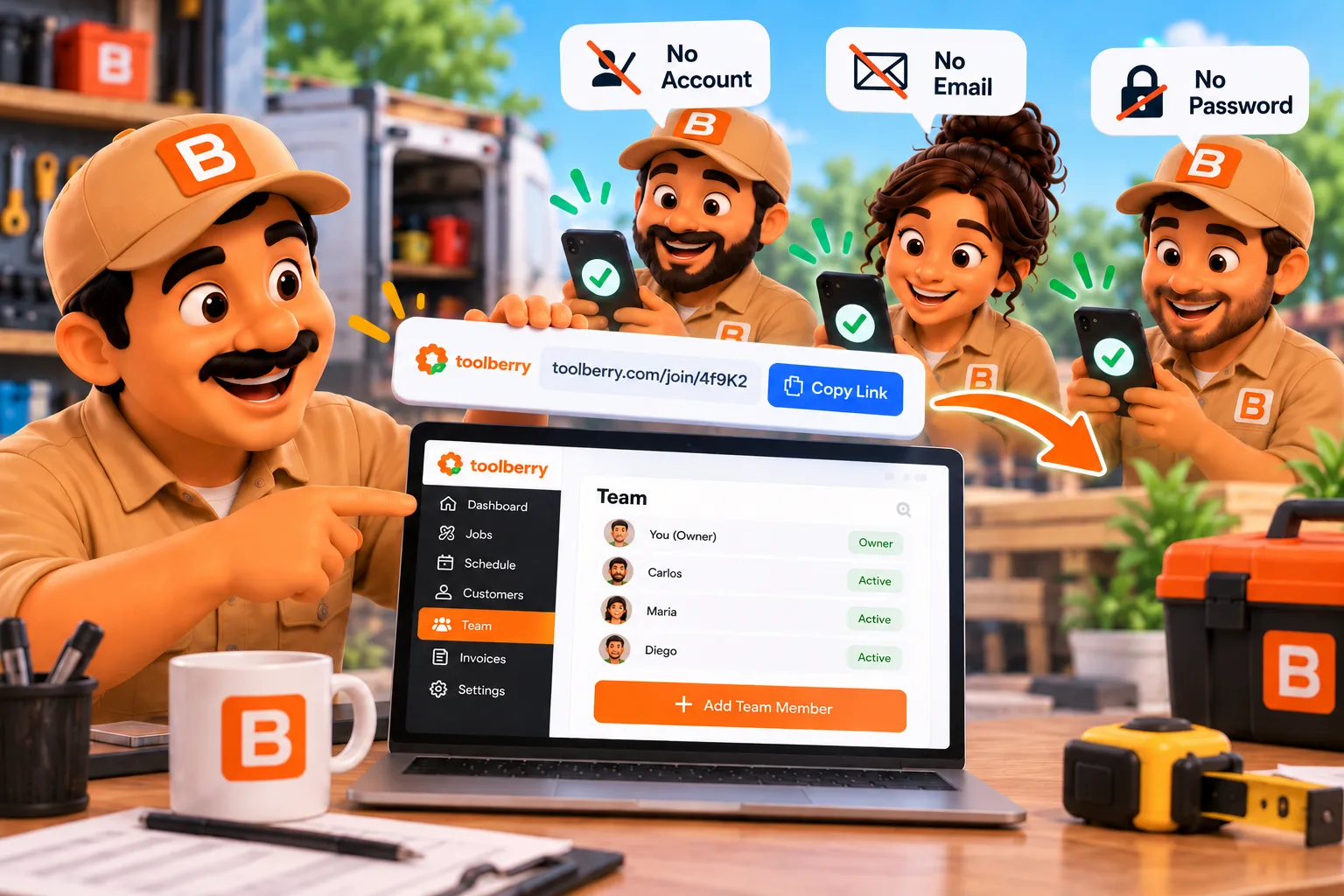
Your helper taps one link and they're on your jobs. No account, no email, no password.
Published October 3, 2026.
How do I give an employee access without an email?
Send them a link. In ToolBerry, you give someone a role, text them an invite link, and they tap it to see your jobs on their own phone. They don't create an account, type an email or pick a password. On ToolBerry Free they don't need a Dropbox account either.
What does that look like on a real job?
You text a link on Friday night, and on Saturday morning your helper has the job on their phone. The text comes from your own number, and they don't set anything up first. No one sits at a laptop, and no one waits on a password reset in a driveway.
Imagine you run a one-truck roofing repair business. A customer calls about storm damage, and it's a two-person tear-off for Saturday. You call a guy you've worked with before. He's good on a roof, he shows up on time, and you pay him by the day.
He doesn't have an email he checks. Maybe he never set one up, or maybe he shares one with his wife. Many apps stop right there: no email, no user.
In ToolBerry, you open your People list, add him, pick a role like Technician and tap Invite to shared workspace. You choose Send by SMS, and your phone opens its own text app with the link ready.
He taps it and sees your business name and "You're joining as" with his name. If he doesn't have ToolBerry yet, the page tells him to get the app, then tap the link again.
On Saturday he has the address, the notes and the photos, and he adds his own photos as he goes. On Monday you tap Remove shared access on his name, and you're done.
Why doesn't ToolBerry need an email?
Because your helper shouldn't need an inbox to carry shingles. You already picked who they are and what role they have, so the link is enough. An email would only add a step between your helper and the job, and one more thing for them to forget.
Many field service apps are built around an email per person. Jobber's help center says an email is required for a user to log in, and Housecall Pro asks for an email for every team member (Jobber: Manage Team, Housecall Pro: Manage Team Member Profiles, checked September 30, 2026).
I built it this way because people in the trades are hired for their skill and because you trust them, not for how well they handle apps. If adding them takes more than a text message, it won't happen, and you're back to screenshots in a group chat.
Is a link safe enough?
It's safe enough for people you trust, as long as you send it straight to them. Each Free invite link works for 24 hours and on one phone. Whoever opens it first gets in, and any later phone is turned away with "This invite was already used."
So if your helper says the link was already used, tap Remove shared access on their name and send a new invite. On ToolBerry Free, whoever joins sees your business, since roles hide screens but don't lock data. More on roles is in Who Can See What: Roles and Permissions for a Growing Service Business.
Taking access back is quick. Remove shared access cuts them off from your Dropbox, and their phone deletes its copy of your business the next time it's online. Anything they already screenshotted stays with them, the same as a paper work order.
Does this work on ToolBerry Pro too?
Yes. On Pro, an owner or admin can give a team member access without an email and send them a single-use invite link from their record. Open their record, tap Share invite link, pick how long it works (1 hour to 7 days, 24 hours by default), then share it, text it or copy it.
Opening that link in the ToolBerry app signs them in as that person, with no code to type. What else Pro adds is in Free vs Pro: The ToolBerry Story, and What Each Plan Is For.
The honest tradeoffs
Skipping accounts makes adding people fast, and it means the link is the key. A key is simple to hand over, and whoever holds it can use it. Most of these only matter if a link reaches the wrong person, so send it straight to the one you mean.
- Send it only to the person. For 24 hours, the first phone to open an unused link gets in.
- One link, one phone. To add a tablet, your helper taps Add another device in the app.
- Your crew uses the app. Field staff join and work in the ToolBerry app on their phone, not in a web browser.
- On Pro, no email means app only. A member without an email can't sign in on the web.
What should I do next?
Pick one person and one job, and send them a link. Give them a role, tap Invite to shared workspace, and text it. If it works out well, keep building your crew and add the next person the same way. If it doesn't, remove them, and nothing else changes.
The screen-by-screen setup, including your own tablet or laptop, is the next post in this series. If you're new to sharing, start with Shared multi-user is here; your data, your Dropbox, your team.
Questions? Email contact@toolberry.net. ToolBerry is a free, offline-first field service management app for small service-trade businesses.
For the Technically Curious
- What's in a Free link. The invite is sealed with AES-GCM and rides after the
#in the URL, so browsers never send it to a server. It carries a Dropbox access grant to the owner's folder, the workspace, who is joining and an expiry. - One phone per link. The joining phone writes a claim into the owner's Dropbox. Another phone using the same link is refused.
- Clean-up. The owner's phone revokes invites nobody used in time, whenever the owner's app runs. Re-inviting someone replaces only an unused link, so a phone that already joined keeps working.
- Pro links. The server stores only a hash of the link's secret. A new link for the same person kills the old unused one, and a link stops working if the person who made it loses the right to make it.