
How Do You Offer Good, Better, Best Options on a Quote?
Let the customer choose between your prices, not between you and the next quote.
Aggiornato30 ottobre 2026
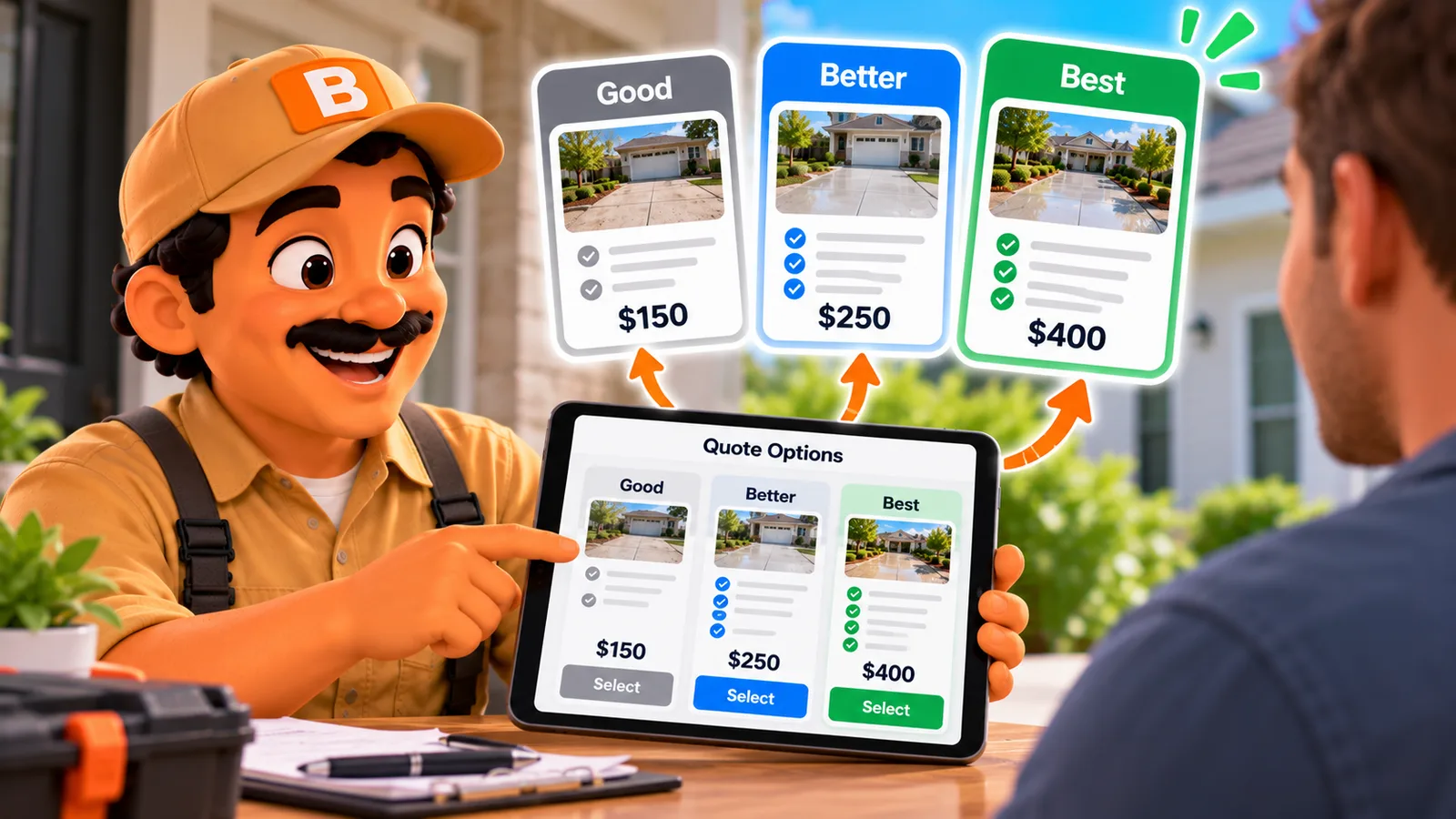
Let the customer choose between your prices, not between you and the next quote.
Published October 2026.
The short answer
In ToolBerry, a free, offline-first field service management app for small service-trade businesses, you can put two or more packages on one proposal, like Good, Better and Best, each with its own lines and its own total. You can also add optional extras the customer can take or leave. When the customer accepts, you record their pick, and the job and the invoice follow it. All of this works on the Free plan.
Why offer packages instead of one price?
A single price asks the customer one question: yes or no. And "no" often means "I'll get another quote."
Packages change the question to "which one?" The customer is now comparing your prices with each other, not with the next company.
Imagine you quote a water heater job. Instead of one number, you offer:
- Good: repair the current unit.
- Better: a new standard tank, installed.
- Best: a new high-efficiency tank, with a longer warranty and haul-away.
Some customers take the repair. Some take the best. And some who would have said "too much" for the new tank take the repair instead of calling someone else.
If you're not sure how to price each tier, How to Stop Underpricing Your Estimates? is a good place to start.
How do packages work in ToolBerry?
- Open a proposal and add packages. Name them anything: Good, Better, Best, or Repair, Replace, Upgrade. Add a short pitch under each name if you like.
- Add lines to each package. Each package shows its own total.
- Add shared lines once. A line that isn't in a package is part of every package. Put the trip charge or the base prep work there, and you don't type it three times.
- Mark one package as Recommended. It's picked by default, and the proposal total shows its price until the customer chooses.
- Send the PDF. It shows a section for each package with its own total, a "Recommended" badge, and a totals line that says "Total (recommended choice)".
Can I add optional extras?
Yes. Mark any line as optional, and the customer can take it or leave it.
Good add-ons are the small things customers often say yes to when you ask: a filter change, a gutter guard, a sealant coat, a second visit.
You can also pre-tick an optional line. It counts in the total until the customer says no. The PDF tags each one as "Optional", so nobody feels tricked.
You can use packages, optional lines, or both on the same proposal.
What happens when the customer picks?
When the customer says yes, open the proposal and accept it. ToolBerry asks which package they picked and which extras they want.
From there, the job and the invoice follow their choice. You don't retype the lines or fix the total by hand. If a picked line starts a recurring agreement, only the lines they picked start one.
Packages for every trade
- HVAC: repair the old unit, replace it, or replace it with a smart thermostat and a maintenance plan.
- Cleaning: a standard clean, a deep clean, or a deep clean plus inside the oven and fridge.
- Landscaping: one cleanup, a monthly plan, or a weekly plan with seasonal planting.
Rename the packages to whatever your customers understand.
What does it cost?
Packages and optional lines are on the Free plan. You build the options, send the PDF, and record what the customer picked.
On Pro, customers can already accept or decline a proposal from the emailed link. Picking a package online is coming soon. Until then, a Pro customer tells you their pick and you record it.
The honest tradeoffs
- The customer can't pick online yet. On every plan today, you record the pick. Online picking on Pro is next.
- A few rules keep the math right. You need at least two packages, and each needs at least one line of its own. A fixed deposit has to fit the cheapest choice, so a customer who picks the cheapest one never owes a deposit bigger than the job.
- Three packages take longer to write than one price. Start with one proposal you send often, build it once, and duplicate it. The packages copy along with it.
How to start
- Open ToolBerry and create a proposal.
- Add your shared lines first.
- Add two or three packages and fill in their lines.
- Mark the one you'd pick as Recommended.
- Print or email the PDF and see which one your customer picks.
Have a question?
If you try packages and something doesn't fit the way you quote, we'd like to hear it: contact@toolberry.net.
Grab ToolBerry from the App Store or Google Play, or visit toolberry.net.
For the Technically Curious
- One shared helper decides the proposal total everywhere: the recommended package and pre-ticked extras before acceptance, the customer's pick after it. The on-screen total, the margin card, the invoice and the PDF all read the same number.
- The server refuses a pick of a package that belongs to another proposal, and refuses to delete the package an accepted proposal picked.
- Packages sync like every other record, so they work offline and through your own Dropbox.
Further reading
- How to Stop Underpricing Your Estimates? - how to price each tier
- What Every Field Service App Actually Needs (and What's Just Bloat) - what to look for in a tool
- Free vs Pro: The ToolBerry Story, and What Each Plan Is For - what each plan includes
- Built to Bend: Why ToolBerry Lets You Customize Everything - rename packages and lines to your own words