
One App, Ten Industries, Infinite Possibilities
You shouldn't have to teach your software what your business does. It should already have a pretty good idea.
Updated June 15, 2026
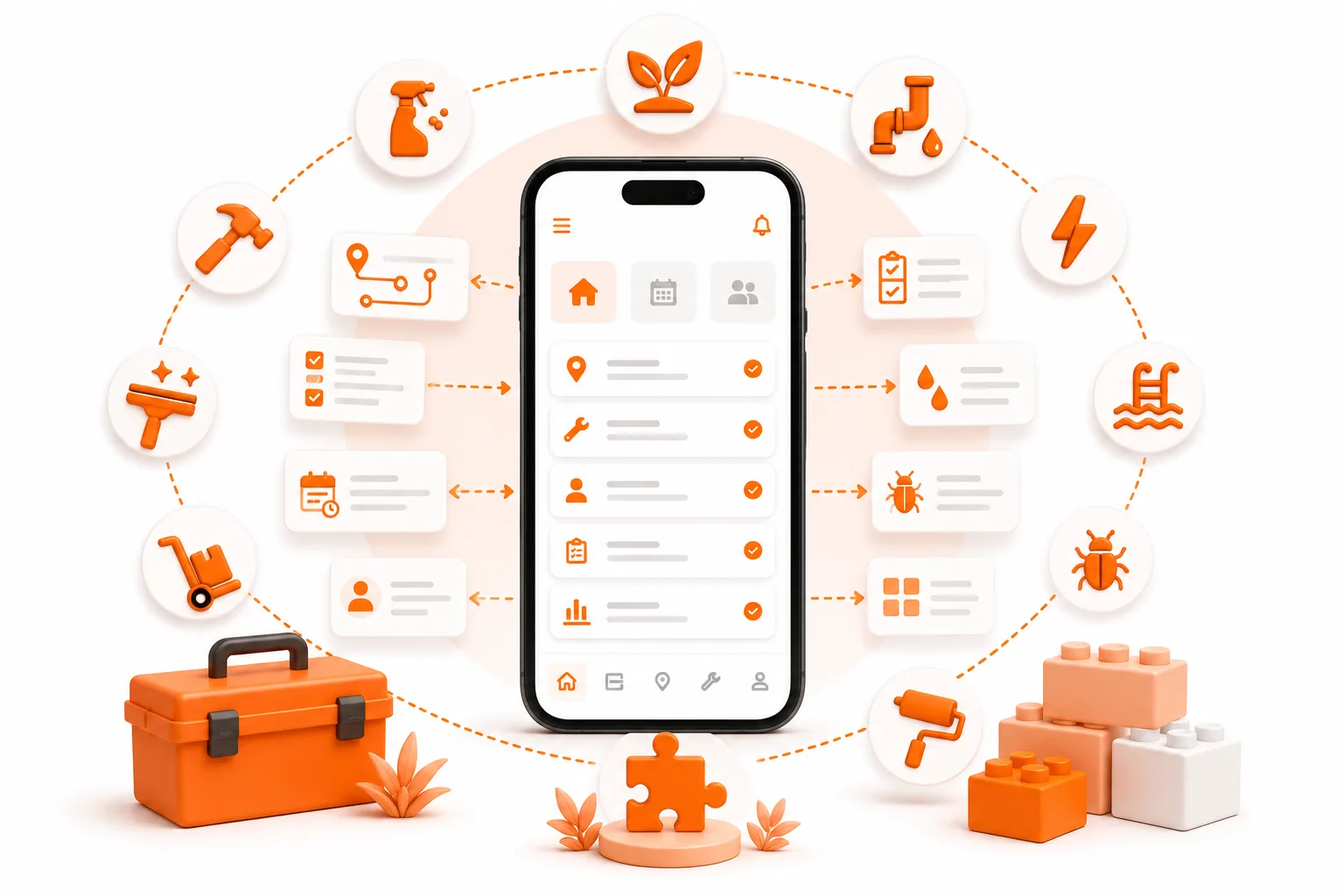
You shouldn't have to teach your software what your business does. It should already have a pretty good idea.
The blank-screen problem
Imagine you run a small plumbing company - drain cleaning, leak repairs, water heater swaps, the occasional 2 a.m. "there's water coming through the ceiling" call. You sign up for a popular field service app.
It works, technically. But it doesn't know the first thing about plumbing. There's nowhere to record the water line material, nowhere for the water heater's age, no field for whether the job needs a permit or whether there's a backflow preventer on site. So all of it goes where everything goes to die: the notes field. A month in, nobody can find anything.
Now picture the opposite. You open a new app and the first thing it asks is: what kind of work do you do? You pick Plumbing. By the time setup finishes, your job types are already things like Drain Cleaning, Water Heater Service, and Backflow Testing. Your site records have proper fields for water line material, water heater type and age, permit status - dropdowns and dates, not a blank text box. There are even a few sample customers and jobs to click through, so you can see how it all fits together before typing a single real record.
No blank screen. No setup built for someone else's trade. You start from something that already looks like your business. That second app is ToolBerry - and this post is about how it pulls that off.
Two things happen when you pick your industry
This is the part worth slowing down on, because people mix them up - and they're genuinely different things with different lifespans.
When you choose your industry during onboarding, ToolBerry can set up two separate layers for you:
- The industry template - the structure of your workspace. Custom fields, and how things are named. This is permanent scaffolding. It's the part you keep and build on.
- The sample data - example records that live inside that structure. A few fake customers, sites, and jobs so you can see the app in motion before you commit. This is temporary. It's training wheels, and you take it off when you're ready.
The job types come automatically the moment you pick a trade - no toggle, every workspace gets them. The deeper structural pieces (the trade-specific custom fields and the entity renaming) are switched on by default but can be turned off, and the sample data is a separate opt-in. It's all tailored to the industry you chose. The thing to keep straight is the lifespan: the template is the furniture you keep, the sample data is a showroom display you'll eventually clear out. Get that distinction and the rest of this makes sense.
Let's take them one at a time.
Layer one: the industry template
This is the "ToolBerry already knows what you need" part. Picking your trade does three things to the shape of your workspace.
Job types that match how your trade actually talks
Instead of a generic "Job," your job types come pre-loaded with the categories people in your line of work actually use - each with its own icon and color, so a glance at your schedule tells you what kind of day it is.
- HVAC → Maintenance / Tune-Up, Diagnostic / Repair, Installation / Replacement, Emergency No-Cool / No-Heat, Indoor Air Quality / Ductwork, Filter Replacement, Building Automation Check, Warranty Service
- Plumbing → Drain Cleaning, Leak Repair, Water Heater Service, Sewer/Drain Camera Inspection, Backflow Testing & Certification, Remodel / Fixture Installation, Preventive Maintenance
- Pest Control → Initial Inspection, Routine Treatment, Emergency Call, Follow-Up, Termite Inspection
- Landscaping → Lawn Maintenance, Irrigation Repair, Seasonal Cleanup, Planting / Installation, Tree Service
- Mobile Detailing → Basic Wash, Full Detail, Interior Only, Exterior Only, Paint Correction, Ceramic Coating
Notice these aren't just relabeled versions of the same five options. A pest control "Termite Inspection" and a detailer's "Ceramic Coating" have nothing in common - because the businesses have nothing in common. That's the whole point.
Custom fields that capture what your trade needs to record
This is where the generic apps fall down - the no-home-for-the-water-line-material problem from the top of this post. In ToolBerry, the fields on your customers, sites, and jobs are the ones that matter for your work.
An HVAC business gets Refrigerant Type, System Type (Split, Package, Mini-Split, Heat Pump…), Breaker Size (Amps), Temperature Split (°F), and Warranty Status on its sites. A plumbing business gets Water Line Material, Water Heater Type and Age, Backflow Preventer Installed, Permit Required, and PM Agreement Status. Both get a Service Call Source field on jobs - because every trade asks "how did this job come in?", just with slightly different answers.
And these are real, typed fields - not a wall of text boxes. Dropdowns come with sensible options already filled in. Numbers come with sane limits (breaker size capped at 15–200 amps, water pressure at 0–120 PSI) so a typo can't put a 9,000 PSI reading in your records. There are toggles for yes/no facts, dates for service dates, and text areas for the notes that don't fit anywhere else.
Names that fit the size of your business
This one is subtle and we're a little proud of it. During setup you also tell ToolBerry roughly how big your operation is - solo, small team, or larger company - and that quietly changes what some things are called.
For an HVAC business, the place where work happens is labeled:
- Address if you're solo - because that's how you think of it: "the address on Maple Street"
- Property if you're a small team - you've started thinking in terms of managing properties
- Service Location if you're a larger operation - formal, dispatch-friendly language for a crew that needs it
Same underlying thing, same data, same fields. Just the word on the screen, matched to how people at that scale of business actually talk. A one-truck operator and a twenty-tech company shouldn't be forced to share a vocabulary just because they share an app.
Layer two: the sample data
The template gives you the empty shelves. The sample data puts a few example items on them so you can see how the store is laid out before you stock it.
Turn it on and ToolBerry seeds your workspace with realistic example records built for your industry:
- Customers, contacts, and sites - a handful of believable accounts, complete with the kind of site notes that matter (gate codes, equipment locations, access quirks)
- jobs and schedule entries - jobs in various states, so the calendar and the pipeline aren't empty
- Checklists and job task templates - the repeatable steps for common jobs in your trade
- Asset types and models - the equipment your trade tends to work on, with the spec fields that make sense for it
The point isn't the data itself - it's fake, after all. The point is that you get to click around a working business on day one. Open a customer, see their history. Open a job, see how the custom fields are used. Pull up the schedule and watch how the job types color-code it. You learn the app by exploring something that already looks finished, instead of staring at five empty screens trying to imagine what goes where.
And because it's tagged as sample data, it's not a mess you have to clean up by hand. When you're ready to go live, there's a single Remove Sample Data button in settings that clears all of it out in one move - and leaves your industry template, your custom fields, and your renamed labels completely intact. The training wheels come off; the bike stays.
How we chose what goes in
None of this is invented. For each industry, the job types, the custom fields, and the sample records come from looking at how that trade actually operates - the words crews use, the data they're legally or practically required to track, the equipment they service, the way a normal week is shaped.
The goal was never to be exhaustive. A pest control operator could track forty things; we picked the handful that show up on nearly every job. The idea is to get you to "this already looks like my business" in the first five minutes - not to model every edge case of every trade. The edge cases are yours to add, and adding them is easy (more on that below).
"Other" is a real choice, not a dead end
Ten industries don't cover everyone. If you pick Other, you don't get nothing - you get a clean, general-purpose set that works for any service business: Service Call, Repair, Maintenance, Installation, Inspection. It's the same solid baseline every trade starts from before the industry-specific extras get layered on, so it stands perfectly well on its own.
And if your trade should be on the list, tell us. The lineup grows based on who asks.
And then - infinite possibilities
Everything above is a starting point, not a cage. The moment setup finishes, all of it is yours to reshape: rename the job types, add fields we didn't think of, hide the ones you'll never use, change what entities are called. The industry template just means you're reshaping something instead of building from scratch.
We wrote a whole separate piece on that side of things - Built to Bend: Why ToolBerry Lets You Customize Everything. If the industry template gets you 80% of the way there, that post is about the other 20% that makes it unmistakably yours.
The tradeoffs
A template is a head start, not a finished setup. Picking "HVAC" gets you most of the way, but every business has quirks. Plan to spend a little time after setup tuning the few things that don't quite match your shop.
The industry runs once, at setup. Applying an industry template is a one-time seeding step, not a live mode you switch between. If you change your mind later, you can absolutely add or remove work order types and fields by hand - the template just won't re-run and reshuffle things on its own.
Sample data is meant to be deleted. Don't build your real business on top of the example records. Explore with them, learn the app, then hit Remove Sample Data and start clean. (Your template and customizations stay - only the example records go.)
Ten industries is a lot, but it isn't everything. If your trade isn't represented, "Other" plus a few custom fields gets you there - and we're actively adding more industry packs over time.
How to actually start
- Open ToolBerry. There's no signup - just start.
- During setup, pick the industry closest to what you do, and roughly how big your team is.
- Leave Apply industry template on (it already is, when your trade has one). That's the part that shapes your work order types, custom fields, and labels around your business.
- Leave the sample data on for now too. Click around - open a customer, a job, the schedule. Get a feel for it.
- When it clicks, go to settings and Remove Sample Data. Now you've got a clean workspace already shaped like your business - template and customizations intact, example records gone.
- Add your three trickiest real customers and run a real day through it. See what's missing, and add it.
- If your trade wasn't on the list, or the template missed something obvious, tell us at contact@toolberry.net.
Grab ToolBerry from the App Store or Google Play, or visit toolberry.net.
No account. No credit card. Works offline. Starts closer to your business than a blank screen.
For the Technically Curious
Most readers can stop here. If you want to know how the "two layers" actually work under the hood, keep going.
Industry templates vs. sample data are genuinely separate systems
The distinction we drew above isn't a marketing simplification - it's how the code is organized. Each industry has its own typed definition describing the customizations for that trade (job types, custom fields, and entity labels). That's completely separate from the sample data - the example customers, sites, jobs, and templates - which is stored as its own set of data files per industry. You can apply one without the other. They're independent toggles in onboarding for exactly that reason.
What "Apply Industry" does
Reading a trade's customization definition happens in two parts. The job types are seeded whenever you pick an industry - they sit outside the template toggle, so every workspace gets its trade's job types regardless. The toggle ("Apply industry template," on by default when the trade actually has customizations) governs the rest: creating each custom field against the right entity (customer, site, or job) with its type and type-specific details, and applying the entity-label overrides for your chosen business size. Each piece is a real record in your on-device database, not a hardcoded screen - which is why you can edit any of it afterward.
How business size selects labels
Entity labels in each industry definition are keyed by business size - solo, small, or large. At setup, ToolBerry applies only the label set matching the size you chose. That's why one definition can describe how the same entity should read at three different scales (Address → Property → Service Location) without needing three separate templates. The label override is written as a record that sits on top of the base entity config and gets resolved at runtime, so renamed entities stay consistent everywhere they appear - menus, buttons, headers, breadcrumbs.
How sample data is chosen and removed
Sample data is grouped into independent categories - core records (customers, contacts, sites, assets), transactional records (jobs and schedule entries), templates (checklists, job tasks, asset-type specs), and equipment models. When you turn it on, ToolBerry loads the pack for your chosen industry, and falls back to a general pack for any category an industry doesn't define its own version of. Every seeded record is tagged as sample data, and the workspace gets a flag noting that sample data is present. That flag is what surfaces the Remove Sample Data option in settings - and what lets it cleanly delete every example record in one pass while leaving your template and customizations untouched.
Further reading
- Built to Bend: Why ToolBerry Lets You Customize Everything - reshaping the template into exactly your business
- Your Data, Your Dropbox - how your customized setup and data sync across devices
Have a question?
Tell us about your trade at contact@toolberry.net - especially if it's not on the list yet. The lineup grows based on who asks.