
Your Data, Your Dropbox: How ToolBerry's Bring-Your-Own-Storage Works
ToolBerry stores your business on your phone. Not in our cloud. Yours.
Updated May 3, 2026
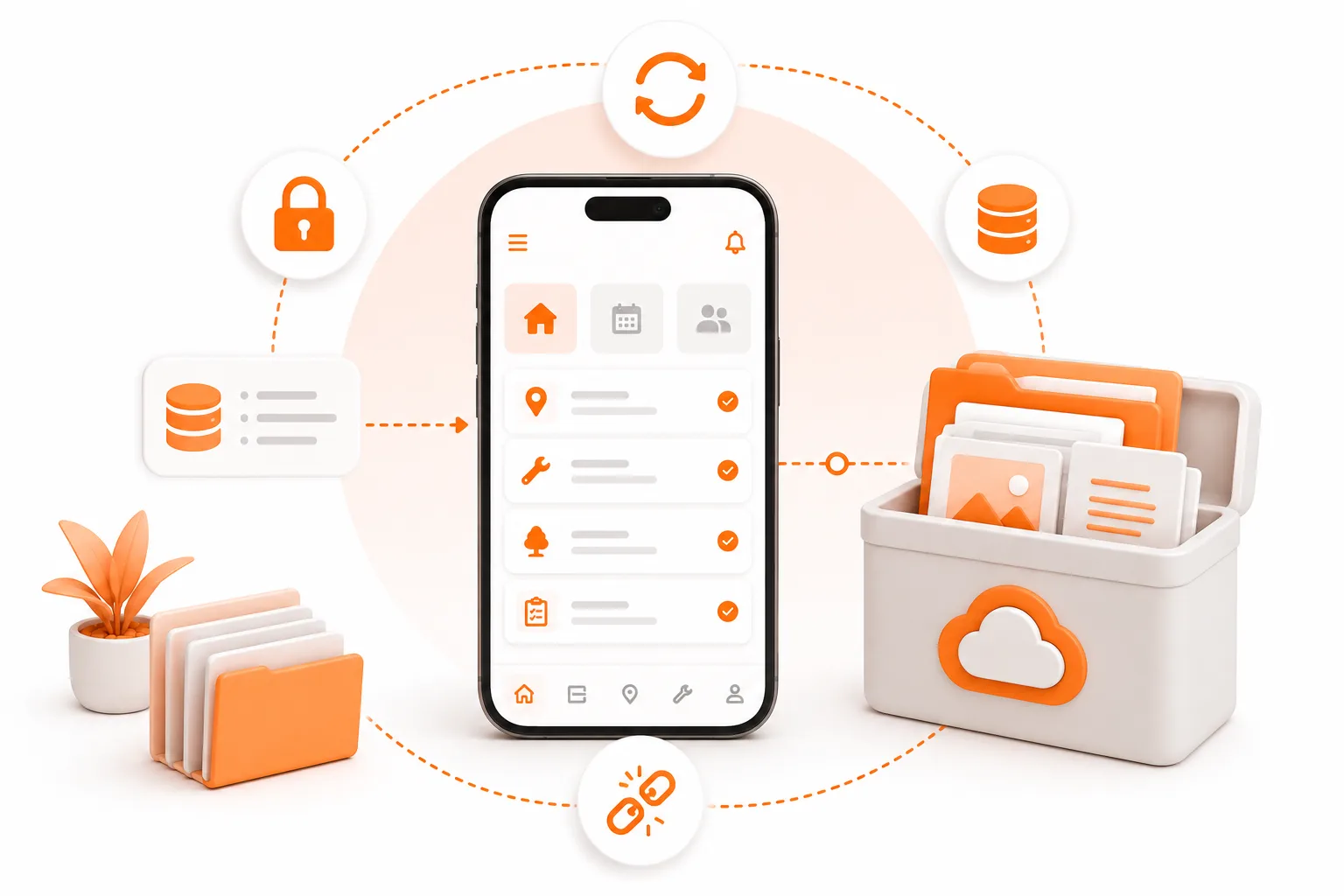
ToolBerry stores your business on your phone. Not in our cloud. Yours.
That's the headline feature, and most people get why it's good - no account signup, no tracking, no monthly bill held over your head. But there are two reasonable questions that come right after: if everything's on my phone, what happens when I drop it in a pool? And what about my second device - or my crew's?
Fair questions. Connecting Dropbox is the answer to both. Same setup, two jobs at once: it backs up your data so a lost phone isn't a lost business, and it keeps your devices in sync so you don't have to think about which one has the latest version.
The model: bring your own storage
Most field service apps keep your data on their servers. You log in, you trust them with everything - your customer list, your schedule, your invoices - and you pay every month for the privilege. If they get hacked, your customers leak. If they raise prices, you have nowhere to go. If they shut down, good luck.
ToolBerry flips it. Your data lives on your device. When you want to back it up - or sync it across devices - you bring your own storage (currently Dropbox). We never see your business data. We can't. There's nowhere on our infrastructure for it to land.
This is what people mean when they say "local-first" or "BYOS" (bring your own storage). The phone is the source of truth. The cloud is optional, and when you use it, it's your cloud.
What you get when you connect Dropbox
Backup. A copy of your business is sitting safely outside your phone. Lose the device, drop it off a roof, factory-reset by accident - install ToolBerry on a new device, log into your Dropbox, and your business comes back.
Sync. Multiple devices stay in step. Plan jobs on your desktop in the morning, head out with the phone, mark a job done in the field - open the desktop later and it's already updated.
The exact same setup gives you both. Which one matters more depends on you. A solo operator with one phone is mostly using it as backup. Someone running ToolBerry on a phone and a desktop is mostly using it as sync. Either way, you're covered for both.
How sync actually works
Once connected, ToolBerry quietly keeps your devices in step:
- Every time you open the app, it pulls down the latest from Dropbox.
- Every time you close it, it pushes your changes up.
- Every 5 minutes while you're working, it does a quick check in the background.
- If two devices changed the same record, ToolBerry handles the conflict so you don't lose work.
There's no "sync now" button to hunt for. No spinning wheel. It just runs.
How the setup works
When you turn on Dropbox in ToolBerry, here's the sequence:
- You log into Dropbox directly. ToolBerry never sees your password - Dropbox hands us back a token that says "this app can read and write to a folder I made for it." Standard OAuth flow.
- Optionally, you set an encryption password. Recommended, not required. If you set one, your data is encrypted on your device before anything leaves it. We don't store this password. Dropbox doesn't see it.
- ToolBerry writes your data to your Dropbox in a folder Dropbox calls an "App Folder." It's scoped to ToolBerry only - other apps in your Dropbox can't read it.
- From there it just runs. Open, close, every five minutes. You don't have to think about it.
The data flows phone ↔ Dropbox. It never passes through us. We don't have a copy. If you turned on encryption, we couldn't read it even if Dropbox handed us the file.
What this means for you
A list of legitimate worries and what actually happens in each case:
"What if I lose my phone?"
Install ToolBerry on a new device, log into your Dropbox, and your business comes back. Every customer, every job, every note. The phone is replaceable.
"I want to use ToolBerry on my phone AND my desktop."
That's exactly what the sync side is for. Connect Dropbox on both devices. Whichever one you pick up, the latest data is already there.
"What if I'm in a dead zone all day?"
Keep working. ToolBerry doesn't need a connection - your data is on the device. When you get back into signal, sync catches up automatically.
"Two of us edited the same job at the same time. What happens?"
ToolBerry's conflict handling merges the changes so nothing gets lost.
"What if I forget my encryption password?"
If you set one, we cannot recover it. Not "we'd rather not" - we literally don't have it. Without the password, the file in Dropbox is just noise. Write it down somewhere safe. A password manager is ideal. A piece of paper in your truck's glovebox is, honestly, fine. (And again - encryption is optional. If you skip it, this isn't a concern.)
"What if my Dropbox account gets hacked?"
If you turned on encryption, the attacker gets a file they can't read. Either way: turn on two-factor authentication on your Dropbox account. It's a 30-second setup that makes account takeovers vastly harder.
"What if ToolBerry the company disappears?"
The app on your phone keeps working. Your data is on your phone. Your sync files are in your Dropbox. None of that depends on us being around. This is the part most other field service apps can't say.
A note on multi-user crews
Sync runs through one Dropbox account. So if you've got a small crew and want everyone's devices to share the same data, the practical move is:
Create a dedicated company Dropbox account - something like dispatch@yourcompany.com - and have each crew member sign into Dropbox with that account inside ToolBerry. Free Dropbox tier handles it just fine.
Don't share your personal Dropbox login. Set up a company one. It's free, it keeps personal stuff separate, and if someone leaves the crew you can just rotate the password.
This works well for tight-knit small crews. For larger teams or anything needing real role-based access - who can edit what, who can see customer financials, audit trails of who did what - that's exactly what we're building into our upcoming dedicated sync feature for paid plans. Same local-first foundation, but with proper multi-user accounts and permissions on top, and no shared Dropbox login required.
If that's something you'd want, let us know. It helps us prioritize.
Why Dropbox first
Three reasons: it has a real per-app folder model so we genuinely can't see anything outside our own folder; the free tier is generous enough to hold years of business data for a small operator; and almost everyone in the trades already has an account for invoices and photos.
Want a different storage provider? Google Drive, iCloud Drive, OneDrive - these are all on the table, but we're building based on what people actually ask for rather than guessing. If your business is on a different cloud and you want ToolBerry to support it, email us at contact@toolberry.app and tell us which one. Enough requests for the same provider and we'll move it up the list.
Turn it on
Head into ToolBerry's settings and connect Dropbox. Five minutes of setup and you've got both backup and sync running quietly in the background.
If you're not ready yet, that's fine - your data is safe on your device. But please, set up something eventually. Phones break. Backups exist for a reason.
For the Technically Curious
What's in your Dropbox folder
A representation of your local SQLite database, plus metadata for sync coordination - version markers, timestamps, and the parameters needed to reconcile changes from multiple devices. If you enabled encryption, the contents are encrypted as a single sealed blob; if not, they're stored in a structured format that only ToolBerry knows how to read.
Encryption (when enabled)
We derive a key from your encryption password using a slow, salted password-derivation function, then encrypt your data with strong authenticated encryption before it leaves the device. The salt and other parameters needed to decrypt on restore are stored alongside the ciphertext so your phone can recover the data when you log in on a new device. The password itself never leaves your device - we don't have it, can't recover it, and don't want to.
Why a Dropbox App Folder
Dropbox's App Folder permission is the most restrictive grant they offer. ToolBerry can read and write files inside its folder and nothing else. We can't see your invoices, photos, or anything else in your Dropbox. Dropbox enforces this at the API level, not on the honor system.
How sync actually reconciles changes
ToolBerry tracks changes locally on each device. When sync runs (open, close, or the 5-minute interval), it reads the latest state from Dropbox, compares it to local changes since the last sync, and merges them. For most edits this is straightforward - different records, different fields. For genuine conflicts (the same field edited on two devices at once), ToolBerry applies deterministic conflict-resolution rules so the outcome is consistent regardless of which device syncs first. The result gets written back to Dropbox for the next device to pick up.
This works well for the scale ToolBerry's free tier targets - solo operators and tight crews where edits are mostly serialized in practice (you finish a job, you mark it done, next person picks it up later). It's the right tool for the job, but it has limits.
Why a dedicated sync engine for paid plans
Cloud-folder sync is great when the unit of trust is a single team sharing one storage account. Once you need real multi-user accounts - different people with different permissions, audit trails of who changed what, real-time collaboration during the same minute - the cloud-folder model starts to work against you. You'd want an actual server in the loop, with proper auth and authorization.
That's exactly what we're building for the paid tier. Same local-first foundation - your phone is still the source of truth, you can still work offline - but with a real sync server backing it for teams that need that level of coordination. Dropbox-style BYOS sync isn't going away; it's the right call for solo operators and small crews. The dedicated sync is for the next tier up.
Restore (after a lost device)
On a new device, after authenticating with Dropbox, ToolBerry pulls the latest data, asks for your encryption password if you set one, and rebuilds your local database. From there it's just sync as usual.