
Where Are My Job Photos Stored? In Your Own Dropbox, Not on a Helper's Phone
Every photo, receipt and signature your crew takes ends up in one place you own: your Dropbox.
Aktualisiert am 18. Oktober 2026
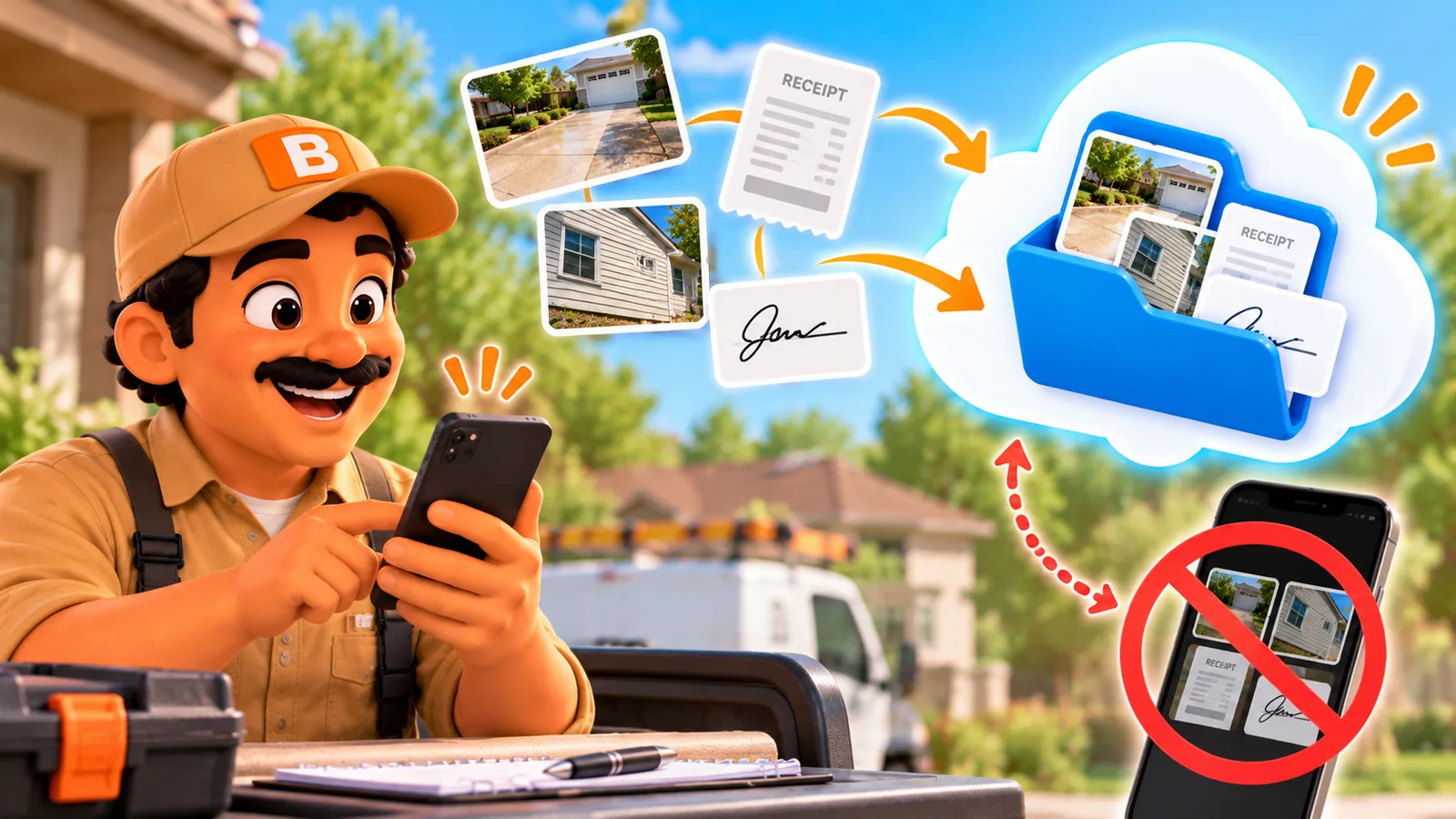
Every photo, receipt and signature your crew takes ends up in one place you own: your Dropbox.
Published October 13, 2026.
Where does ToolBerry save my crew's photos?
Every job photo, receipt and signature your crew takes is saved to your own Dropbox, so the proof of your work belongs to your business, not to a helper's phone. That's how Shared multi-user works on ToolBerry Free: the files go to the owner's Dropbox, not to a ToolBerry server.
I built it this way on purpose. A signed job, a before photo and a parts receipt are the proof that you did the work and got paid for it. That proof should stay with the business, whoever took the picture.
Working solo, without Shared multi-user? Your files stay on your phone, with a backup copy in your Dropbox if you connect it.
What does that look like on a real job?
Your helper takes the photos on the job, and a copy lands in your Dropbox without anyone thinking about it. Months later, when a customer has a question, the proof is still on the job where you left it, even if that helper stopped working for you long ago.
Imagine you run a one-truck fence business and a two-post repair comes in for Saturday. You're booked on another job, so you invite a helper you've used before and send them out alone.
Your helper photographs the leaning posts and the gate before touching anything. They buy two bags of concrete and snap the receipt onto the job's expense. When the posts are set, the homeowner signs on your helper's phone.
The yard has no signal. That's fine: the photos wait on the phone and upload once it's back online. From your own job across town, you open the repair and see the before photo and the signature.
In the fall the homeowner calls. The gate sags, and they think your repair caused it. Your helper finished the season weeks ago and you removed their access.
You open the job. The July photo shows the gate already sagging before your helper touched a post. That settles it.
What does it mean for me as the owner?
You hold the copy that matters, and ToolBerry charges nothing for it. The files live in your Dropbox, your helpers' phones only borrow them, and the only storage bill is Dropbox's, if you outgrow its free plan. Here is what changes for you and your crew.
- Your proof doesn't live only on a helper's phone. Their photos go to your Dropbox, not just their camera roll.
- Helpers join with a link, no Dropbox needed. See Add an Employee With a Link - No Account, No Email, No Password.
- Phones don't fill up with every photo. A teammate's phone downloads a photo when they open it, not the whole season's worth.
- Photos stay when people go. Your Dropbox keeps everything after you remove a helper.
- Storage is cheap or free. Dropbox Basic is free with 2 GB. Dropbox Plus is $9.99 a month billed yearly for 2 TB (US pricing, October 2026).
Photos also take up less room than you'd expect. A photo taken from inside the ToolBerry phone app is resized to 2,048 pixels wide before it's saved.
How does it work?
ToolBerry saves each file on the phone first, then uploads it to a ToolBerry folder in your Dropbox when there's a connection. Other phones on your team fetch a file when someone opens it. With Shared multi-user, your photos go to your Dropbox, not a ToolBerry server.
Each file stays attached to the record it proves. Receipts sit on the expense. Signatures sit on the job or the quote. Photos can go on a job, a checklist step, a comment or a customer's equipment.
Dropbox only lets ToolBerry into its own folder, so ToolBerry can't see anything else in your Dropbox. How the rest of your crew's data moves through that folder is in Can a crew shares one app without a server, in plain words (Coming Soon).
The honest tradeoffs
Your files are safe in your Dropbox, but it isn't a photo album you browse there. You open them through ToolBerry. Most of the points below only matter if you work far from signal or tidy up old files, but you should know them before you rely on this.
- You open the photos in ToolBerry, not in Dropbox. They're saved without normal photo file names, so Dropbox won't show them as pictures.
- Deleting a photo in ToolBerry doesn't remove it from Dropbox. It disappears from the app, but the copy stays in your folder.
- Turn on encryption before you add photos. Files saved after you turn it on are scrambled in Dropbox so only your team's phones can read them. Files saved before stay unencrypted. The safety post covers the rest.
- Files are capped at 5 MB each when you attach them from your phone or computer.
- The first look at an old photo needs a signal on each phone. After that, the phone keeps a copy until it needs the space.
- Removing a helper clears your files from their phone the next time it's online. It can't undo a screenshot or a photo they saved somewhere else.
- On Pro, ToolBerry stores the files for you instead of your Dropbox. When to switch is in Free Shared Workspace or Pro? What Each One Is For, and When to Switch.
What should I do next?
Take your next job's before photos in ToolBerry instead of your camera roll. Connect Dropbox, turn on Shared multi-user, and have your helper do the same on their next job. Afterward, open the job on your own phone and check that their photo is there.
Questions? Email contact@toolberry.net. ToolBerry is a free, offline-first field service management app for small service-trade businesses. Get it on the App Store or Google Play.
For the Technically Curious
- Where exactly. Each file is stored under the workspace's folder in the Dropbox App Folder, as
files/<attachment id>, with a one-byte header in front: plain, or AES-GCM encrypted when the owner turned on encryption at rest. - Upload queue. A new file is cached on the device and marked local. It uploads when the device is online and in step with the shared folder, with up to five tries before the app shows it as failed. Files waiting to upload are never evicted from the cache.
- Downloads. Other devices download a file when something displays it, three at a time, and keep it in a local cache that is capped by free space and file count.
- Snapshots and cleanup. The weekly snapshot and the 14-day cleanup of change files never touch the files folder.
- Solo backup. On Free without Shared multi-user, files live on the device, and a connected Dropbox keeps a separate, unencrypted backup copy.
Further reading
- How to Keep Your Crew on the Same Page Without a Group Chat - What a Shared Workspace Shares
- Shared multi-user is here; your data, your Dropbox, your team
- Your Data, Your Dropbox: How ToolBerry's Bring-Your-Own-Storage Works
- Why Your Field App Should Work With No Signal - and How to Test Whether Yours Does