
Does ToolBerry Work with QuickBooks? Yes, Even on the Free Plan
Move customers, products and invoices between ToolBerry and QuickBooks Online with a file, for free. A live connection is coming to ToolBerry Pro.
Actualizado 30 de septiembre de 2026
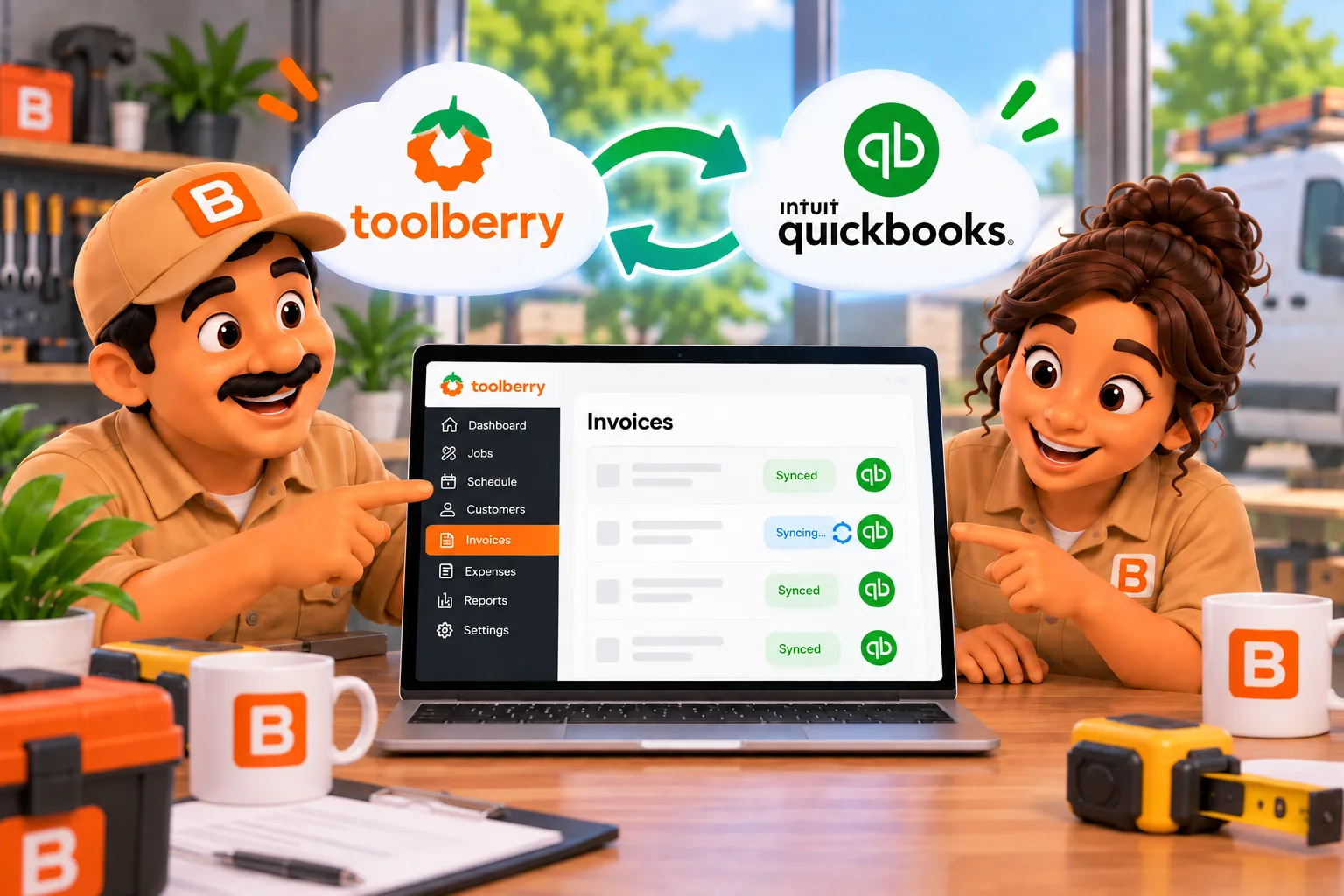
Move customers, products and invoices between ToolBerry and QuickBooks Online with a file, for free. A live connection is coming to ToolBerry Pro.
Published October 2026. Competitor plans and Intuit's import limits were checked on the vendors' own pages on September 30, 2026, and are linked so you can check them again.
The short answer
Yes. ToolBerry, a free, offline-first field service management app for small service-trade businesses, exports your customers, products and invoices as files that QuickBooks Online imports. It also imports customers and products from QuickBooks. It works on the Free plan, with no account connection. A live QuickBooks Online sync is coming soon to ToolBerry Pro.
Why is getting jobs into QuickBooks such a chore?
Imagine you run a two-truck pressure washing business. The jobs live on your phone. The books live in QuickBooks Online, because that's what your accountant uses. So every Friday night you type the week's invoices into QuickBooks, one line at a time, from the app you already typed them into once.
That second round of typing is where mistakes creep in: a wrong amount, a customer spelled two ways, an invoice that never makes it across. Most field service apps fix this with an automatic sync. The catch is the plan you need to get it.
What do other field service apps charge for a QuickBooks connection?
The big names put it behind a paid tier. Here's where it starts:
| App | Cheapest plan with QuickBooks Online | How it connects |
|---|---|---|
| Jobber | Connect, $99 to $139 a month for one user. Not on Core. | Automatic, one way into QuickBooks |
| Housecall Pro | Essentials, from $149 a month. Not on Basic. | Automatic |
| ToolBerry Free | $0 | A file you export and upload |
| ToolBerry Pro | Coming soon | Automatic, one way into QuickBooks at launch |
Sources: Jobber QuickBooks Online Sync ("available on Connect plans and up"), Jobber pricing, Housecall Pro pricing. All checked September 30, 2026.
To be fair to both: once an automatic sync is running, it's less work than a file. You don't have to remember to upload anything. For the full cost of running Jobber next to QuickBooks, and what can go wrong with the sync, see Do You Need Jobber If You Already Have QuickBooks Online? (2026).
Why can ToolBerry give this away for free?
Because the file never leaves your hands. ToolBerry builds it on your device, from the data already on your device. There's no server in the middle, no QuickBooks sign-in for us to store, and nothing for us to run.
That fits the rule behind our plans: anything that can run on your device belongs to Free. We explain that line in Free vs Pro: The ToolBerry Story, and What Each Plan Is For.
A live connection is different. Something has to hold your QuickBooks sign-in and send records while your phone sits in your pocket. That's a server, and that's why the live sync is a Pro feature.
What can you send from ToolBerry to QuickBooks on the Free plan?
Three lists:
- Customers go to QuickBooks Customers, with name, email, phone, and the address split into Street, City, State, ZIP and Country.
- Service Catalog items go to QuickBooks Products and Services, with the description, SKU, price, cost and whether the item is taxable.
- Invoices go to QuickBooks Invoices, one row for each line item, with the invoice number, customer, dates, terms, tax rate and notes.
Each file uses the column names QuickBooks expects. We tested all three files with Intuit's US sample company on September 29, 2026, and QuickBooks matched every column without help. A customer named "Café Ñandú" and a phone number starting with "+1" came through unchanged.
The export follows your filters. Filter the Invoices list to last month first, and only last month's invoices go in the file. To send just one invoice, use Export for QuickBooks on the invoice page.
Two things ToolBerry handles for you:
- Discounts. QuickBooks refuses an invoice line with a negative amount. So ToolBerry spreads each discount across the other lines on that invoice. The line prices change a little, but the invoice total stays the same, to the cent.
- Invoices QuickBooks can't take. If a discount is bigger than the charges it applies to, there's no way to write that invoice for QuickBooks. ToolBerry leaves it out and tells you its name. It never drops an invoice without saying so.
Can you move from QuickBooks to ToolBerry?
Yes, for your customers and your price list. On the Customers list and the Service Catalog, the Import menu has Import from QuickBooks. It tells you where to find the export in QuickBooks:
- Customers: open Customers in QuickBooks and select Export.
- Products: open Products and services and select Export to Excel.
QuickBooks gives you an Excel file. Upload it to ToolBerry as it is. You don't have to open it or save it as CSV first. The columns map themselves, and you review every row before anything is saved, the same as any other import. CSV Import: Can You Move Your Customers from Jobber or Excel into ToolBerry? walks through that review step.
A few details are handled for you. QuickBooks leaves the country blank in its customer export, so ToolBerry fills in your own country. A QuickBooks product with no price comes in at $0 instead of being blocked. And on a brand new, empty list, an Import a file button sits right under the create button, so your first day in ToolBerry can start with the customers you already have.
Invoices only go one way. You can send ToolBerry invoices to QuickBooks, but you can't bring QuickBooks invoices into ToolBerry. Your invoice history stays in QuickBooks.
What else connects on the Free plan?
- Spreadsheets. Every list exports to a CSV file that opens in Excel, Numbers or Google Sheets. The address now comes out in separate columns too, so you can sort by city or ZIP.
- Your phone contacts. In the phone app, pick a contact from your phone on a customer, site or job form. ToolBerry checks for a duplicate first.
- Your own Dropbox. Keep your data in sync across your devices and backed up in your own account. Your Data, Your Dropbox: How ToolBerry's Bring-Your-Own-Storage Works covers how it works.
How do you get your ToolBerry data into QuickBooks, step by step?
Order matters. QuickBooks matches an invoice to a customer and a product by name, so those have to exist first.
- In QuickBooks, turn on Custom transaction numbers. If you skip this, QuickBooks gives your invoices its own numbers. In our test, invoice TB-1042 became 1038.
- In ToolBerry, open Customers, tap Export, and choose Export to QuickBooks. ToolBerry saves the file and tells you where it goes in QuickBooks.
- In QuickBooks, open Settings > Import data > Customers, and upload the file.
- Do the same for the Service Catalog. In QuickBooks, it goes under Settings > Import data > Products and Services.
- Export your invoices last, from the Invoices list or from one invoice, and upload them under Settings > Import data > Invoices.
- Check the totals in QuickBooks. QuickBooks works out the sales tax with its own rates. More on that below.
What's coming to ToolBerry Pro?
A live QuickBooks Online connection is coming soon. Instead of a file, ToolBerry Pro will send your records to QuickBooks for you:
- Customers, invoices and payments go to QuickBooks automatically, with no upload.
- Each record shows whether it reached QuickBooks, with a link that opens it there.
- Saving again updates the same QuickBooks record, and customers already in QuickBooks are matched instead of copied.
- If your QuickBooks company uses automated sales tax, QuickBooks works out the tax and ToolBerry shows its total, so your customer sees the same amount as your books.
- You connect by signing in with Intuit. ToolBerry never asks for your QuickBooks password.
At launch, the sync runs one way, from ToolBerry into QuickBooks, the same direction as Jobber's. Changes you make in QuickBooks won't come back to ToolBerry. Want it early? Request access on our QuickBooks page.
After QuickBooks, these are next on our list. They show as coming soon in the app, and you can't connect them yet:
- Xero, Zapier, Mailchimp and Google Local Services Ads
- Google Calendar, so your ToolBerry visits show up next to the rest of your day
- Webhooks and a public REST API, for anyone who connects tools with their own code
- Your AI assistant, so you can ask Claude or ChatGPT which jobs are coming up or which invoices are unpaid
Need one of these, or something that isn't listed? Every integration on our integrations page has a button to tell us. It's how we decide what to build next.
What are the honest tradeoffs?
A file isn't a sync. You do the upload, every time. If you invoice a handful of jobs a week, a Friday export takes a few minutes. If you invoice all day, the file route gets old fast, and that's what Pro's live connection is for.
Invoice import needs a paid QuickBooks plan. Intuit lists invoice import for Essentials, Plus and Advanced (Intuit, updated August 5, 2026). On Simple Start, the invoice file won't go in.
QuickBooks uses its own tax rates. When you import invoices, QuickBooks asks you to match our tax rate to one of its own, then works out the tax itself. In our test, an invoice that came to $200.26 in ToolBerry came to $199.80 in QuickBooks. Check your totals after each import.
Intuit warns about sales tax. The same Intuit page says invoice import doesn't work once sales tax is set up in your company. Our test company had sales tax set up, and the import worked. If yours refuses, send customers and products by file, and tell us what QuickBooks said.
QuickBooks has its own limits. Up to 1,000 rows in a file and 100 invoices in one import. A big backlog means a few files.
Quotes and payments stay behind. The QuickBooks export covers customers, products and invoices. Record payments in QuickBooks yourself. Quotes, which QuickBooks calls estimates, aren't in the export.
QuickBooks Online only. The files are built for QuickBooks Online. QuickBooks Desktop isn't supported.
Have a question?
Email us at contact@toolberry.net. If your QuickBooks file won't import, send us the message QuickBooks showed you. It helps us fix the file for everyone.
For the Technically Curious
One list of columns, both directions. The QuickBooks column names live in one place in our shared code. The export uses them to write the file, and the import uses the same list to recognize a QuickBooks file. When we fix a column, both directions get the fix.
How the discount spreading works. Lines are split into taxable and non-taxable groups. Each discount is spread over the charge lines in its group by their share of the amount, rounded to the cent with a largest-remainder rule, so the pieces add back up exactly. A test checks that the written lines add up to the invoice subtotal and that the tax base doesn't move. In the QuickBooks test, the two lines came out at $170.77 and $14.23, a subtotal of $185.00, the same as in ToolBerry.
Reading Excel files. QuickBooks exports .xls, so we added Excel support to the import with SheetJS Community Edition 0.20.3, from SheetJS's own download site. The version on npm stops at 0.18.5, which has two known security problems (CVE-2023-30533 and CVE-2024-22363). The library loads only when you pick an Excel file, so the app doesn't get heavier for everyone else.
The line we deleted. Our CSV files used to start with a sep=, line, a hint that tells Excel which separator to use. It did more harm than good: Excel then read accented characters wrong, and QuickBooks read the whole file as one column named sep=. Files now start with a byte order mark only.
Why the "+" survives. A cell that starts with a symbol like = or + can run as a formula in a spreadsheet, so CSV files usually escape it. QuickBooks stored that escape character as part of the phone number. QuickBooks files now escape only =, @, tab and carriage return, so "+1 415 555 0100" arrives as typed.
No server, no Intuit API. The Free export never talks to QuickBooks. ToolBerry reads your records from the database on your device and writes the file there. That's also why you can build the export with no signal and upload it to QuickBooks later.
Further reading
- Do You Need Jobber If You Already Have QuickBooks Online? (2026): the full cost of running both, and what goes wrong with a sync
- CSV Import: Can You Move Your Customers from Jobber or Excel into ToolBerry?: the review step for any import
- Free vs Pro: The ToolBerry Story, and What Each Plan Is For: why a file is free and a live sync is Pro
- Your Data, Your Dropbox: How ToolBerry's Bring-Your-Own-Storage Works: sync and backup on the Free plan
- What's on the ToolBerry Roadmap, and How You Can Help Shape It: what we build next
- Intuit: Import multiple invoices at once
- Intuit: Common questions about importing data to QuickBooks Online
- Jobber: QuickBooks Online Sync
- Housecall Pro: Pricing