
Importación de CSV: ¿Puedes transferir tus clientes de Jobber o Excel a ToolBerry?
Sí, para tu lista de clientes. Esto es exactamente lo que se transmite, lo que aún no se transmite y cómo hacerlo sin cometer errores.
Actualizado 14 de septiembre de 2026
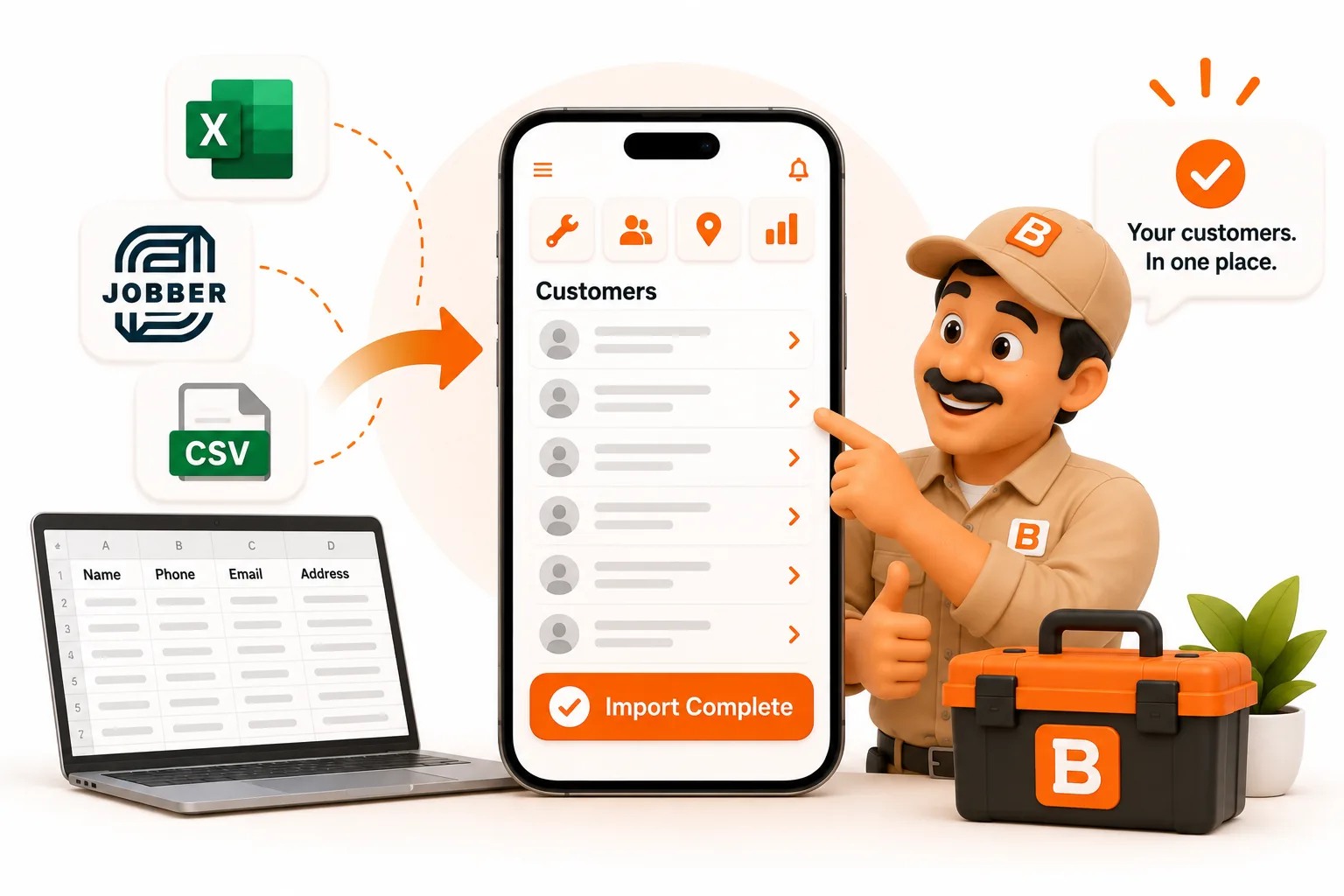
Sí, para tu lista de clientes. Aquí te explicamos exactamente qué se entiende, qué aún no, y cómo hacerlo sin liarla.
Sí. ToolBerry, una aplicación gratuita de gestión de servicios de campo -que prioriza el modo sin conexión- para pequeñas empresas de servicios, puede importar clientes, ubicaciones y contactos desde cualquier archivo CSV, incluyendo una exportación de Jobber o Housecall Pro o una hoja de cálculo guardada desde Excel. Solo tienes que hacer coincidir las columnas, revisar cada fila y, a continuación, guardar. Se transfieren los nombres, los correos electrónicos, los números de teléfono y los campos personalizados. Las direcciones aún no se importan, así que tendrás que añadirlas manualmente.
¿Por qué da tanto miedo trasladar tu lista de clientes?
Cambiar de aplicación no es difícil porque la nueva aplicación sea complicada. Es difícil por lo que podrías perder en el proceso.
Ese temor viene respaldado por las cifras. El informe «Tendencias de compra de software para 2026» de Capterra, una encuesta realizada a más de 3.300 compradores de software, reveló que dos tercios sufrieron contratiempos durante la configuración, se arrepintieron de la compra o ambas cosas. Y el 89 % de los compradores que se arrepintieron de una compra tuvieron primero una implementación complicada.
Para una pequeña empresa de servicios, «implementación» significa principalmente una cosa: trasladar a 200 o 2.000 clientes del sistema antiguo al nuevo sin tener que volver a introducir sus datos. Por eso hemos diseñado la función de importación en torno a una regla: no se guarda nada hasta que hayas visto lo que se va a guardar.
¿Qué se puede importar realmente a ToolBerry hoy en día?
Tres listas cuentan con el botón «Importar desde CSV» en la barra de herramientas: Clientes, Ubicaciones y Contactos. Esto es lo que admite cada una.
| Lista | Campos que se pueden importar | Aún no |
|---|---|---|
| Clientes | Nombre, correo electrónico, teléfono y tus campos personalizados | Dirección, contacto vinculado |
| Sitios | Nombre, cliente (por nombre), notas, tus campos personalizados | Dirección, código de acceso |
| Contactos | Nombre, apellidos, correo electrónico, teléfono, cliente (por nombre), tus campos personalizados |
Los trabajos, las facturas, los presupuestos y el historial de trabajos no se importan. Esto ocurre en casi todos los cambios entre aplicaciones de servicio de campo, en cualquier sentido. Tu lista de clientes se traslada. Tu historial, en su mayor parte, se queda atrás, así que exporta una copia desde tu antigua aplicación y guárdala en un lugar seguro.
Algunas limitaciones más que conviene conocer:
- Hasta 1.000 filas y 5 MB por archivo. Las listas más grandes deben dividirse en más de un archivo.
- Solo CSV. Si tu lista está en un archivo .xlsx de Excel, utiliza primero Archivo > Guardar como > CSV.
- Los campos personalizados funcionan, con una excepción. Se importan los campos de texto, número, importe, fecha, hora, correo electrónico, teléfono, casilla de selección, menú desplegable y etiqueta. Los campos de fecha y hora aún no.
¿Cómo puedes exportar tus clientes desde Jobber o Housecall Pro?
Jobber: ve a «Clientes», luego a «Más acciones», después a «Exportar clientes» y selecciona CSV. Jobber te envía el archivo por correo electrónico. Según el centro de ayuda de Jobber, solo los administradores pueden realizar una exportación completa de clientes, y el archivo incluye etiquetas, direcciones de propiedades, información de contacto y campos personalizados. Jobber limita cada archivo a 1.500 filas y envía más de un archivo para listas más grandes.
Ese archivo de 1.500 filas supera el límite de 1.000 filas de ToolBerry. Si tu exportación de Jobber está a punto de alcanzar el límite, divídela en dos en una hoja de cálculo antes de importarla.
Housecall Pro: los administradores pueden exportar la lista de clientes desde la página «Clientes». Housecall Pro te envía un archivo CSV por correo electrónico.
Excel o Google Sheets: asegúrate de que la primera fila contenga los encabezados de las columnas (Nombre, Correo electrónico, Teléfono, etc.) y, a continuación, guarda o descarga el archivo como CSV.
Algo que cabe esperar de cualquier exportación: notas desordenadas. Según el diario de migración de una empresa que abandonó Jobber, las notas de los clientes aparecieron amontonadas en un único campo de texto, y las fotos y los archivos adjuntos no se exportaron en absoluto. Prevé tiempo para eso.
¿Cómo funciona una importación en ToolBerry, paso a paso?
La importación es un proceso de cuatro pasos: Cargar, Asignar, Revisar, Listo.
1. Subir (y hacer una copia de seguridad primero)
Elige tu archivo CSV. Junto a ese botón, normalmente verás «Descargar primero una copia de seguridad». Tócalo. Tarda unos segundos y es tu botón de «deshacer» por si algo sale mal más adelante.
2. Asigna las columnas
ToolBerry muestra todas las columnas de tu archivo con un valor de ejemplo de cada una y sugiere dónde debe ir cada una. La herramienta hace coincidir los encabezados sin tener en cuenta las mayúsculas ni la puntuación, y reconoce los nombres habituales que utilizan otras herramientas, como «Nombre para mostrar», «Nombre de la empresa», «Nombre del cliente», «Dirección de correo electrónico», «Número de teléfono» y «Móvil».
Comprueba todas las sugerencias de todos modos. No podemos garantizar que todos los encabezados de una exportación de Jobber coincidan automáticamente, así que ten en cuenta que tendrás que configurar algunos manualmente. Cada campo muestra una sugerencia sobre lo que espera, como «Un número de teléfono con código de país». Las columnas que dejes sin asignar simplemente se ignorarán.
3. Revisa cada fila
Este es el paso que garantiza la seguridad de la importación. ToolBerry comprueba cada fila según las mismas reglas que el formulario habitual de «Nuevo cliente» y le asigna una de estas cuatro etiquetas:
- Listo: todo en orden.
- Revisar: se importará, pero revísala. Por ejemplo, «9/11/2026» se marca como «se lee como» una fecha específica, para que puedas detectar un intercambio entre el día y el mes.
- Duplicado: ya existe un cliente con ese nombre, o el mismo nombre ha aparecido anteriormente en tu archivo.
- Bloqueado: hay algún error, como una dirección de correo electrónico que no es válida.
Debajo de cada fila verás lo que ToolBerry ha leído realmente («Teléfono: …»), no solo si ha superado la comprobación. Un número de teléfono en la columna equivocada puede parecer válido y, aun así, estar incorrecto. De esta forma, lo verás.
Los duplicados se omiten por defecto. Si realmente tienes dos clientes con el mismo nombre, marca la casilla «Importar también duplicados». La coincidencia se basa en el nombre exacto, sin tener en cuenta las mayúsculas ni los espacios adicionales, por lo que «Bob's Plumbing» y «Bobs Plumbing» se consideran dos clientes diferentes.
4. Listo, con una forma de volver atrás
Las filas que no se han importado no se pierden. La opción «Descargar filas omitidas» te proporciona un archivo CSV con solo esas filas, con una columna adicional llamada «Problemas de importación» que indica qué falló en cada una. Corrígelas en una hoja de cálculo e importa ese archivo.
Si la importación falla a mitad del proceso, ToolBerry elimina todo lo que ya había guardado de esa importación. Nunca te quedarás con una lista de clientes a medias. Y tras una importación correcta, dispones de la opción «Deshacer», por si te das cuenta de que has seleccionado el archivo equivocado.
¿Sabe gestionar archivos de Excel desordenados?
En general, sí. Las hojas de cálculo del mundo real rara vez están limpias, por lo que hemos solucionado los problemas más comunes:
- Los archivos antiguos de Excel de Windows con caracteres extraños en los nombres se leen correctamente.
- Los archivos separados por punto y coma, que Excel utiliza en muchos países europeos, se detectan automáticamente.
- Los números de teléfono almacenados como «
'+1 555…», con el apóstrofo que añaden las hojas de cálculo, se importan sin el apóstrofo. - Las filas a las que les faltan celdas al final se importan correctamente. Las celdas en blanco se interpretan como vacías.
- Una comilla dañada detiene la importación y te indica el número de fila. Sin esa comprobación, todas las celdas posteriores a la comilla dañada se desplazarían una columna a la derecha, y importarías datos erróneos sin darte cuenta.
¿Cuál es el orden correcto para importar clientes y sitios?
Primero los clientes, luego las sedes y, por último, los contactos.
Las ubicaciones y los contactos se vinculan a un cliente mediante su nombre exacto, por lo que el cliente debe existir en ToolBerry antes que la ubicación que apunta a él. Si la columna de cliente de una ubicación indica «Riverside HOA» y no hay ningún cliente con ese nombre, la fila se bloquea y te lo indica.
Hay un atajo si vas a añadir ubicaciones para un solo cliente: abre ese cliente y, a continuación, importa desde su ficha de «Ubicaciones». Todas las filas se vinculan automáticamente a ese cliente, y las comprobaciones de duplicados solo tienen en cuenta las ubicaciones de ese cliente.
Si aún no has utilizado «Sitios», el artículo «Seguimiento de los sitios y el equipamiento de los clientes para no tener que adivinar nada en la próxima visita» explica para qué sirven.
¿Cuáles son las ventajas y desventajas reales?
Las direcciones aún no se importan. Esta es la principal limitación si vienes de Jobber, donde cada cliente tiene una dirección de propiedad. Por ahora, tendrás que añadir las direcciones en ToolBerry manualmente tras la importación. Como solución provisional, puedes crear un campo personalizado de texto sin formato e importar la dirección postal en él, para que la información permanezca asociada al cliente. Sin embargo, no será una dirección real de ToolBerry con un marcador en el mapa.
Tu historial de trabajos se queda atrás. Solo se importan clientes, ubicaciones y contactos. Los trabajos anteriores, las facturas y los presupuestos no se importan.
1.000 filas por archivo. Hemos limitado este número para que la importación sea rápida en un teléfono. Una lista grande implica repetir los mismos pasos varias veces.
Los duplicados se identifican únicamente por el nombre. Se marcarán dos clientes diferentes llamados «John Smith». Existe la opción de anular esta configuración, pero la decisión es tuya.
Es posible que haya que hacer coincidir manualmente los encabezados de Jobber. No hemos comprobado todos los nombres de columna que utiliza Jobber, así que no esperes una importación con un solo toque. Calcula un par de minutos en el paso «Map».
Cómo empezar
- Exporta tu lista de clientes desde Jobber, Housecall Pro o tu hoja de cálculo en formato CSV.
- Abre el archivo CSV en una hoja de cálculo. Comprueba que la primera fila contenga los encabezados y divídela si tiene más de 1.000 filas.
- Añade cualquier campo personalizado que necesites en ToolBerry antes de importar, como un campo «Etiquetas» para tus etiquetas de Jobber. El artículo «Diseñado para adaptarse: por qué ToolBerry te permite personalizarlo todo» te muestra cómo hacerlo.
- Abre «Clientes» en ToolBerry, pulsa «Importar desde CSV» y descarga primero una copia de seguridad.
- Asigna, revisa e importa. Descarga las filas omitidas, corrígelas e importa ese archivo.
- Repite el proceso con las sedes y los contactos, en ese orden.
- Conecta una cuenta de almacenamiento si aún no lo has hecho. En el plan gratuito, los clientes importados solo permanecen en tu dispositivo mientras tú lo tengas. «Tus datos, tu Dropbox: cómo funciona la opción “Trae tu propio almacenamiento” de ToolBerry» lo explica.
¿Tienes alguna pregunta?
Envíanos un correo electrónico a contact@toolberry.net. Si tienes problemas con un archivo de exportación concreto, indícanos de qué aplicación procede. Nos ayuda a decidir qué nombres de columnas debemos enseñar al importador a continuación.
Para los curiosos en materia técnica
La importación tiene que revertir la exportación. La primera versión del importador interpretaba erróneamente nuestras propias exportaciones. «1.234» se mostraba como 1,234. «555-1234» se convertía en un número negativo. Las fechas en el formato en que las escribe la propia ToolBerry aparecían marcadas para su verificación. La solución fue una regla respaldada por una comprobación: cada tipo de campo se escribe tal y como lo hace la exportación, luego el importador lo vuelve a leer, y ambos deben coincidir. El análisis de números ahora determina los separadores de miles y decimales según tu configuración regional, en lugar de adivinarlos.
Todo se ejecuta en tu dispositivo. La lectura del archivo, la comprobación de cada fila y el guardado se realizan en la base de datos SQLite del dispositivo, sin que intervenga ningún servidor. Por eso la importación funciona sin conexión. También es la razón por la que hay un límite de filas: las filas se comprueban en grupos de 50 y se guardan en pequeños lotes, y la aplicación devuelve el control a la pantalla entre lotes para que el teléfono no se cuelgue.
Todo o nada, sin una única transacción gigante. Una transacción que retuviera la base de datos durante 1.000 guardados bloquearía la aplicación. Los lotes pequeños no lo hacen, pero un fallo en el lote 30 dejaría guardados 29 lotes. Así que, si falla algún lote, todos los registros que la importación ya había creado se vuelven a eliminar. Cuando la sincronización está activada, esas eliminaciones también se sincronizan, por lo que tus otros dispositivos terminan con el mismo resultado.
La comprobación de duplicados se ejecuta dos veces: una vez en el paso «Revisar» y otra vez dentro de cada lote de guardado. Si añades un cliente en otro dispositivo entre el momento de la revisión y el guardado, la importación omite esa fila en lugar de crear una copia, y te lo indica en la pantalla «Hecho».
Más información
- ToolBerry vs Jobber: ¿Cuál es la mejor opción para un profesional autónomo?: si el cambio tiene sentido
- Diseñado para adaptarse: por qué ToolBerry te permite personalizarlo todo: configura campos personalizados antes de importar datos a ellos
- Tus datos, tu Dropbox: cómo funciona la opción «Trae tu propio almacenamiento» de ToolBerry: guarda una copia de lo que acabas de importar
- Seguimiento de las instalaciones y los equipos de los clientes para que no tengas que adivinar nada en la próxima visita: qué hacer con las instalaciones una vez que están en el sistema
- Las mejores aplicaciones gratuitas de servicio de campo en 2026: una comparación honesta: la comparación más amplia
- Centro de ayuda de Jobber: Exportar información de clientes
- Centro de ayuda de Housecall Pro: cómo importar y exportar trabajos y clientes
- Capterra: Tendencias de compra de software en 2026
- Bit & Grain: Cómo exportar tus datos desde Jobber