
Job Photos, Receipts and Signatures, Stored in Your Own Dropbox
Every photo, receipt and signature your crew captures backs up automatically, to storage you own.
14 de outubro de 2026 atualizado
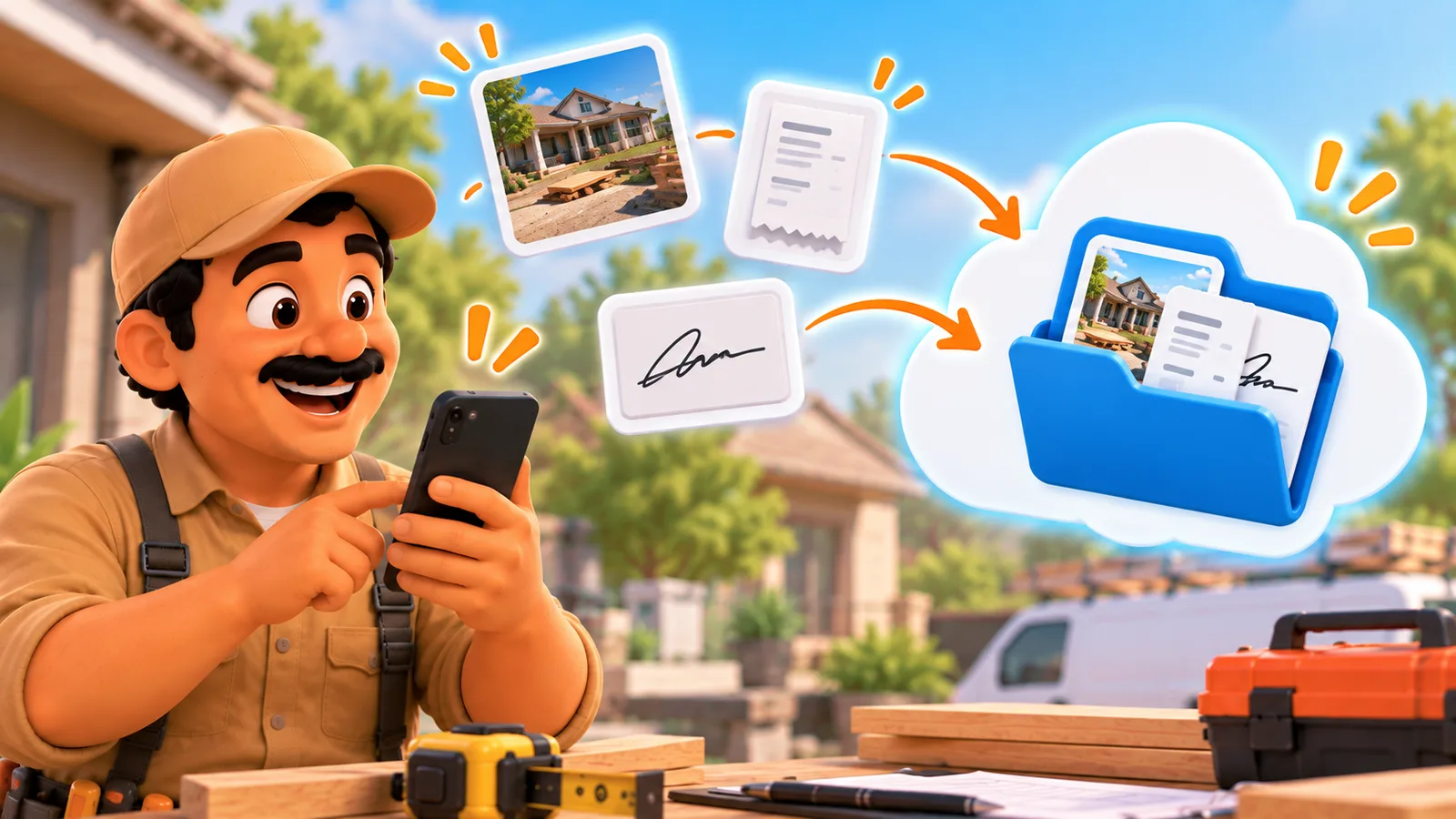
Every photo, receipt and signature your crew captures backs up automatically, to storage you own.
Picture a two-person plumbing outfit on a slab leak call. The tech takes six photos of the cut concrete, scans a parts receipt for the shutoff valve, and hands over the phone for a signature when the job's done. That's three kinds of proof, three different places they could end up living, and a phone that might get dropped in a ditch tomorrow.
Where do those files actually live, and what happens if the phone doesn't come back? For most small service businesses, the honest answer is "wherever the app decided to put them, and we've never checked."
The problem: proof that only exists on one device
A signature, a photo, a receipt: all three are proof. Proof a customer agreed to the work, proof a part was bought, proof the crew was actually there. If that proof lives only on the technician's phone, it's gone the moment the phone is lost, stolen, or swapped for a new one.
Field businesses generate this kind of documentation constantly: before/after photos, warranty paperwork, signed completion forms, receipts for reimbursable parts. It’s also easy to lose, because nobody budgets for it the way they budget for invoices or scheduling.
What the competitors do about it
Jobber and Housecall Pro both let you attach photos to a job, and both offer an official integration with CompanyCam, a separate photo-documentation app for contractors. CompanyCam’s Core plan is $63/month billed annually for one user, plus $29 for each additional user (CompanyCam pricing). For a two-person crew that’s roughly $92/month billed annually, on top of the field service app you already pay for. It’s a capable tool, but it’s a second subscription for something ToolBerry’s free app handles on storage you own.
Why the gap exists
Most field service apps are built server-first: your data lives on their servers, and the app is a window into it. That’s fine for text, but photos and files are heavy, and for many apps, heavy files mean either charging you for cloud storage or quietly capping it.
ToolBerry's free app is built the other way around: offline-first. Your data, including attachments, lives on the device first, so a job's photos open in a basement with no signal. The cloud copy isn’t where the data “really” lives. It’s a backup and a sync point, which is why ToolBerry doesn’t need to own a server to make that backup happen.
What ToolBerry actually does
Any job, customer, asset or expense record can carry photos, documents and signatures. A technician can snap a photo straight onto the job or a checklist item, pick one from the camera roll, or drag a file in from a computer. Customers sign with a finger when a job wraps up, on a proposal, or on any field you've set up to collect one. An expense record has a dedicated receipt field, so the proof of what was spent travels with the expense itself.
On the free app, the cloud copy of every one of those files goes to storage you connect and own, today that's Dropbox. Connect it once, and from then on every photo, document and signature uploads there automatically, no ToolBerry account or server required. Lose the phone, and you restore from Dropbox onto a new one. Need an older version of a file, Dropbox keeps a backup history you can pick from. On Pro, ToolBerry stores the files for you instead, and owners can still keep a Dropbox copy as a second backup on top of that.
The Dropbox connection itself is handled carefully: the keys that keep your phone connected live in the phone's secure keychain, not in ordinary app storage, and they aren't swept up into generic phone backups.
Why it matters
This is the difference between "the app has photo upload" and "the photos survive the business." A two-truck outfit doesn't need to buy a second subscription for documentation, and doesn't need to trust a vendor's server with their only copy of a signed completion form. The data sits in a Dropbox folder they can open, copy, or export with any other tool, any time.
The honest tradeoffs
Not everything about this setup is tidy, and we'd rather say so than have you find out the hard way.
- The database backup is encrypted. The files usually aren't. When you connect Dropbox, ToolBerry offers to encrypt the database backup with a passphrase it generates for you. That passphrase protects your records, but photos, documents and signatures upload to Dropbox as ordinary files unless you're on a shared-folder setup. Anyone who could get into that Dropbox folder could open a job photo directly.
- Shared-folder encryption exists, but it's in pilot. Small crews sharing one Dropbox folder can turn on encryption for the whole folder, including files, but only for what's added after it's switched on, and it needs to be turned on before anyone joins. It's real and already running for crews using it, but new workspaces are being let in gradually.
- Dropbox's own free tier is small. Dropbox Basic gives 2GB free (Dropbox Help Center), and a crew taking a dozen photos a job will outgrow that faster than they'd expect. A paid Dropbox plan is a realistic second cost to budget for, even though ToolBerry itself stays free.
How to start
- Open toolberry.app or install the app from the App Store or Google Play.
- Open Settings and connect Dropbox as your storage.
- Choose whether to encrypt the database backup when prompted, and save the passphrase it gives you somewhere safe, it can't be recovered.
- Start taking job photos and collecting signatures as usual. Nothing changes about how the crew works, the backup just starts happening in the background.
- On a new phone, connect the same Dropbox account to pull everything back down.
Further reading
- Your Data, Your Dropbox: How ToolBerry's Bring-Your-Own-Storage Works
- Why Your Field App Should Work With No Signal - and How to Test Whether Yours Does