
Customizations: What’s the deference between industry templates and sample data?
One shapes your workspace forever. The other is training wheels you take off when you're ready.
Updated August 14, 2026
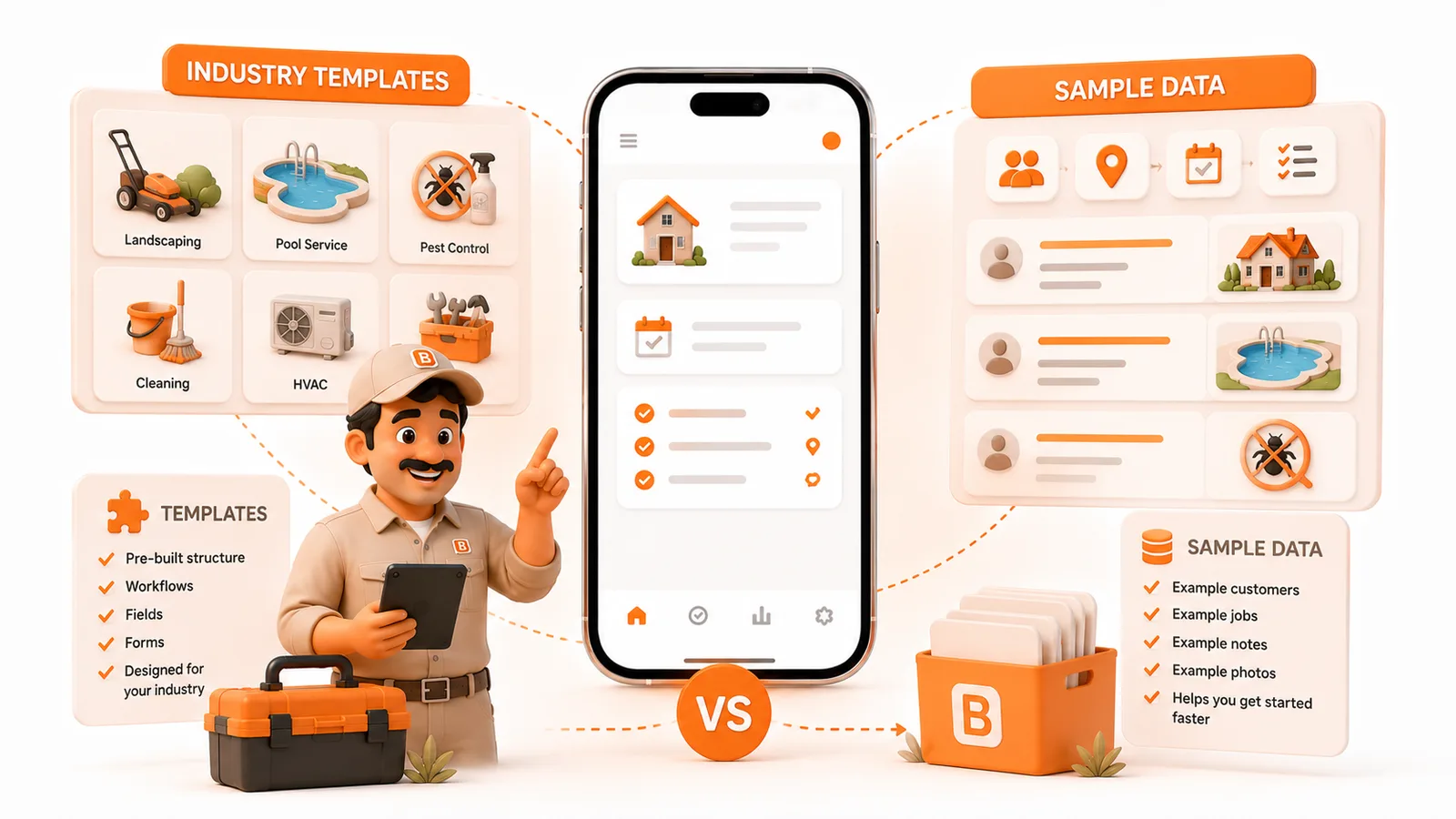
One shapes your workspace forever. The other is training wheels you take off when you're ready.
Short answer: the industry template is permanent structure that shapes your workspace around your trade. Sample data is temporary example content that shows you how everything fits together before you commit real records. Removing sample data leaves the template completely intact: the job types, custom fields, and labels you got from picking your industry stay no matter what.
This is the detailed version of a distinction we touch on briefly in One App, Ten Industries, Infinite Possibilities if you haven't read that one yet, it's the wider tour of how industry templates work across all ten trades ToolBerry ships with.
Say you run a four-tech HVAC company in San Diego. During ToolBerry onboarding you picked HVAC and turned on both options: the industry template and the sample data. A week in, you notice fake customers in your system and start wondering whether your real jobs got mixed in with them.
They didn't. But the confusion is common, because the two things look similar on screen and do completely different jobs.
Here's the distinction, plainly.
What is an industry template?
An industry template is the structure of your workspace, the shape ToolBerry takes when it knows what trade you're in.
When you pick HVAC, ToolBerry sets up:
- Job types that match how HVAC businesses actually talk: Maintenance/Tune-Up, Diagnostic/Repair, Installation/Replacement, Emergency No-Cool/No-Heat, Warranty Service, plus several more covering indoor air quality, filter changes, and building automation checks.
- Custom fields on your sites and jobs: Refrigerant Type, System Type (Split, Package, Mini-Split, Heat Pump), Breaker Size, Temperature Split, Warranty Status, and roughly a dozen others covering things like customer type and service call source.
- Labels that fit your team size. For a solo operator, a location is called "Address." For a small team, it's "Property." For a larger company, it's "Service Location."
None of this is example data. It's real structure: the dropdowns, the fields, the labels, built around your trade before you've typed a single customer name.
The industry template is permanent scaffolding. It's the part you keep and build on. Once it's applied, it's yours to edit, extend, or customize further, but it doesn't disappear when you start working with real records.
What is sample data?
Sample data is a set of example records that live inside that structure so you can see how everything fits together before committing real information.
Turn it on and ToolBerry adds:
- A few fake HVAC customers with realistic names and addresses
- Example sites with the kind of access notes and equipment details a real HVAC business would track
- Jobs in various stages: some scheduled, some in progress, some complete, so the calendar and pipeline aren't empty
- Sample assets: HVAC units with refrigerant types, system types, and service history already filled in
- Checklist templates for common HVAC jobs
None of it is real. It's a showroom display, fully furnished so you can walk through and understand how the app works before you move your own furniture in.
The sample data is temporary. It's meant to be explored and then cleared out.
Why does the distinction matter?
Because they have completely different lifespans.
The industry template is permanent. You apply it once during setup and it shapes your workspace going forward. The job types, the custom fields, the renamed labels stay when you start entering real customers, real sites, real jobs. That's the whole point: the template means your workspace already looks like your business on day one.
The sample data is temporary. It exists to teach you the app. Once you understand how a work order connects to a site, how an asset holds service history, how checklists flow through a job, the example records have done their job and you clear them out.
Here's the important part: removing sample data does not touch the template. When you hit Remove Sample Data in settings, every fake customer disappears. Your HVAC job types stay. Your custom fields stay. Your labels stay. The structure is untouched, only the example records are gone.
You start clean, with a workspace already shaped like your business.
What happens if you skip sample data?
Nothing breaks. The industry template still applies: you get all the job types, custom fields, and labels for your trade. You just start with empty screens instead of a populated example.
Some people prefer it that way. If you already know how field service apps work, the sample data is noise. Turn it off during setup and go straight to entering real records.
If you're new to ToolBerry or new to FSM apps in general, turn it on. Spend an hour clicking through the example records. Open a fake customer, browse their sites, look at how the asset history is structured, follow a job through its stages. You'll learn more in that hour than from reading any documentation.
Then clear it and start real.
Can you reapply the template later?
The industry template runs once, at setup. It's a seeding step: it creates the job types, fields, and labels for your trade at the moment you onboard. After that, everything is editable, but the template won't re-run on its own if you change your mind. In fact, your workspace's industry is locked once setup is complete and can't be changed at all.
If you applied the wrong industry, or want to add fields from a different trade, you can do it manually: add job types, create custom fields, adjust labels, through the customization settings. It takes a little more work than the one-click setup, but nothing is locked at the customization level.
Sample data can only be removed, not re-added. Once you hit Remove Sample Data, those example records are gone for good. If you want to see the showroom again, that means a fresh workspace.
The honest version, in one paragraph
The industry template is the furniture you keep. The sample data is the showroom display you walk through and then clear out. One is permanent structure, the other is a temporary teaching tool. Removing sample data leaves the template completely intact. Most people who get confused about this think the template is also temporary. It isn't. The fields, the job types, the labels you got from picking your trade are yours to keep, edit, and build on from day one.
How to check what's in your workspace right now
If you're already set up and unsure what's template and what's sample:
- Go to Settings in ToolBerry.
- If you see a Remove Sample Data option, sample data is still present in your workspace.
- Your job types, custom fields, and entity labels are all template. They live in the customization settings and persist regardless of whether sample data is on or off.
Once you see where each thing lives, the distinction clicks. The fake customers are sample data. The HVAC job types and refrigerant fields are template. Remove the sample data, add your real customers, and keep everything else.
Your workspace looks exactly like your business. That's what the template is for.
Have a question?
Reach us at contact@toolberry.net.
Download the app from App Store · Get it on Google Play, or read more at toolberry.net.
Free. Works offline. No account needed. Start on your next job.
Further reading
- One App, Ten Industries, Infinite Possibilities the full industry templates deep dive
- Built to Bend: Why ToolBerry Lets You Customize Everything what to do after the template gets you 80% of the way there