
Description
Give a teammate, like your office admin or a crew member, access to your workspace on their own phone. You pick their role when you invite them. They don't need an account, email or password.
How to use it
- Connect Dropbox first. Go to Menu → Personnel and tap Connect Dropbox, or go to Settings → Advanced → Storage. This turns on Shared multi-user.
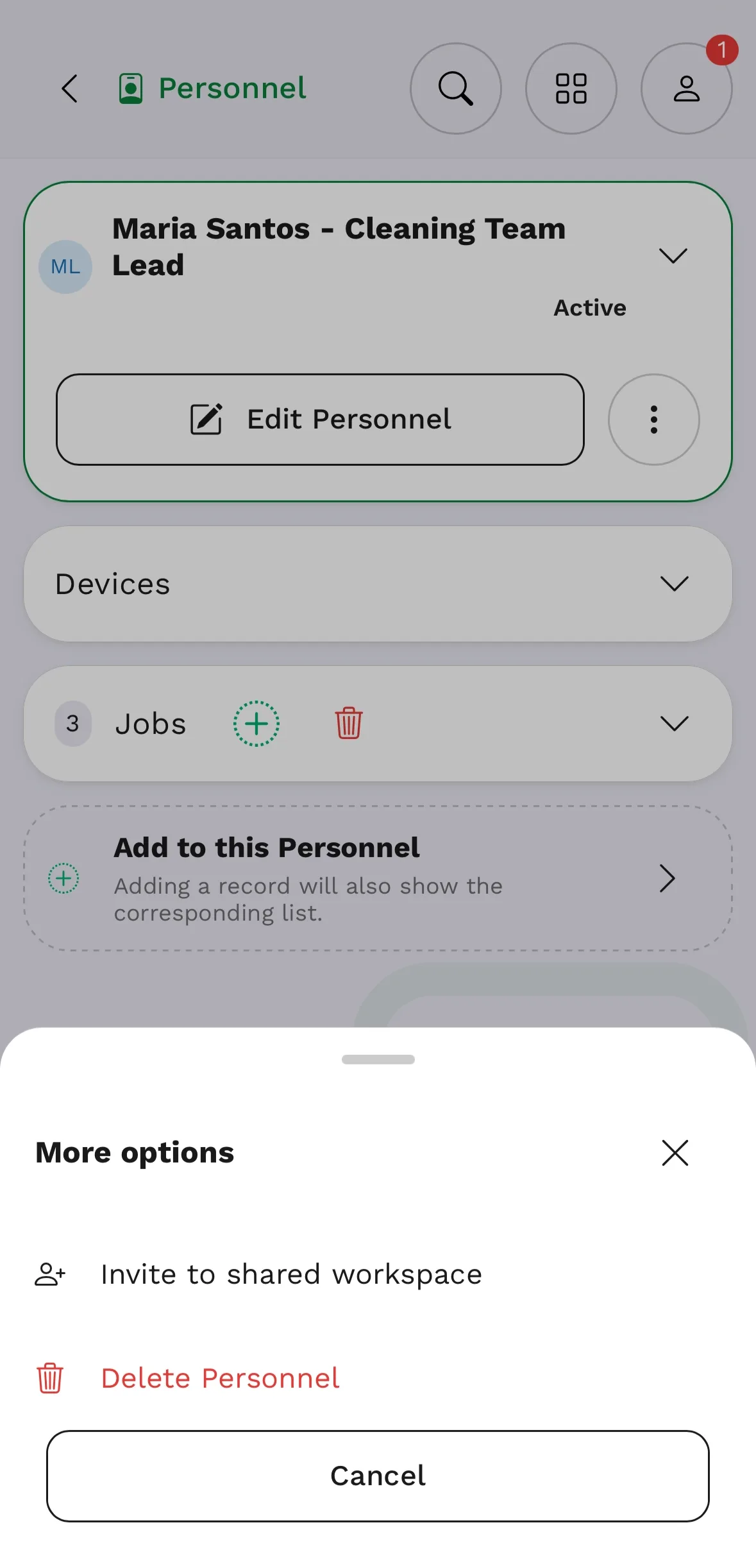
- In Personnel, tap + to add the person, or open their record if they're already listed.
- Tap ⋮ → Invite to shared workspace, choose Admin or Staff, then tap Create invite.
- Send the link with Share, Send by SMS or Copy link.
- Give them the 6-digit code separately, for example on a call. Never put it in the same message as the link.
They tap the link (or paste it under "Have an invite?" in the app) and join. In the app they're in right away. In a web browser they type the code.

Good to know
- Want encryption? Turn on encryption at rest in Settings → Advanced → Storage before your first invite. It can't be turned off later.
- Links work for about 24 hours and on one phone. Expired? Tap ⋮ → Show invite → New invite.
- Anyone with the link can join as that person, so send it only to them.
- Free vs Pro: on Pro, open the person's record and tap Share invite link, with no Dropbox needed. Pro also enforces permissions on the server.
- For crew: got a link? Install ToolBerry, tap the link, then Join workspace. You don't need to sign up.