
Description
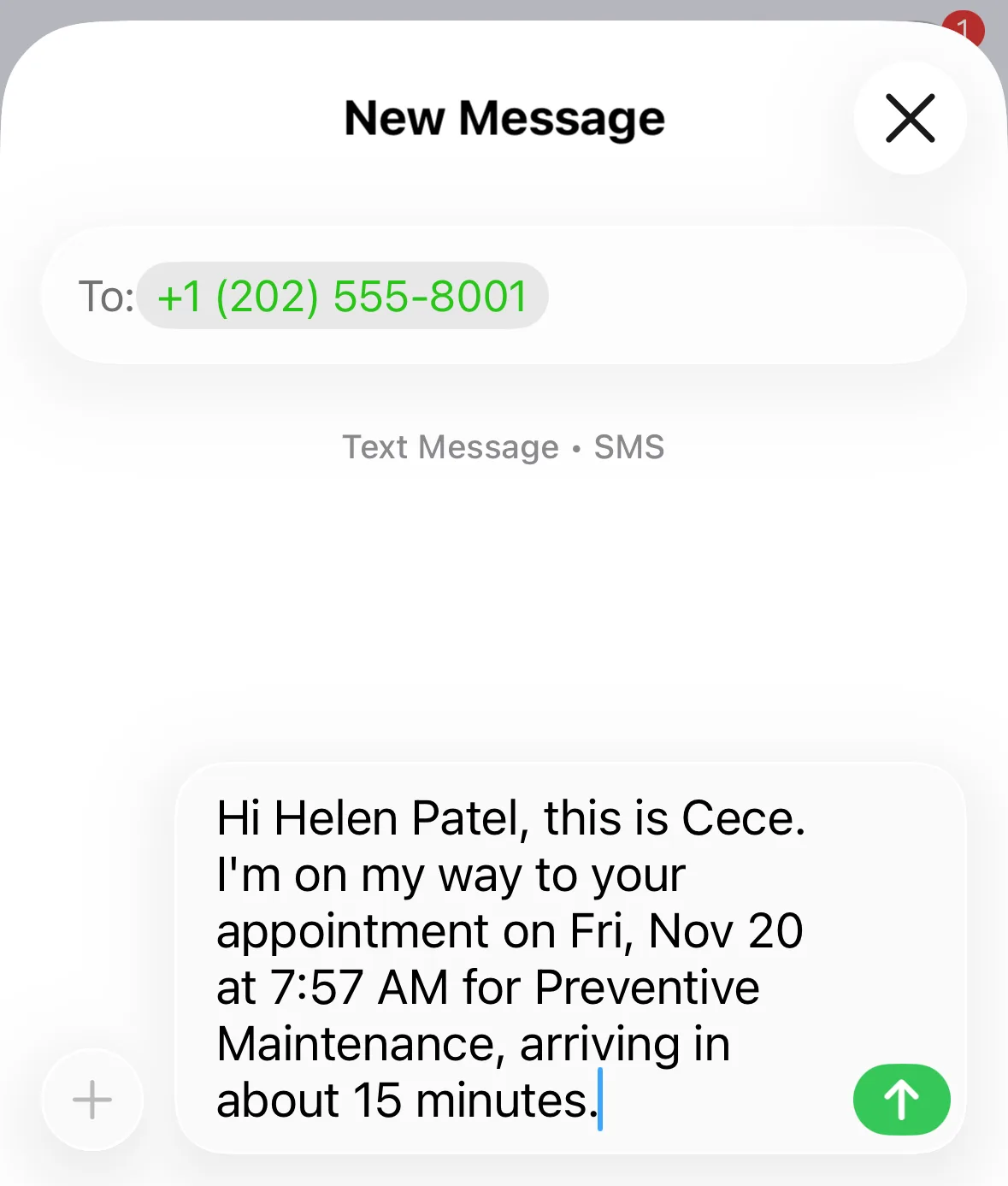
Let the customer know you're headed over with one tap. ToolBerry opens your phone's text app with the message and your ETA already filled in. You hit send from your own number.
How to use it
- On your phone, open a job that's in the Scheduled stage and hasn't reached its start time yet.
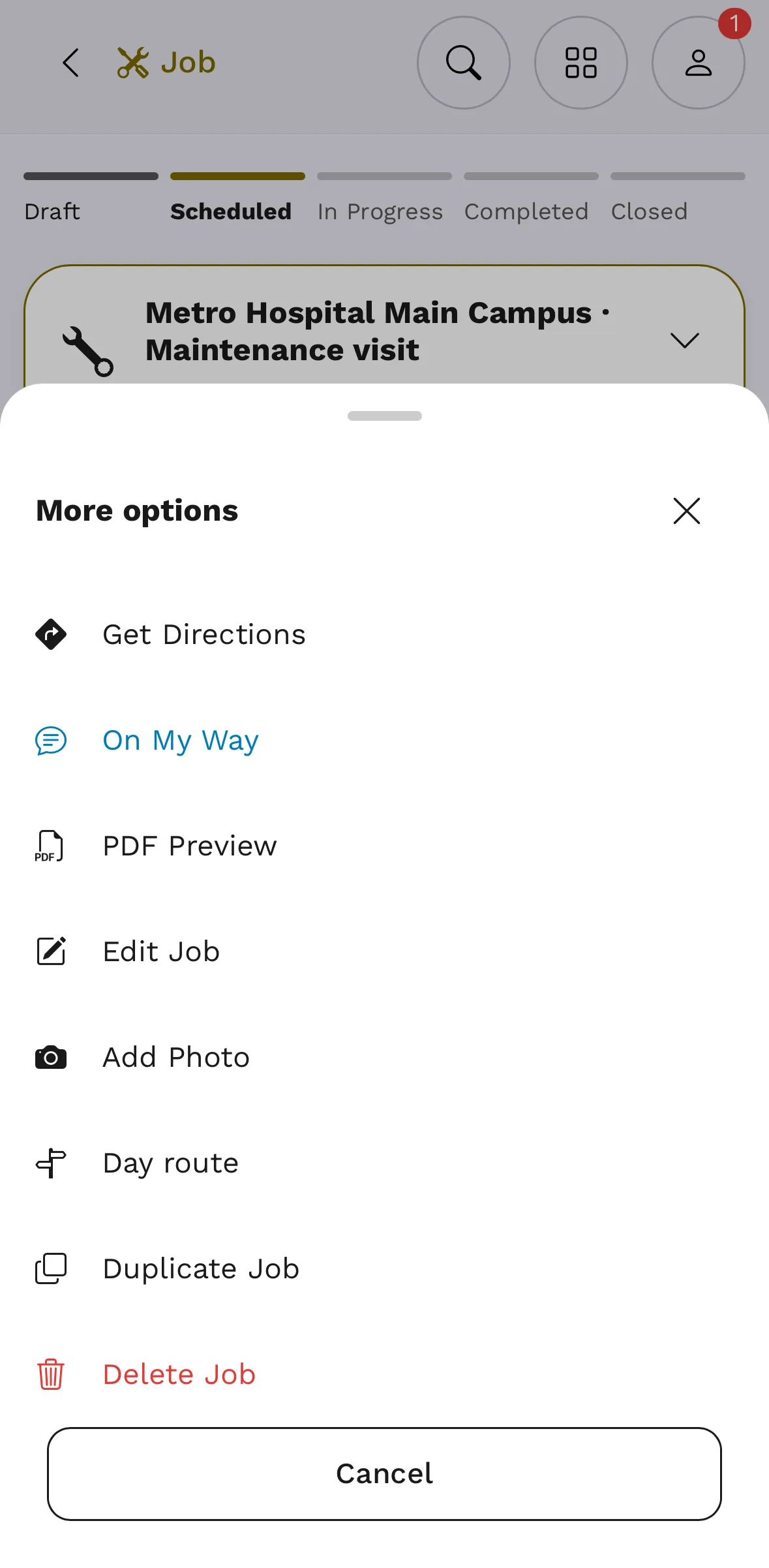
- Tap ⋮ next to Start Work, then tap On My Way.
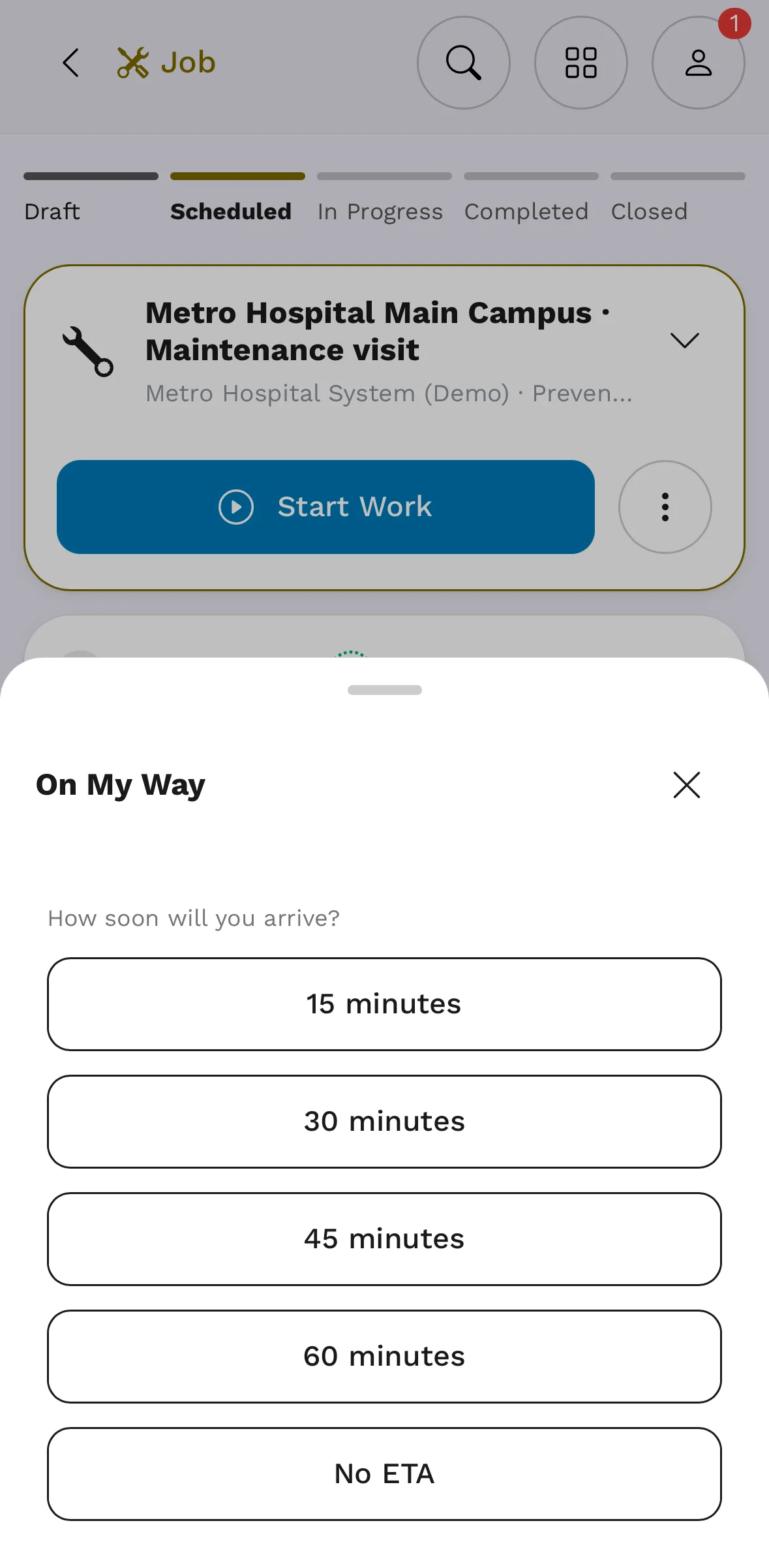
- Pick how soon you'll arrive: 15, 30, 45 or 60 minutes, or No ETA.
- Your text app opens with the message ready, addressed to the job's on-site contact. It includes the appointment date and time, the job type and your ETA. Check it and tap Send.
You can also find On My Way on the visit in the Schedule.
Change the message
- Go to Settings → Templates → SMS Templates.
- Tap +. Give it a Name and tick Default for this type.
- Edit the Message. It starts as "Hi {recipientName}, this is {companyName}. I'm on my way to your appointment." Keep the words in { } and ToolBerry fills them in.
- Tap Save & Open. If you don't make one, ToolBerry uses its own default message.
Good to know
- It's on the iPhone and Android apps only. You won't see it on the web.
- Don't see On My Way? It only shows on jobs that haven't started yet. Once the job's scheduled start time has passed, the button goes away.
- The text goes to the job's on-site contact. If there isn't one, it goes to the customer. No number saved? The text app still opens and you type the number in.
- ToolBerry never sends texts on its own. You always press send, from your own phone number.
- A note is added to the job that the message was opened.
- Free on all plans.