
Description
Assets is your list of everything you work on or own: units you service at customers, your tools and equipment, stock, rental gear and more. Each one keeps its serial number, barcode, specs, photos, location and full history.
How to use it
- Go to Assets in the side menu. The top shows totals by category, like Inventory, Units and Equipment.
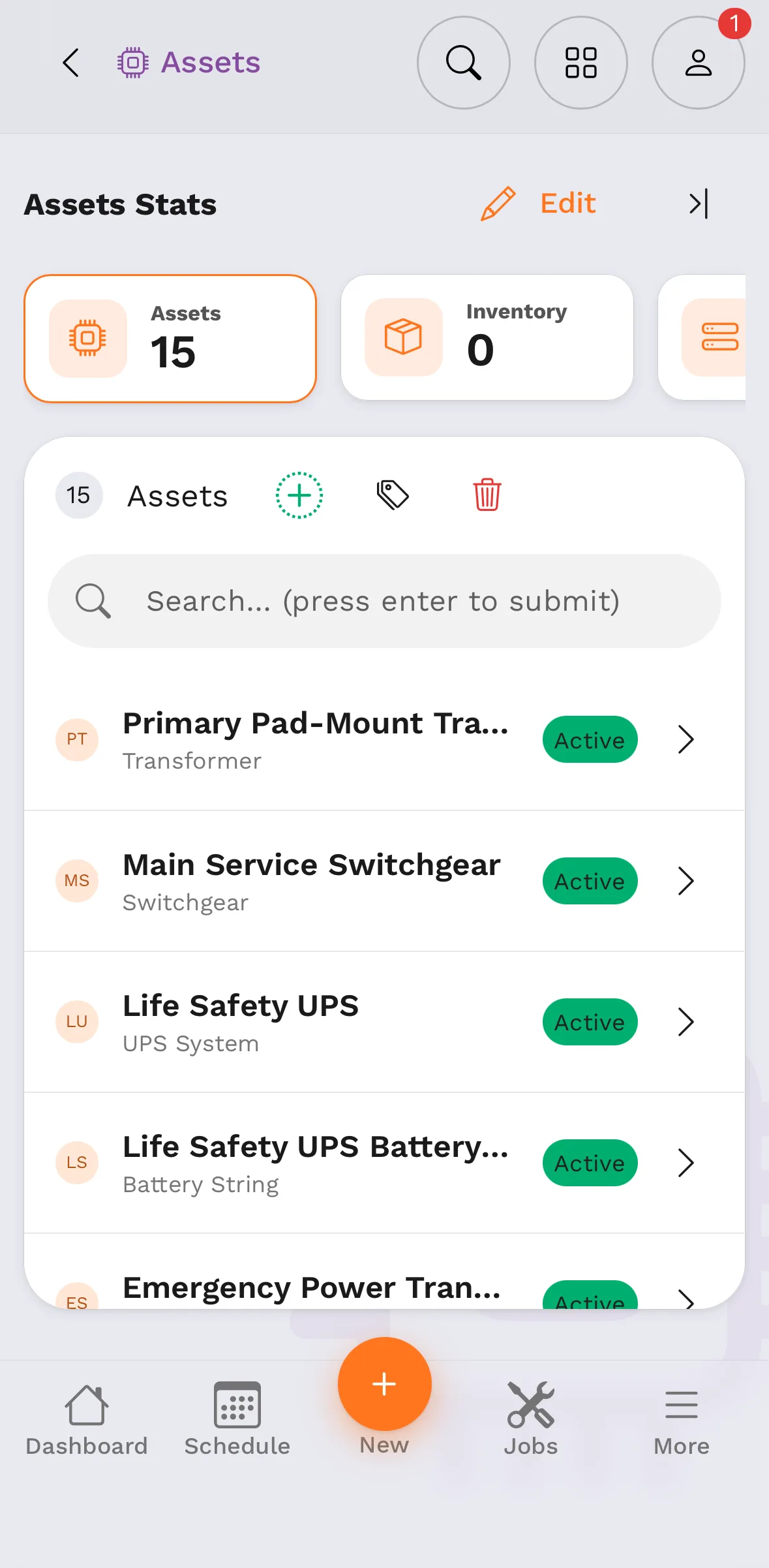
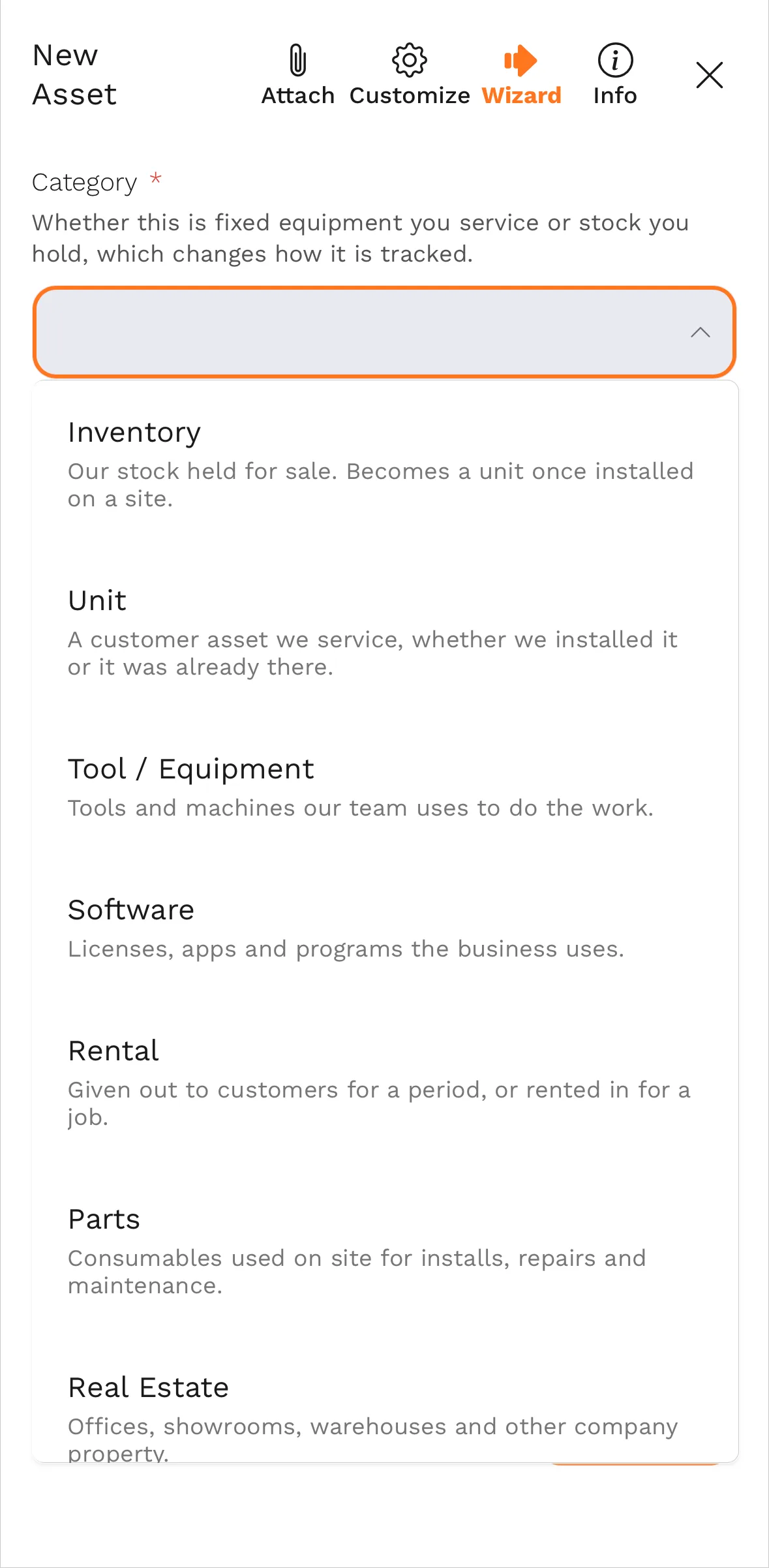
- Tap + to add one. Pick a Category first, since it changes how the asset is tracked:
- Unit: equipment you install and service at a customer, like an AC unit or water heater.
- Tool / Equipment: things your crew uses, like a pressure washer. You can check these out to a person.
- Inventory and Parts: stock you hold and use on jobs.
- Rental: gear you rent out to customers.
- Software: licenses and subscriptions.
- Real Estate: offices, warehouses and other company property.
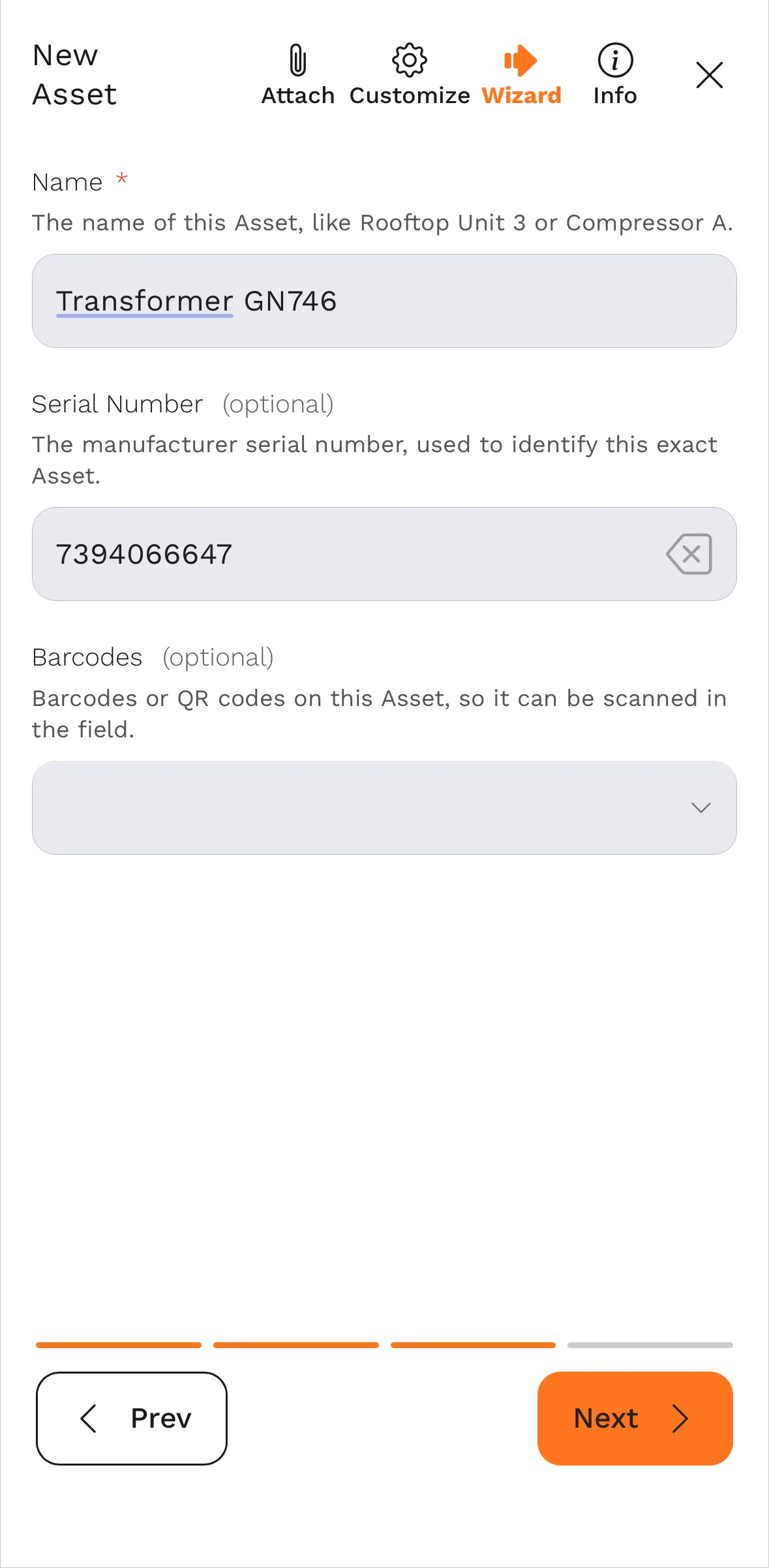
- Tap Next through the steps: pick the Asset Type (or + New Asset Type), then add the Name, Serial Number and Barcodes, then the Location. Tap Create Asset.
- Tap the asset to open it. The buttons at the top let you Edit Asset, Assign it, Print Label or Duplicate Asset. Tap + to add a service, maintenance plan, attachment or reminder to it.
Good to know
- Asset Types come with their own spec fields, and Models fill in default specs for you.
- Type a serial number or barcode into search to jump straight to the asset.
- Tap Print Label for a QR or barcode label. Scanning the QR opens the asset.
- Each asset keeps its history: services, who had it, photos, documents and parts.
- Industry templates come with asset types already set up for your trade.
- Free on all plans.