
Description
Build your own role, like Contractor or Coordinator, and decide what it can see and do, module by module.
How to use it
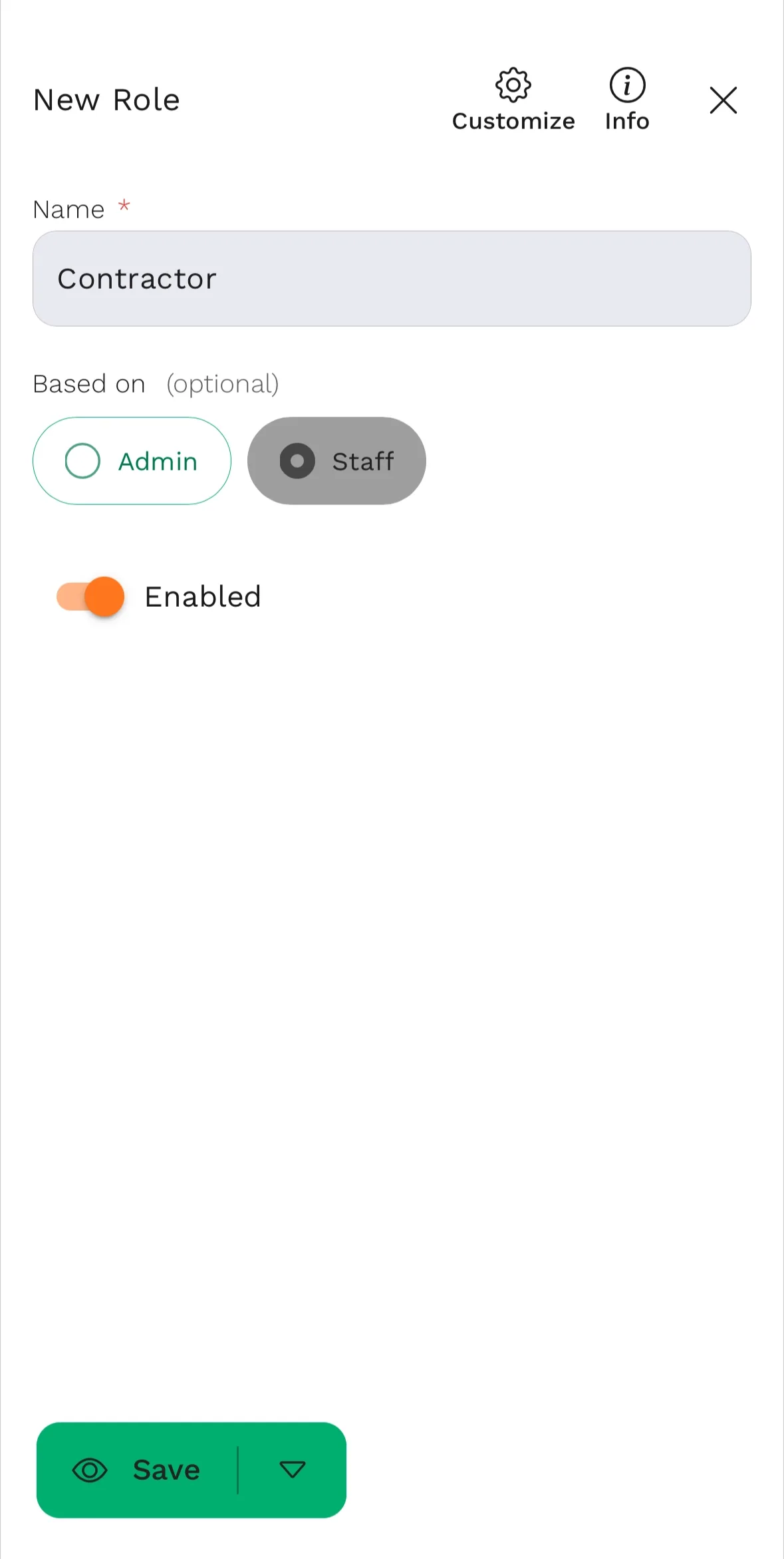
- Go to Settings → Roles and tap +.
- Enter a Name and choose Based on: Admin or Staff.
- Leave it Enabled and tap Save. It starts with the same permissions as the role you based it on.
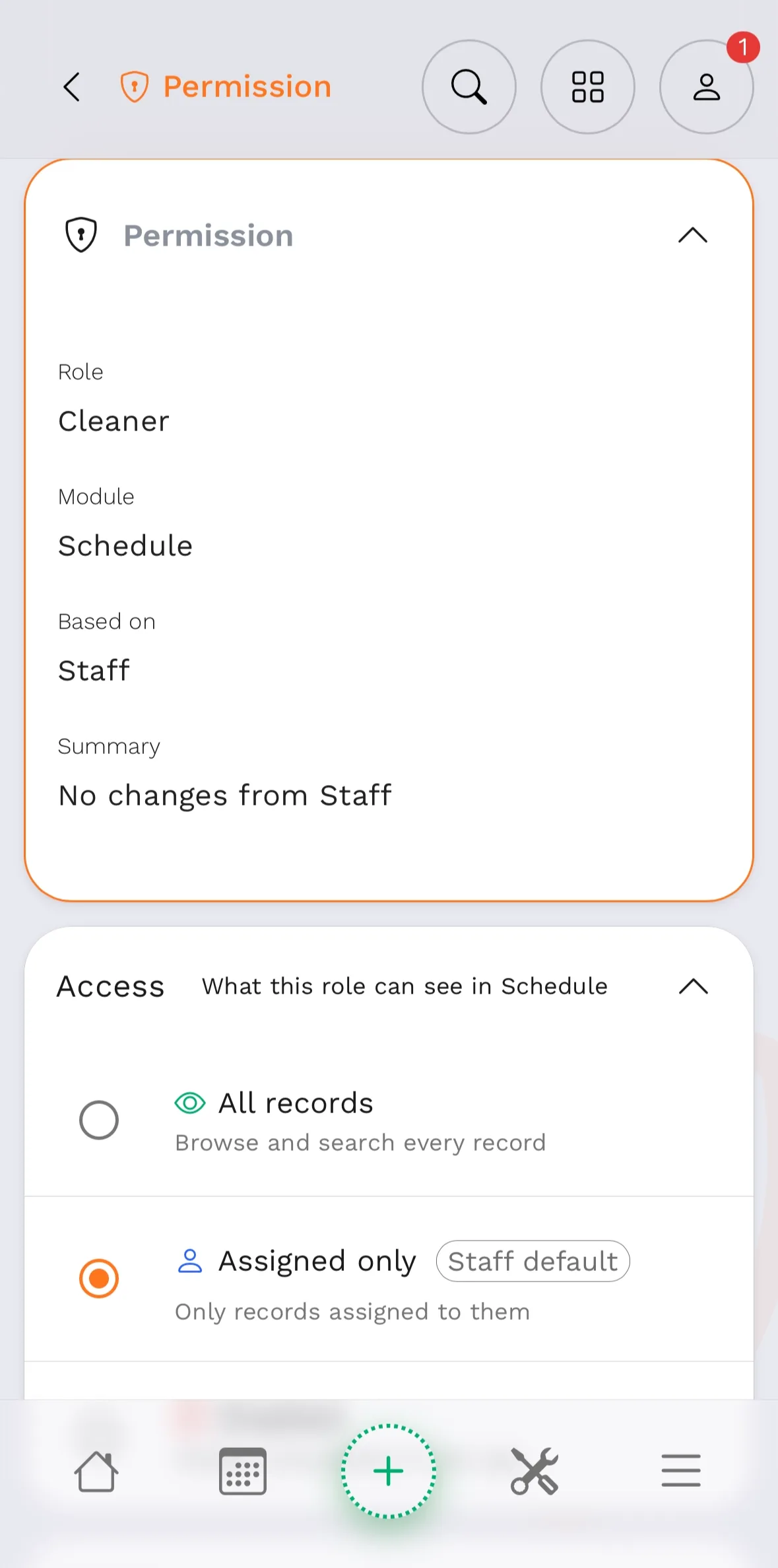
- Open any module, like Jobs or Customers, and choose what this role can see: All records, Assigned only, No lists or Disabled (hidden everywhere in the app).
- Under Personnel, tap Add to this Role to give people this role.
Good to know
- Admin and Staff are system roles and can't be changed. Create a new role instead.
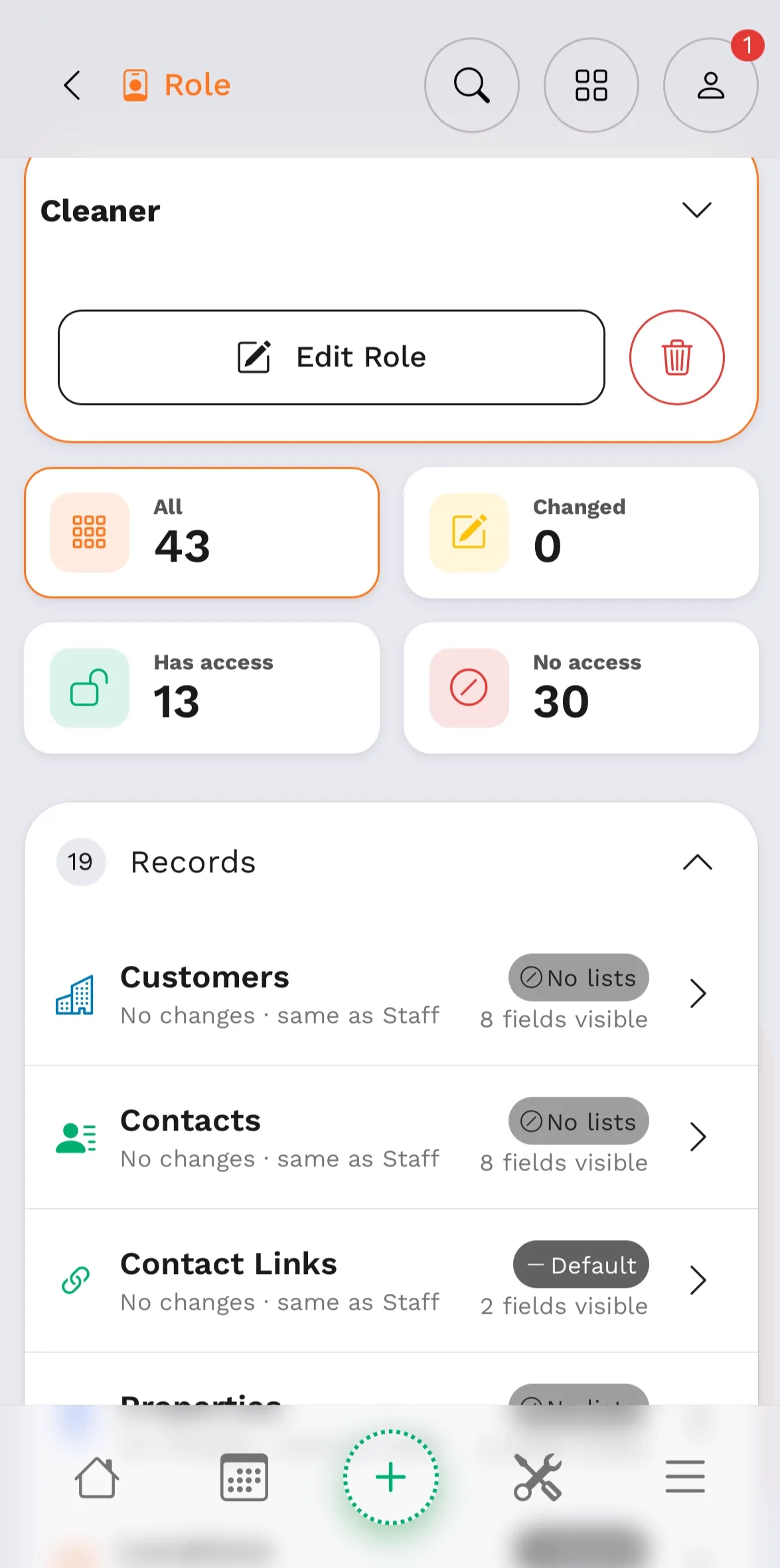
- The counters at the top (All, Changed, Has access, No access) show what you've changed.
- No lists means people can open a record from their own job but can't browse the full list.
- Depending on your team size, ToolBerry may add starter roles like Field Technician or Coordinator.
- Preview the role before inviting anyone: tap the 👤 profile icon → View as.
- Free vs Pro: on Free, roles shape what the app shows but don't lock the data. Pro enforces them on the server.