
Customizations: Understanding Industry Templates in ToolBerry
Pick your trade once, and ToolBerry starts looking like your business instead of a blank spreadsheet.
Updated September 17, 2026
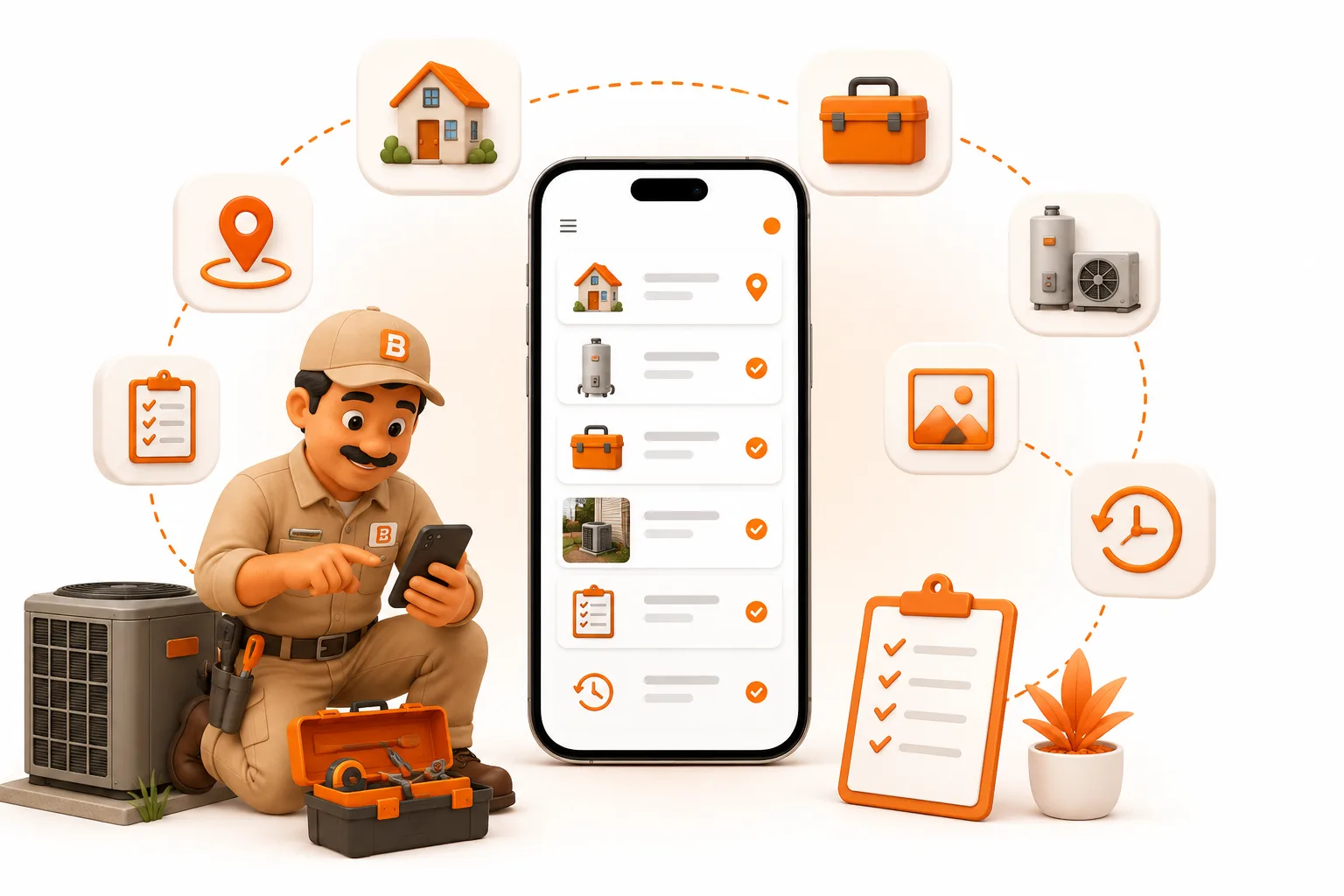
Pick your trade once, and ToolBerry starts looking like your business instead of a blank spreadsheet.
Picture a two-person HVAC outfit.You and one tech, one truck each, a slow season followed by a July that never lets up. You've finally decided to replace the paper work orders with an app.
You sign up.The first screen gives you a blank customer list and a generic Job type. There's no obvious place for refrigerant type, system type, or warranty status. Everything you normally track starts going into one crowded notes field.A week later, you're searching through those notes to remember what kind of refrigerant a customer's system uses.
By the third week, you're wondering why switching from paper was supposed to make things easier.
A blank, generic setup creates friction before you've even done your first job.ToolBerry is built to skip that steps of onboarding.
During onboarding, you pick your trade and your approximate business size. ToolBerry uses that information to create an initial workspace structure with relevant job types, custom fields, and terminology.
This post is about exactly what that gets you, and just as importantly, what it doesn't.
See which trades ToolBerry is built for.
What Is an Industry Template?
An industry template is the structural setup ToolBerry applies to your workspace based on the trade you choose during onboarding.It isn't sample data. It isn't a demo workspace. And it isn't a collection of fake customers.It's the starting structure for your actual workspace.
Three things can change:
- Job types that match the way your trade describes its work.
- Custom fields for customers, sites, and jobs.
- Entity labels that can change based on the size of your business.
So an HVAC company doesn't have to begin with a completely generic "Job" and manually figure out every piece of information it wants to track.
The starting point is already closer to the way that trade works.
You can then build from there.
What Trades Does ToolBerry Support?
ToolBerry currently ships with nine industry options:
- HVAC
- Plumbing
- Electrical
- Housekeeping
- Landscaping
- Pest Control
- Mobile Detailing
- Power Services
- Generator Services
There's also Other for businesses that don't fit those categories.
Choosing Other gives you a general starting point with job types such as:
- Service Call
- Repair
- Maintenance
- Installation
- Inspection
It's a baseline that you can customize when your business doesn't fit one of the specific industry options.The important distinction is that Other doesn't mean you're stuck with a generic workspace forever.
It gives you a starting point, and you can add your own structure afterward.
What Does an Industry Template Actually Change?
The easiest way to understand the difference is to compare a generic workspace with one that has been seeded for a specific trade.
| Generic Workspace | Industry Template | |
|---|---|---|
| Job types | General starting types | Trade-specific job types |
| Custom fields | Build your own | Relevant fields are preconfigured |
| Entity labels | General terminology | Can adapt to business size |
| Starting structure | Mostly blank | Trade-specific structure |
| Further customization | Yes | Yes |
The template isn't trying to finish your configuration for you.It's trying to remove the work you shouldn't have to do twice.If you're running an HVAC business, you already know what kinds of jobs you perform and what information matters. ToolBerry's template gives you a starting structure that is closer to that reality.
What Does the HVAC Template Actually Contain?
HVAC is a good example of how an industry customization can make the initial setup more specific.
The HVAC template includes job types such as:
- Maintenance / Tune-Up
- Diagnostic / Repair
- Installation / Replacement
- Emergency No-Cool / No-Heat
- Indoor Air Quality / Ductwork
- Filter Replacement / Change
- Building Automation Check
- Warranty Service
It also includes a range of custom fields across customers, sites, and jobs.
Examples of the kind of information you may see include:
| Area | Example Field | Purpose |
|---|---|---|
| Customer / Site | Warranty Status | Keep warranty information structured |
| Site | System Type | Record the HVAC system |
| Site | Refrigerant Type | Record the refrigerant used |
| Site | Breaker Size | Capture an electrical specification |
| Job | Service information | Keep job-specific details out of a single notes field |
Some fields also have constraints.For example, a field such as Breaker Size can have an appropriate range rather than accepting any value.
The point isn't simply having more fields.
It's having useful information in structured places instead of forcing everything into free-form notes.
Does ToolBerry Change Its Terminology Too?
Yes.The underlying site record stays the same, but ToolBerry can use different labels depending on your business size.
For example:
- Solo operator: Address
- Small team: Property
- Larger company: Service Location
The underlying data doesn't change.The language on screen does.
A solo operator may naturally think about an "address," while a larger field-service company may think in terms of "service locations."
It's a small detail, but it's the kind of detail that can make software feel more familiar during everyday work.
Do Job Types and Custom Fields Work the Same Way?
No. There are two separate mechanisms.
Job types are created automatically.
When you select an industry, its relevant job types are created as part of the workspace setup. There isn't a separate switch for turning those job types off during onboarding.
Customizations are optional.
If your trade has a customization pack, Apply industry template is enabled by default.
You can turn it off during onboarding if you'd rather start with a more general structure and create your own custom fields and labels.You still keep the industry-specific job types.
The reason for the split is simple.Job types are an easy starting point. Custom fields and terminology make deeper changes to the workspace, so ToolBerry leaves that part as a visible onboarding choice.
Is an Industry Template the Same as Sample Data?
No.They're two separate systems.
The industry template creates structure:
- Job types
- Custom fields
- Entity labels
Sample data creates fake records so you can explore the app before entering real information.You can use the industry template without sample data.You can also use sample data without applying the industry customization pack.
There's one detail worth being upfront about: sample jobs are currently generic.Sample workspaces receive a small set of sample jobs regardless of trade, and those jobs use the Scheduled status.
The trade-specific sample data is found in areas such as customers, sites, and assets rather than being reflected in every sample job.The distinction matters because the two features solve different problems.The template changes the structure of the workspace.Sample data gives you records to explore.
Can You Change Your Industry Later?
No.Once the workspace has been created, the selected industry is locked.That's intentional.
The industry selection is used to seed the initial workspace structure. It isn't designed to function as a mode that you switch between later.
The lock isn't only a UI restriction.It's also enforced on the server side, so a stale client can't simply submit a different industry value and change the workspace after setup.
But the rest of your workspace remains customizable.
You can still:
- Add job types
- Create custom fields
- Adjust labels
- Add additional structure
- Customize the workspace around your actual workflow
What you can't do is ask ToolBerry to reseed the existing workspace as a different industry.
What Happens If Your Business Doesn't Fit One of the Templates?
That's what Other is for.
Not every business fits neatly into HVAC, plumbing, electrical, or one of the other available categories.
If yours doesn't, you can start with the general structure and customize it yourself.
That means adding the job types your business actually uses and creating the fields that matter to your workflow.
The tradeoff is straightforward: you'll do more configuration yourself because ToolBerry doesn't currently have a dedicated industry pack for your trade.
If your trade is one of the supported industries, the template handles more of that initial work for you.
Why Use an Industry Template?
Starting with a blank system means spending your first hours teaching the software what your business does.
An industry template reverses that.
Instead of:
"Here's a generic Job. Tell us what you want to call it."
you start closer to:
"Here's a starting structure for your trade. Adjust anything that doesn't fit."
For an HVAC business, that can mean relevant job types and fields are already available when the workspace is created.
For a landscaping company, the starting structure is based on landscaping rather than HVAC.
For a generator-service company, the workspace starts from that trade instead.
The goal isn't to model every possible edge case.
The goal is to get you close enough that customization becomes refinement rather than construction.
What Are the Tradeoffs?
It's a starting point, not a finished setup.
Every business works differently. Even two HVAC companies may track different information, use different terminology, or organize jobs differently.
You should expect to add or adjust some fields and job types.
There are only a limited number of industry-specific templates today.
If your trade isn't included, you'll use Other and do more of the setup yourself.
The template runs once.
There is no "reapply template" button, and you can't switch an existing workspace from one industry to another.
The initial structure may not match your business perfectly.
That's expected. The template is designed to reduce setup work, not eliminate customization altogether.
The tradeoff is less configuration at the beginning in exchange for starting with a predefined structure that you can then modify.
How Can You Start With an Industry Template?
You don't need to enter your whole customer database first.
You can see what the template gives you before putting real business information into the workspace.
- Open ToolBerry.
- Pick the trade closest to your business.
- Choose your approximate business size.
- Leave Apply industry template enabled if you want the customization pack.
- Review the job types and custom fields that were created.
- Add anything your business needs that isn't already there.
- Start entering your real customers, sites, assets, and jobs.
The useful part is that you can evaluate the structure before investing significant time in setting everything up.The template gives you a starting point.Your customization makes it yours.
For the Technically Curious
Each industry's customization is stored as a typed SeedCustomizationsData pack containing its job types, custom fields, entity labels, and applicable role or module gating.
A registry maps each WorkspaceIndustry value to its corresponding customization pack.During seeding, ToolBerry creates job types unconditionally.Custom fields, entity labels, roles, and modules are gated by the Apply industry template setting, which defaults to enabled whenever the selected trade has an available customization pack.
Entity labels are stored as business-size overrides.That means the same underlying data structure can render as Address, Property, or Service Location depending on the workspace's business size. The application resolves that label at runtime rather than maintaining separate structures for each business size.
Sample data is handled separately through per-industry fixture files and seeded with backdated timestamps.
Removing sample data deletes records created before the workspace's own creation time, while custom fields and custom entities are explicitly excluded. That's why removing sample data doesn't remove the industry structure.
The industry lock is enforced in two places: the Settings UI and the backend sync layer, where an industry edit is silently dropped before it can be applied.
The Short Version
Industry templates give you a useful starting point.
Pick your trade, choose your business size, and ToolBerry creates relevant job types and, where available, trade-specific fields and terminology.
You don't have to build the whole system before you can use it.
And you don't have to accept the starting structure as permanent either. Add the fields, job types, and terminology your business actually needs.
The template gets you started.
Your customization makes it yours.
Browse all the industries ToolBerry supports.
Have a Question?
We're always happy to help.
Reach us at contact@toolberry.net, especially if your trade isn't on the list yet.
Download the app from App Store · Get it on Google Play, or read more at toolberry.net.
Free. Works offline. No account needed.
Further Reading
- Customizations: What’s the deference between industry templates and sample data?
- Built to Bend: Why ToolBerry Lets You Customize Everything