
Description
Send a proposal or invoice to your customer by email. On Pro, ToolBerry emails it for you. On Free, you send it from your own mail app.
How to use it
- Open the proposal or invoice while it's still a Draft.
- On Pro: tap Send at the top. Pick the Recipients, and check the Subject and Message (they fill in from your email template). Add Other attachments if you need to, and turn on Preview email to see what your customer gets. Tap Send. ToolBerry emails the PDF plus a View document link, and the record moves to Sent. Already sent it another way? Tick Mark as sent without sending.
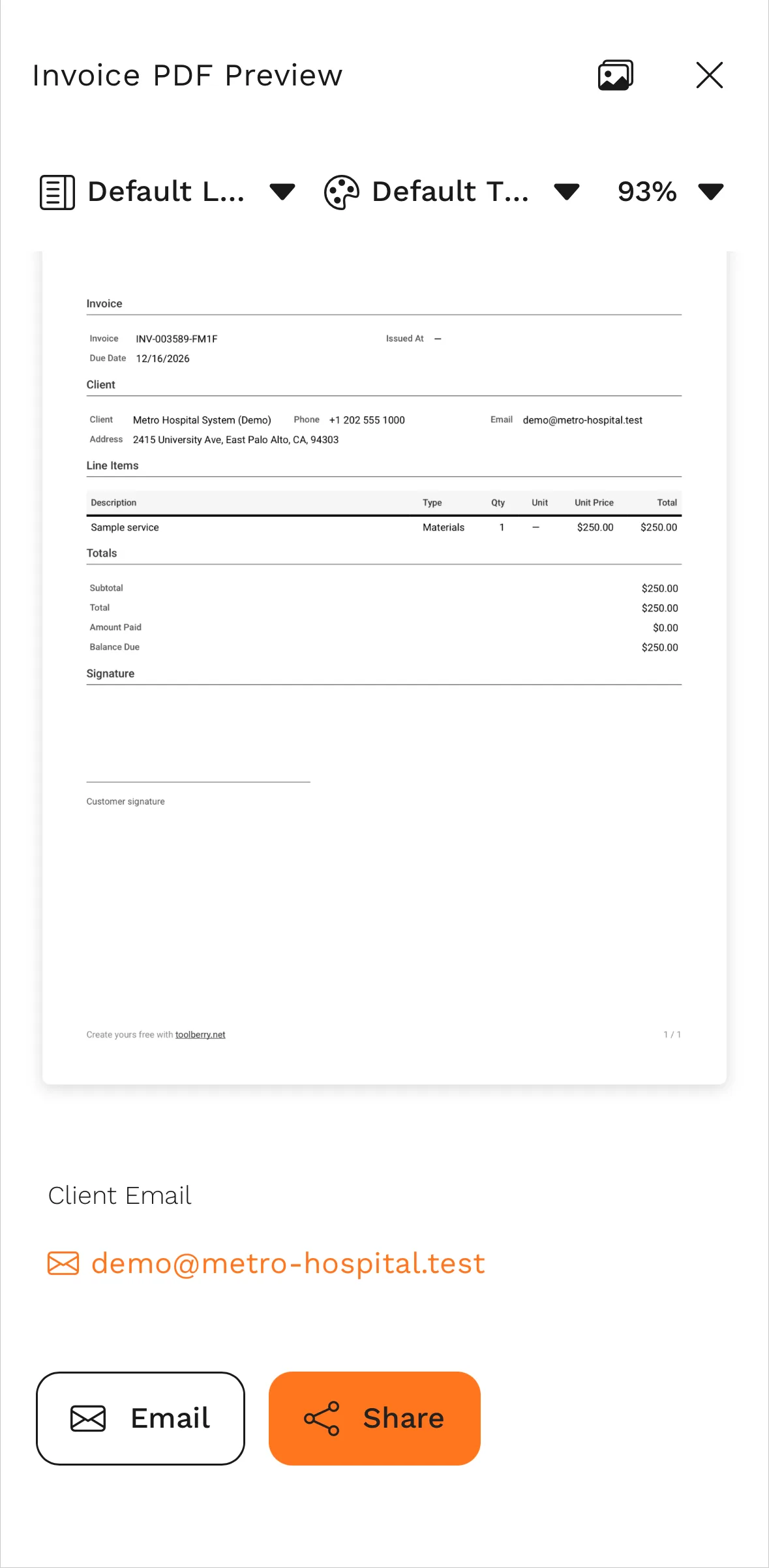
- On Free: the button says Mark as Sent. It moves the record to Sent but doesn't email anything. To send it yourself, tap the PDF icon, then Email to open your mail app (or Download the PDF and attach it).
Change the email wording
- Go to Settings → Templates → Email Templates.
- Create or edit a template and pick the type: Proposal sent or Invoice sent.
- Write the subject and message. Use variables like
{documentName}and{companyName}to fill in details automatically. - Save. Email templates are part of Pro. On Free, Settings → Templates only shows Print and SMS templates.
Good to know
- The PDF uses your logo and branding.
- No email on the customer? On Free, your mail app opens with a placeholder address you'll need to replace. Add the email on the customer or contact first to skip that.