
Description
The Schedule shows every booked visit in one place. Switch between a list, a calendar, a map and a crew planner, and add work right from an open time slot.
How to use it
- Go to Schedule in the side menu. The top shows how many jobs are booked this week and how many are still unscheduled.
- Pick a view: Agenda, Calendar, Map or Planner.
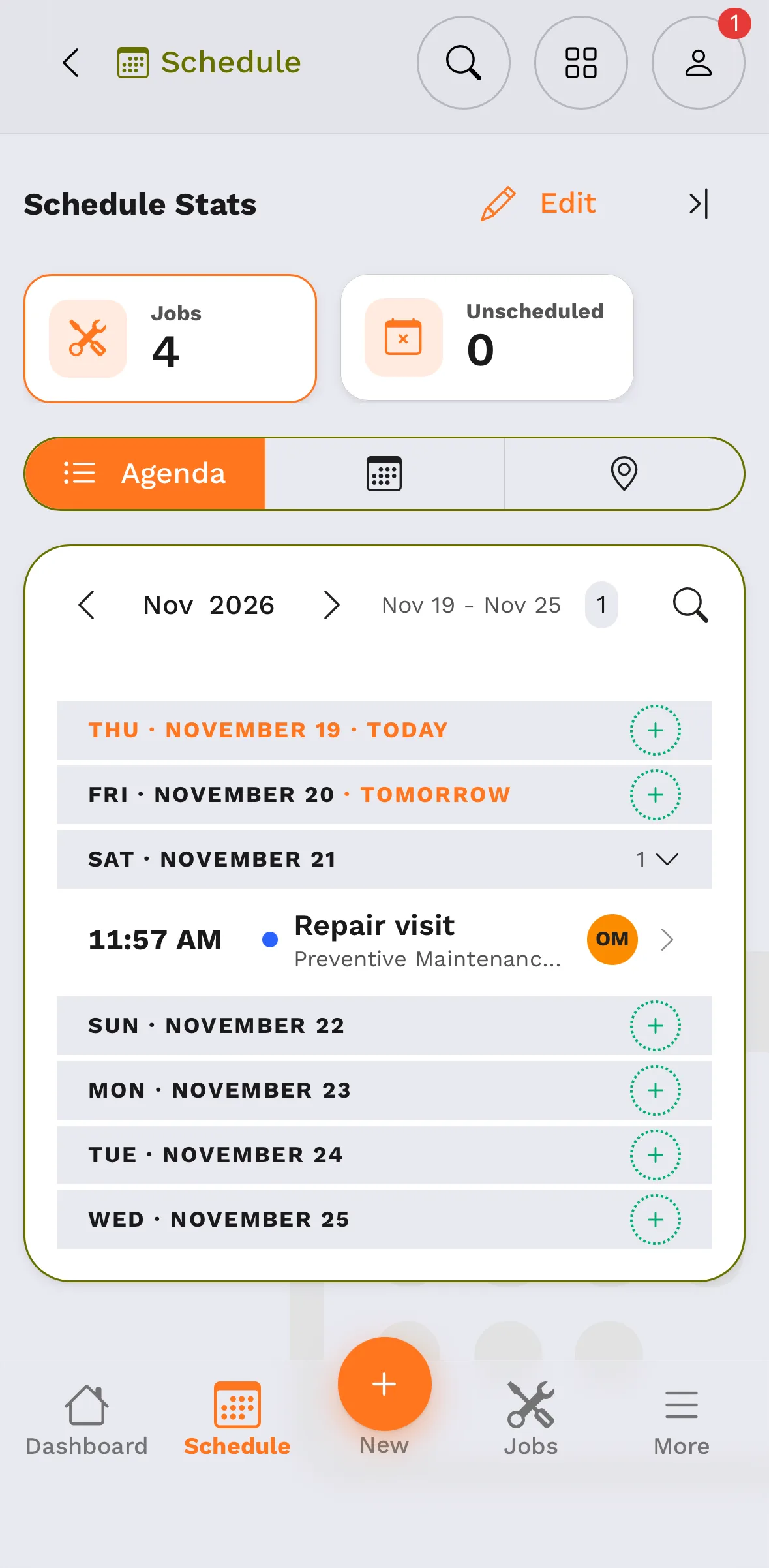
- Agenda lists the next 7 days, starting today: time, job, site, who's assigned and status. Tap a job to open it, or tap + Add on an empty day.
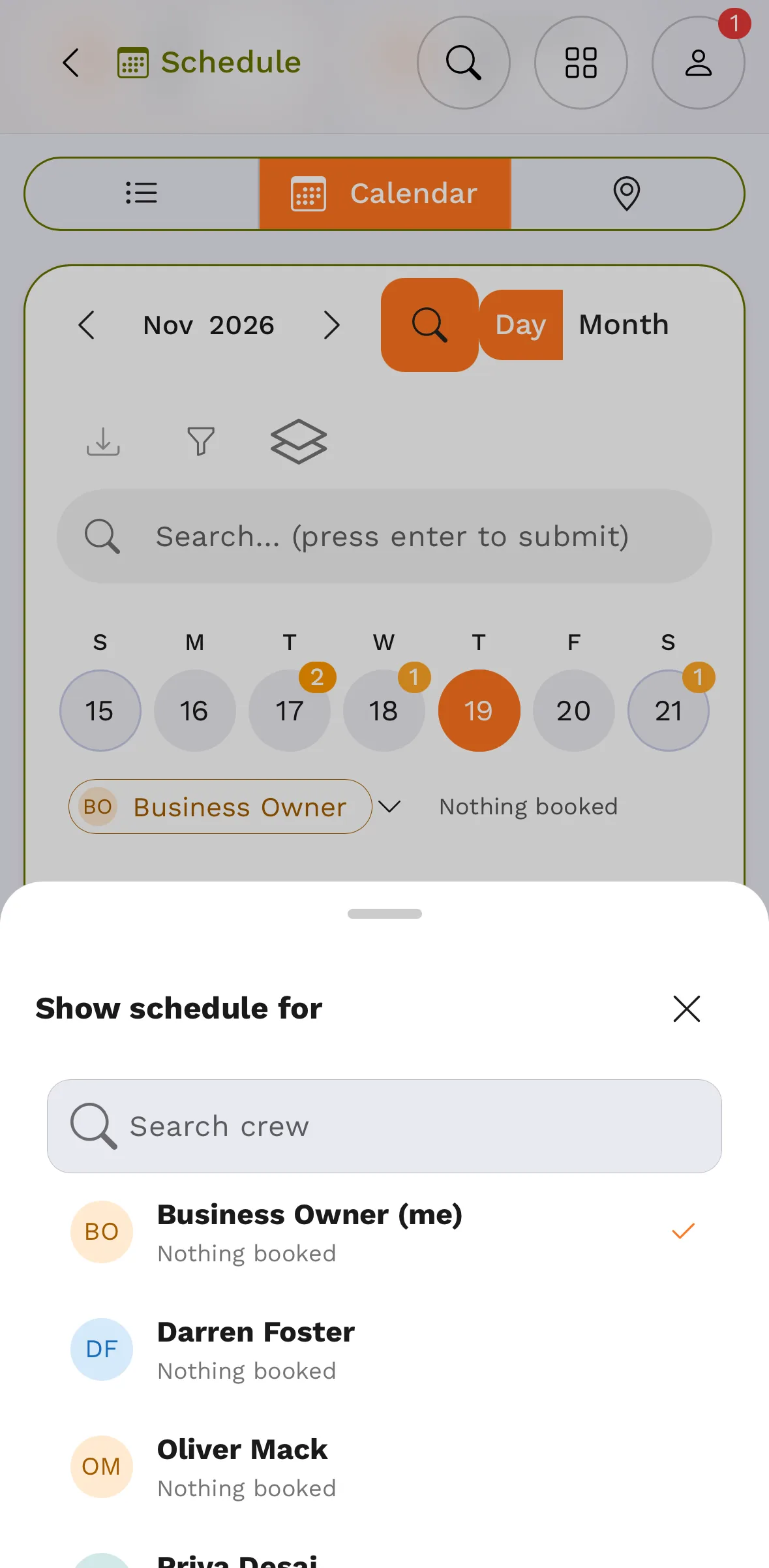
- Calendar shows jobs by Day, Week or Month (Day or Month on a phone). Use the arrows to move between dates. In Day and Week, tap the crew name to pick whose schedule you're looking at.
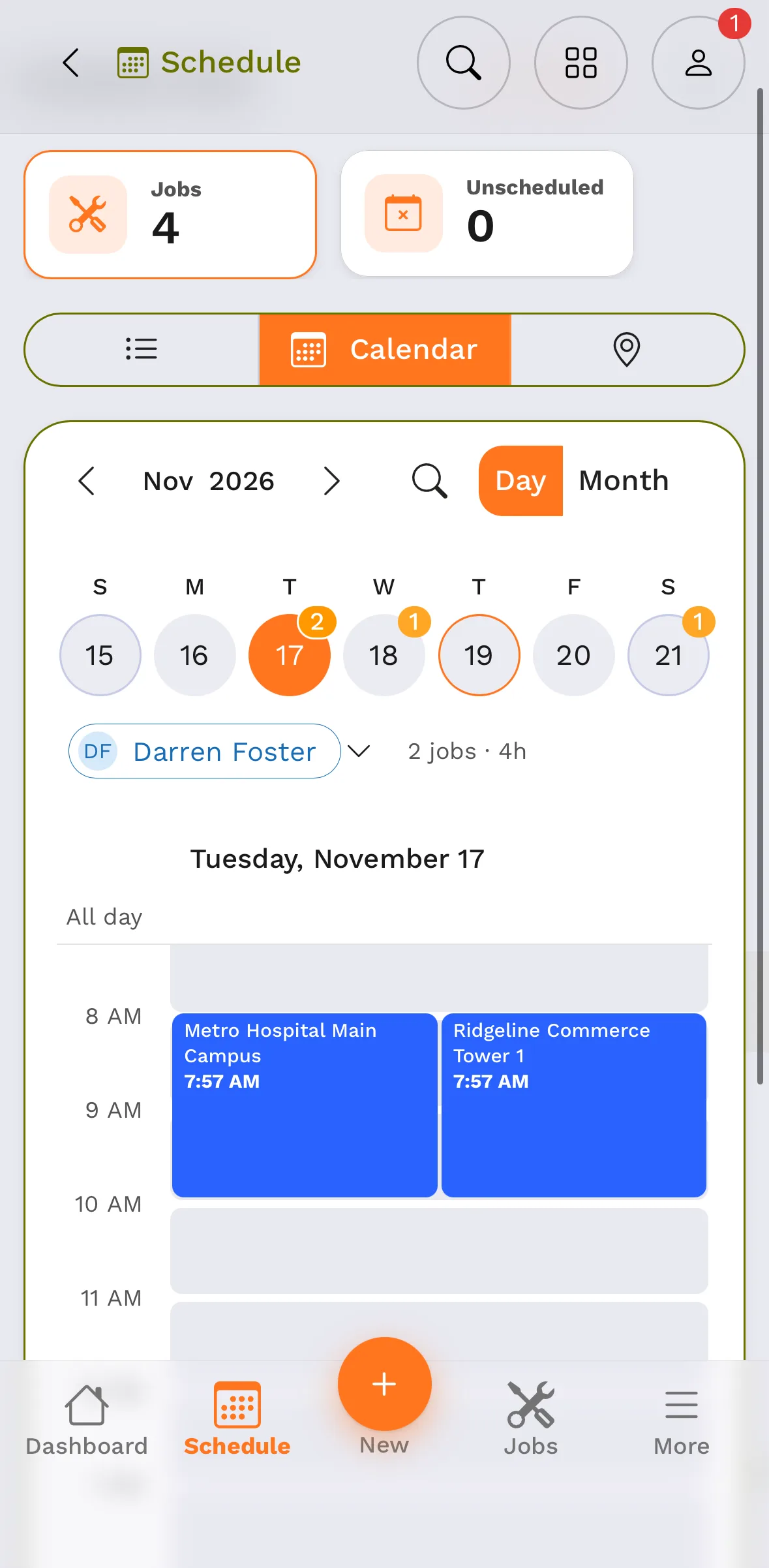
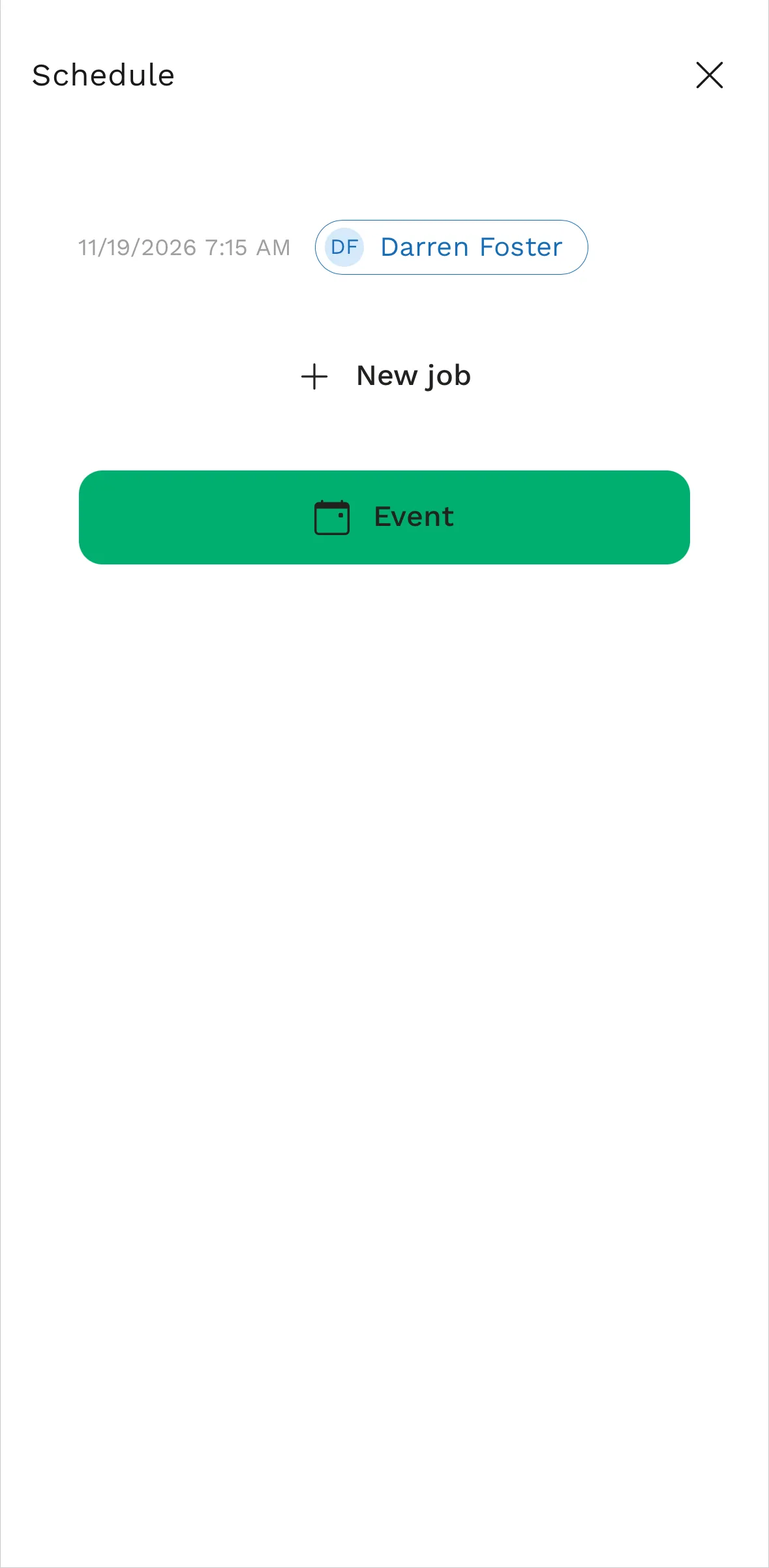
- Tap an open time slot to add something there: New job, an Event (meetings, training, stops), or on the web, Schedule an existing job.
- Map shows job sites as squares and crew as circles. Tap a pin to see the job, time and who's on it. Tap the ⓘ for the legend and to show or hide crew, coverage and jobs.
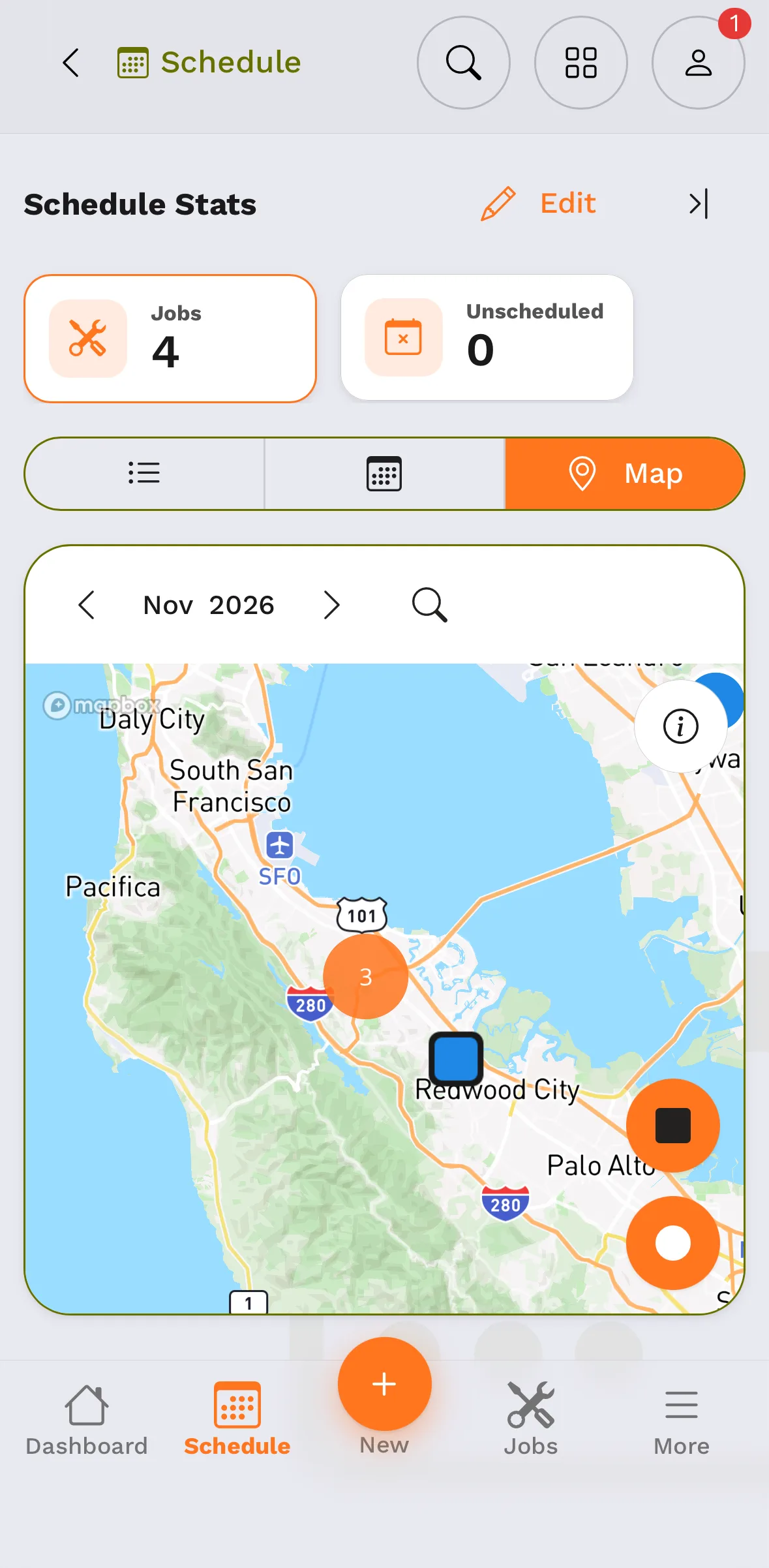
- Use the search bar to find a job, the filter icon to narrow it down, and the layers icon to show or hide Jobs and Events.
Good to know
- Month view can get crowded. Busy days show + more. Switch to Day or Week to see each visit.
- The Planner tab is for assigning work across your crew. See the Planner article.
- Unscheduled jobs aren't on the calendar yet. Tap the Unscheduled card at the top to filter the schedule down to them.
- On Pro, the team calendar updates on everyone's device in seconds.
- For crew: what you see depends on your role. If your owner turned on "crew see only their jobs", the schedule shows just the jobs you're assigned to. See How do I make crew see only their own jobs?.