
Description
A job is one piece of work for a customer. It holds the site, customer, job type, instructions, crew and schedule, and keeps the full record from first call to close-out.
How to use it
- Tap + (or New Job on the Jobs screen).
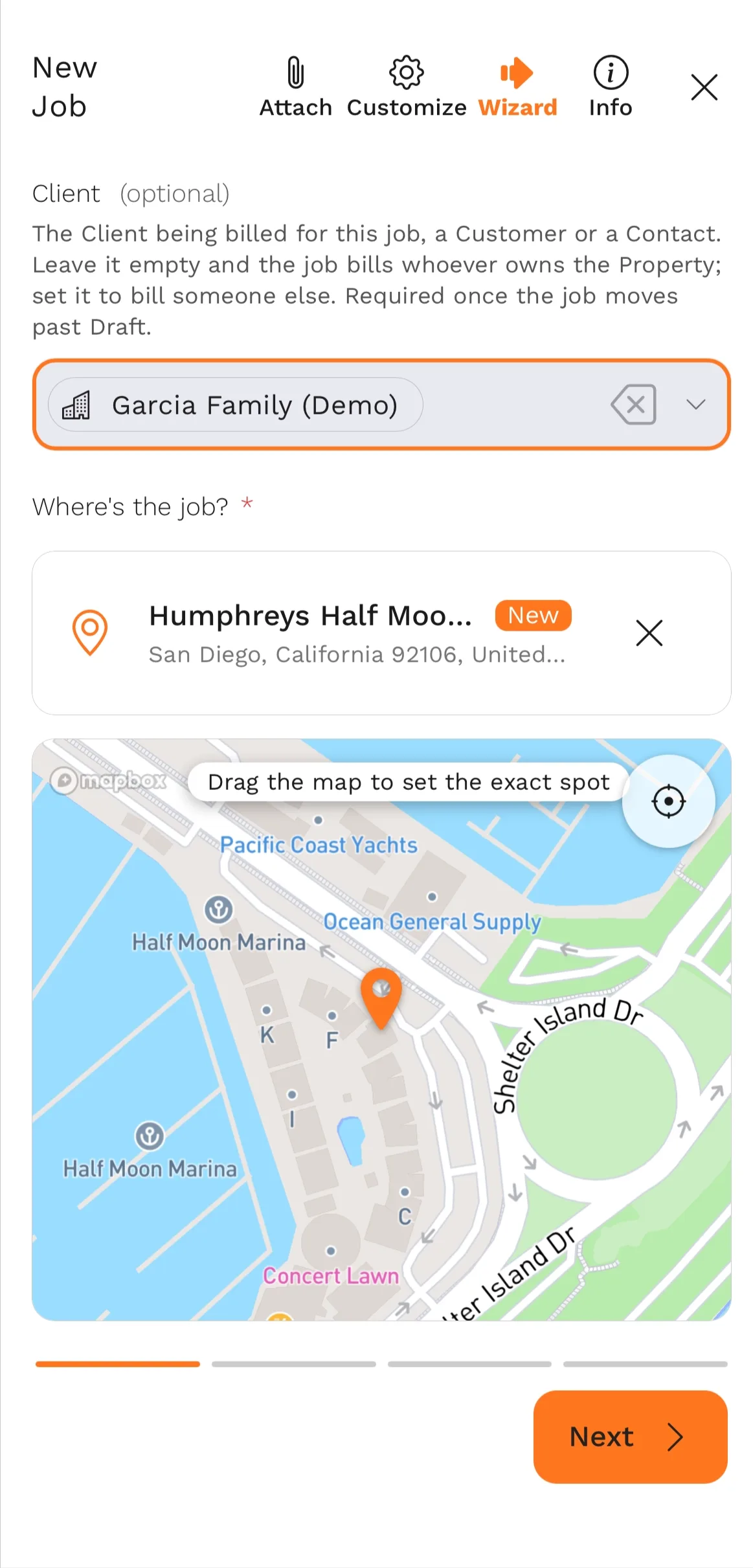
- Pick the Client first. Then under Where's the job?, type a name or address. ToolBerry shows your saved sites first, then matching addresses on the map, or lets you add a new one. Drag the map to set the exact spot.
- Set the job type and start date, and add what needs doing.
- Tap Create Job. It shows on your schedule, and you add photos and notes as you go.
Good to know
- Stages: Draft, Scheduled, In progress, Completed, Closed, Cancelled.
- Your dashboard lists open jobs. Finished and cancelled jobs are in the Jobs list or on the customer's page.
- Completing a job offers to create the invoice and the crew's timesheets for you.
- Free vs Pro: on a free shared workspace, a new job reaches a teammate's open app within about 10 minutes. On Pro it's seconds.
- For crew: your assigned jobs show on your schedule. Tap Start Work, tick the checklist and add photos.