
Shared multi-user is here; your data, your Dropbox, your team
Your crew can now share one ToolBerry workspace for free, through your own Dropbox, with no accounts to create.
Updated September 28, 2026
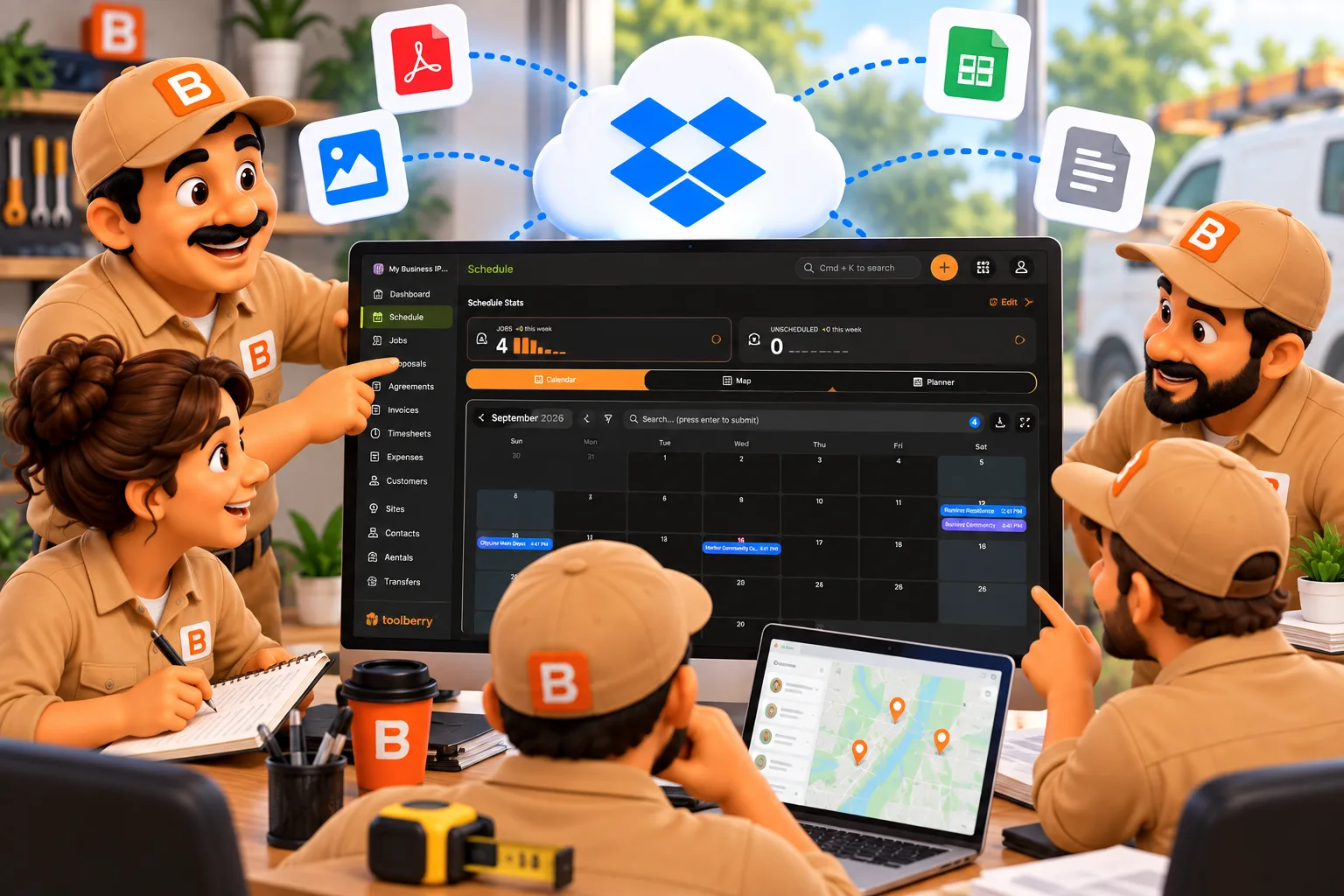
Your crew can now share one ToolBerry workspace for free, through your own Dropbox, with no accounts to create.
Published October 1, 2026.
Is there a free field service app for a small team?
Yes. As of today, ToolBerry Free lets a small crew share one workspace at no cost per person. You invite a helper with a link, they tap it, and they see your jobs on their own phone. There's no seat fee, nothing for them to sign up for, and your business data stays in your own Dropbox, not our servers.
We built this for the owner who needs an extra pair of hands this Saturday, not a software rollout. In the app it's called Shared multi-user, and it's available on ToolBerry Free starting today.
What does it look like on a real week?
You hand your jobs to a helper with one text message, and their work comes back to you without retyping. Your helper sees the stops, the notes and the photos on their own phone, checks off the work as they go, and you see it from wherever you are. When the job is done, you take their access back.
Imagine you run a one-person pool route, about 40 pools a week. Your sister is getting married out of state, and you need four days off. A friend who used to clean pools can cover the route.
Without shared access, you print the route and text the gate codes one by one. You explain which dog gets out and which pump makes that noise. When you get back, you ask what he added to each pool and type it in yourself, if you remember.
With Shared multi-user, the week goes like this:
- You add your friend to your People list and give him a role, like Technician.
- You tap Invite and choose Send by SMS. Your phone opens its own text app with the link ready.
- He taps the link and joins your workspace. No account, no password, no Dropbox of his own.
- He works the route. He sees each stop with its notes, gate codes included, and photos from past visits. He checks off each pool, adds photos and notes what he added, even in a backyard with no signal.
- You check in from the wedding. His updates reach your phone within minutes while you both have ToolBerry open.
- When you're back, you remove his access. The next time his phone is online, it deletes its copy of your business.
The same pattern works for a painter who brings a cousin for one big weekend, or a cleaning business that adds a second person for the busy season.
What does it cost me?
Nothing per person. ToolBerry Free has no seat fee, no teammate cap and no subscription. Adding a helper for one weekend costs you nothing extra from ToolBerry. That matters most for the kind of help small crews actually add: a friend, a cousin or a day-rate helper who works with you a few times a season, not a full-time hire.
Most field service apps charge for each person past the seats a plan includes. Jobber lists extra users at $29 a month each, and Housecall Pro's MAX plan at $35 a month each past its included users (Jobber pricing, Housecall Pro pricing, checked September 2026).
I've seen where that model leads. Early in my career I worked with an owner who ran several companies, and one helper who worked across two of them needed two paid licenses. I wrote more about that in Why we are building a free way for your crew to share one workspace.
Unusually for field service software, ToolBerry lets a small team share one workspace for free. With no server to pay for, there's no bill to pass on to you. The idea behind that is in No Cheese in the Trap: The Rule Behind ToolBerry Free.
How do I get my crew on it?
Connect your Dropbox, turn on Shared multi-user, give each person a role, and send them a link. You do the setup once. After that, adding someone new is picking a role and sending a text, and removing them is Remove shared access on their name in your People list.
- Connect Dropbox in Settings, then Advanced, then Storage, and turn on Shared multi-user on the same page. This is a one-way switch: it stays on for that workspace.
- Decide about encryption before you invite anyone. It locks your data in Dropbox. It can't be turned on once people have joined, and it can't be turned off.
- Give each person a role and tap Invite. Send the link with Share, Send by SMS or Copy link. Each link works for 24 hours, on one phone.
We'll go through every screen, plus adding your own tablet or laptop, in the setup post later in this series.
How does my crew stay in step without a server?
Every phone keeps its own full copy of your business, and your Dropbox keeps those copies in step. A change is saved on the phone first, signal or not, then shared through your Dropbox with everyone else. Nobody waits on a page to load, and ToolBerry never holds a copy of your data.
The plain-words version, with a shop clipboard as the picture, is in Can a crew shares one app without a server, in plain words (Coming Soon).
The honest tradeoffs
Shared multi-user is built for a small crew that trusts each other. It is free because it runs through your Dropbox instead of our servers, and that choice comes with limits. Know these before you invite anyone.
- Roles hide screens; they don't lock data. Enforced permissions are part of Free vs Pro: The ToolBerry Story, and What Each Plan Is For.
- Updates arrive in minutes, not instantly. Good for "done by the next job," not for sending trucks around as calls come in.
- When ToolBerry isn't open, updates are best-effort. If it's in the background, the phone wakes it now and then to catch up, on the phone's schedule, which can be minutes or hours. If you swiped it away, it can't catch up until it's opened again. On Android you get a "Check for updates" reminder after a day away.
- There's no team-wide history of who changed what. Each phone keeps its own recent activity, and comments show who wrote them. The full Audit log is a Pro feature.
- Your Dropbox is the shared folder. If it fills up, invites and removals wait until you free space.
- It's designed for a crew of two to five. There's no cap, but at four teammates the People page suggests a look at Pro.
What should I do next?
Update ToolBerry, connect Dropbox, and invite one person for one job. One real job is the fastest way to see whether it fits your crew. If it does, add the next person the same way. If it doesn't, remove them, and your jobs stay as they were.
Over the next few weeks I'll give each piece its own post, from adding someone with just a link to what your crew sees, working with no signal, how safe Dropbox is, and when Pro makes sense.
Questions? Email contact@toolberry.net. ToolBerry is a free, offline-first field service management app for small service-trade businesses. Get it on the App Store or Google Play.
For the Technically Curious
- Nothing in the middle. Each device writes its changes as small files into its own folder in the owner's Dropbox and reads everyone else's. Devices check on open and every 10 minutes while open. No ToolBerry server sees the data.
- Conflicts. The newest write to a record wins, judged by when the change was made, not when it arrived.
- Housekeeping. About once a week a device saves a full snapshot to Dropbox. Change files older than 14 days that the snapshot covers get cleared, so a device away longer than that re-syncs from the snapshot and keeps its own unsent edits.
- Photos and files. Photos, receipts and signatures sit in the owner's Dropbox and download when someone opens them.
- The snapshot is yours. It's a standard SQLite database, gzipped, with one header byte in front. With encryption on (it must be switched on before the first invite), every file written from then on is AES-GCM encrypted, and the key travels inside the invite link, never through us.
- Leaving. Removing someone revokes their access, and their device wipes its copy, including cached photos, the next time it's online.
Further reading
- Why we are building a free way for your crew to share one workspace
- Can a crew shares one app without a server, in plain words (Coming Soon)
- Your Data, Your Dropbox: How ToolBerry's Bring-Your-Own-Storage Works
- No Cheese in the Trap: The Rule Behind ToolBerry Free
- Free vs Pro: The ToolBerry Story, and What Each Plan Is For
- Best Free App for a Solo Pool Service Route