
How to Add Your Team to ToolBerry, Step by Step (Including Your Own Tablet)
Set up your crew's phones and your own tablet in one evening, screen by screen.
Updated October 9, 2026
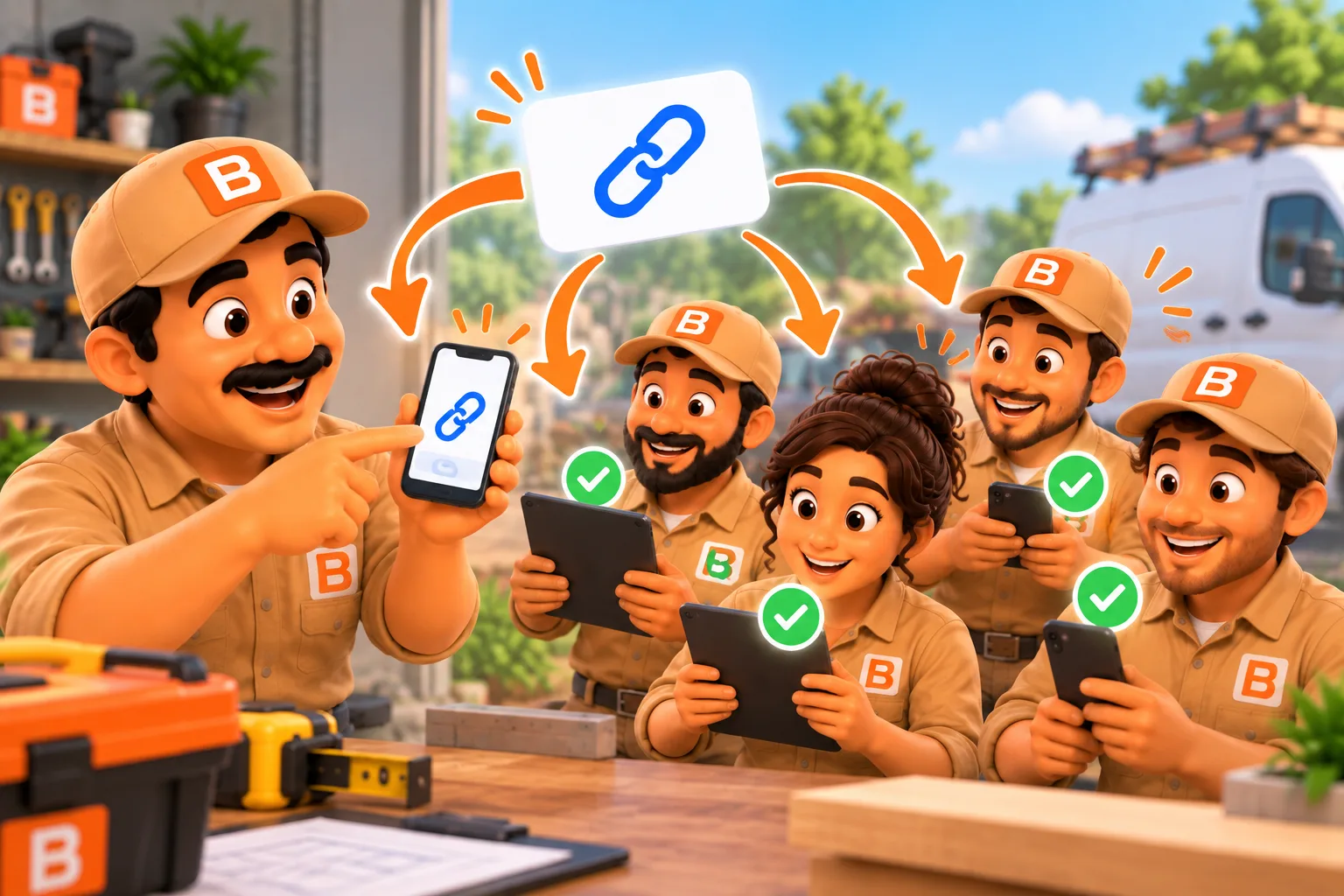
Set up your crew's phones and your own tablet in one evening, screen by screen.
Published October 5, 2026.
How do I add my team to ToolBerry?
Connect your Dropbox, turn on Shared multi-user, give each person a role, and send each one a link. You do it once, in one evening, and then your crew sees your jobs on their own phones. Nobody on the crew needs an account, an email or a password, and your own tablet joins the same way.
Setup is where adding help usually stalls. The owner is the only one who knows the app, the new hire is good at the work and not at software, and setup turns into an IT afternoon nobody has. I built this so the whole thing fits on one phone screen and one text message.
If you want the why first, start with Shared multi-user is here; your data, your Dropbox, your team.
What does setup look like on a real Sunday night?
You set it up on your own phone after dinner, your helper taps one link, and on Monday morning you're both looking at the same houses, codes and notes. You don't meet at a laptop, and nobody waits on a password reset in a driveway at 7 in the morning.
Imagine you run a house cleaning business. It's been you and a van for two years. Starting Monday, a friend who cleans at a hotel will join you three days a week, and you keep an old tablet in the van for checklists.
On Sunday night you follow the steps below. On Monday at 7, your helper opens ToolBerry and sees the Monday houses, the door codes and your notes. The tablet in the van shows the same jobs.
What do I do on my phone first?
Connect Dropbox, turn on Shared multi-user, and decide about encryption, all on one screen in Settings. You do this once for your business. Your Dropbox is the shared folder your crew's phones meet in, so it has to be connected before anyone can join, and you approve ToolBerry in your own Dropbox account.
- Open Settings, then Advanced, then Storage, and connect Dropbox.
- Tap Turn on shared multi-user on the Shared multi-user card on the same page. It stays on for that business, and it can't be turned off.
- Decide about encryption now. Turn on encryption at rest scrambles what ToolBerry writes to your Dropbox from then on. You can turn it on only before anyone joins, and it can't be turned off. More in Your Data, Your Dropbox: How ToolBerry's Bring-Your-Own-Storage Works.
One tip before you invite anyone: put next week's jobs in and assign your helper to theirs. Their first look at ToolBerry should be their real Monday, not an empty screen.
How do I invite each person?
Give the person a role on your People page, tap Invite to shared workspace, and send the link by text or any app you like. ToolBerry won't make an invite until the person has a role. With Send by SMS, your phone's own text app opens with the link ready, so it comes from your number.
- Add the person on your People page, with their name.
- Set their Access. For field crew that's usually Staff.
- Tap Invite to shared workspace, and approve it when Dropbox opens.
- Send it with Share, Send by SMS or Copy link. The text reads "You're invited to join (your business) on ToolBerry. Tap to join before (time)."
If a link runs out before they use it, open their name, tap Show invite, then New invite. How links work, and why one link is one phone, is in Add an Employee With a Link - No Account, No Email, No Password.
What does my helper do?
They install ToolBerry, tap your link, and tap Join workspace. They don't sign up, type an email or connect a Dropbox of their own. The join page already says "You're joining as" with the name you entered, so there is nothing to pick and nothing to remember afterwards.
The screen says the download can take a minute and to keep ToolBerry open. Then they tap Open workspace and see your jobs. If they tap the link before installing the app, the page tells them to get the app and tap the link again.
To check it worked, ask them to leave a comment on one Monday job, then answer it from your phone. Give it a few minutes with ToolBerry open on both phones. If you both see both comments, you're set.
How do I add my own tablet or laptop?
Tap Add another device in the side menu, create a link, and scan the QR code with your tablet. The tablet joins as you, with the same access you have on your phone, so you can run the day from the van or the kitchen table. Your helpers can use the same button for their own second device.
- On your phone, open the side menu and tap Add another device, then Create link. Approve it when Dropbox opens.
- On the tablet or laptop, scan the QR code, or open the link there.
- Type the 6-digit code your phone shows next to the QR code. Type it yourself, and never send it along with the link.
That code is there because your own link gives full owner access, so a link alone isn't enough.
The honest tradeoffs
Setup takes one evening, but two choices are permanent and a few habits are worth knowing before you start, especially if you plan to add more people or more devices later. None of these stop a small crew from working.
- Shared multi-user can't be turned off for that business once it's on.
- Encryption is now or never. Before the first invite, and it stays on.
- Dropbox opens for every invite. Each new person or device needs a quick approval in your Dropbox, so have your Dropbox sign-in handy.
- A lost tablet needs one tap. Remove my other devices on your own name cuts off every extra device you added.
- Each role sees a different app. What your crew sees, and what they don't, is covered in Who Can See What: Roles and Permissions for a Growing Service Business.
- Taking someone off is one tap too. Remove shared access on their name, and their phone deletes its copy of your business the next time it's online.
What should you do next? Pick one helper and one real job this week, and run the steps above. If it works, add the next person the same way.
Questions? Email contact@toolberry.net. ToolBerry is a free, offline-first field service management app for small service-trade businesses. Get it on the App Store or Google Play.
For the Technically Curious
- Why Dropbox opens for every invite. Each invite carries its own Dropbox grant to your folder, and Dropbox only issues a new grant when you approve it in a browser. Removing someone revokes their grant, which cuts off every device holding it.
- Why your own device needs a code. An owner link can open everyone's grants. So the key is split: half in the link, half held briefly by a small ToolBerry service that hands it over once for the right 6-digit code (3 tries), then forgets it.
- Encryption. With encryption on, the AES-GCM key rides in the part of the link after the
#, which browsers never send to a server.
Further reading
- Shared multi-user is here; your data, your Dropbox, your team
- Add an Employee With a Link - No Account, No Email, No Password
- Can a crew shares one app without a server, in plain words (Coming Soon)
- Your Data, Your Dropbox: How ToolBerry's Bring-Your-Own-Storage Works
- Hiring Your First Employee: Getting the Business Out of Your Head