
Description
The Planner puts every crew member side by side, one row each, so you can see who's busy, who's free and which jobs still need someone.
How to use it
- Go to Schedule → Planner.
- Each crew member gets a row, with their job count and hours next to their name. On a computer, pick Week to see everyone across the week, or Day to see one day hour by hour. The Total row at the bottom adds up each day. On a phone, each row shows that person's week, and a number on a day means they have jobs then. Use the arrows to move between dates.
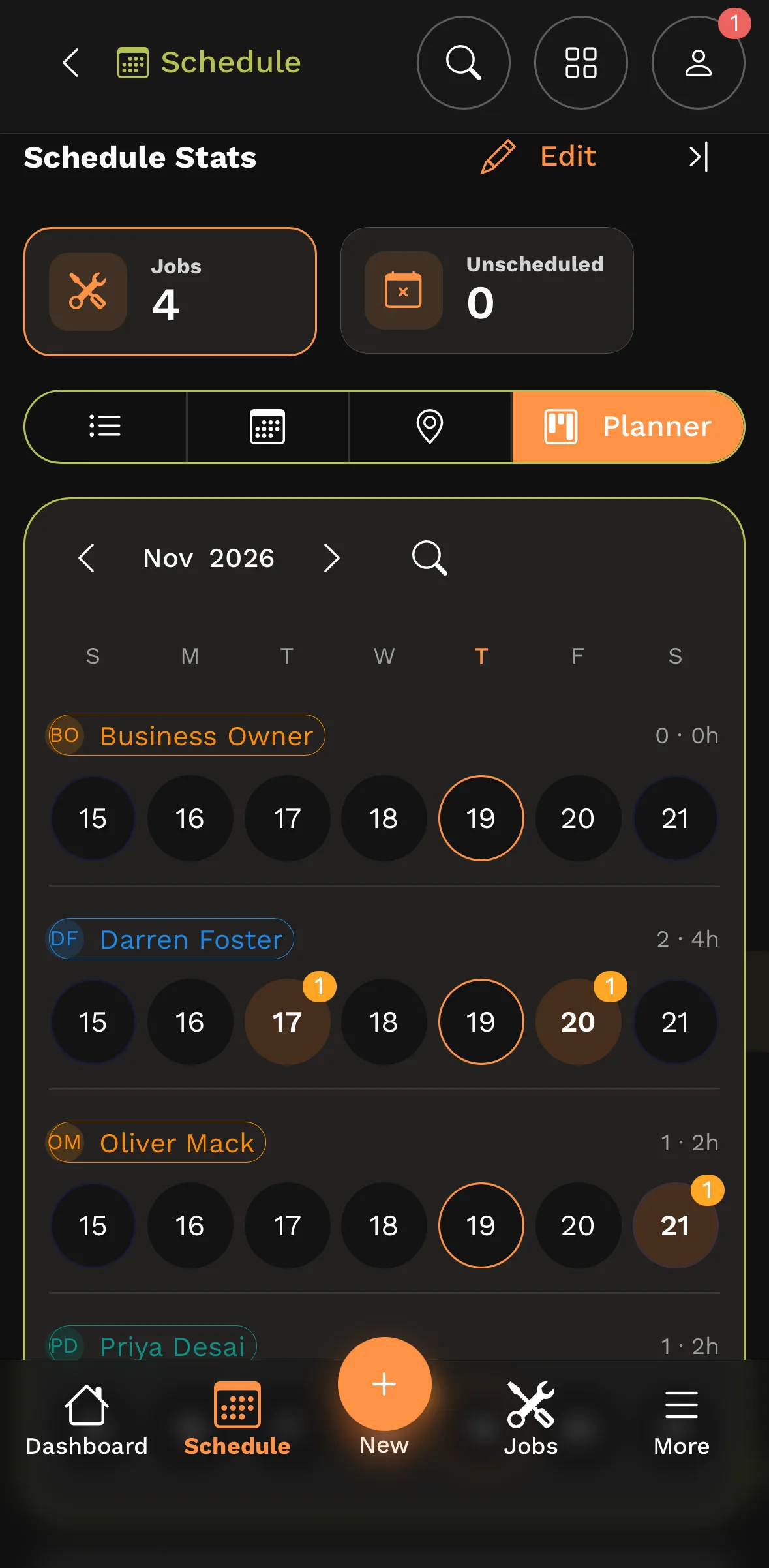
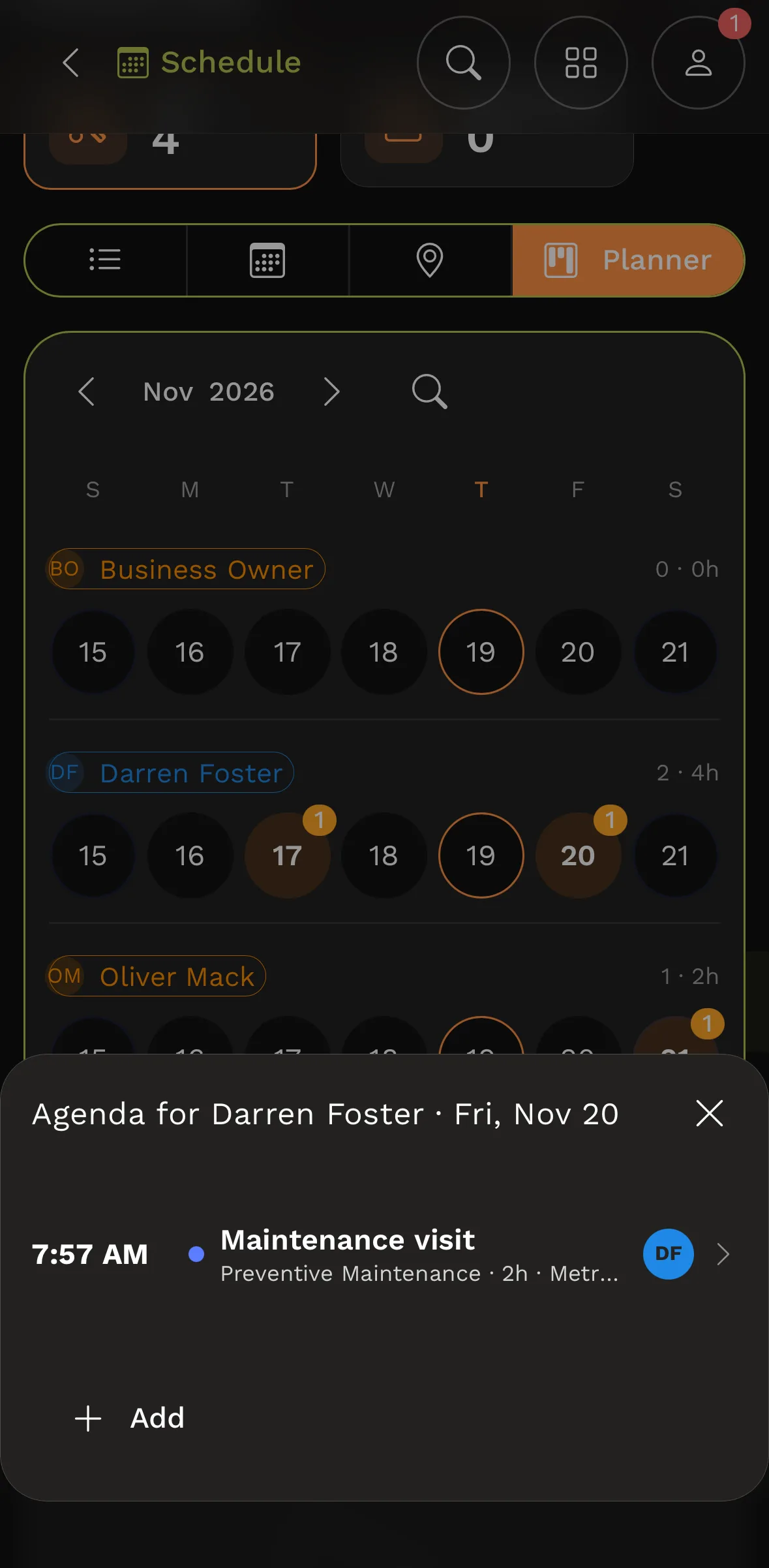
- To add work for someone, click + in their cell on a computer. On a phone, tap a day on their row to open their agenda for that day, then tap + Add. Tap any job to open it.
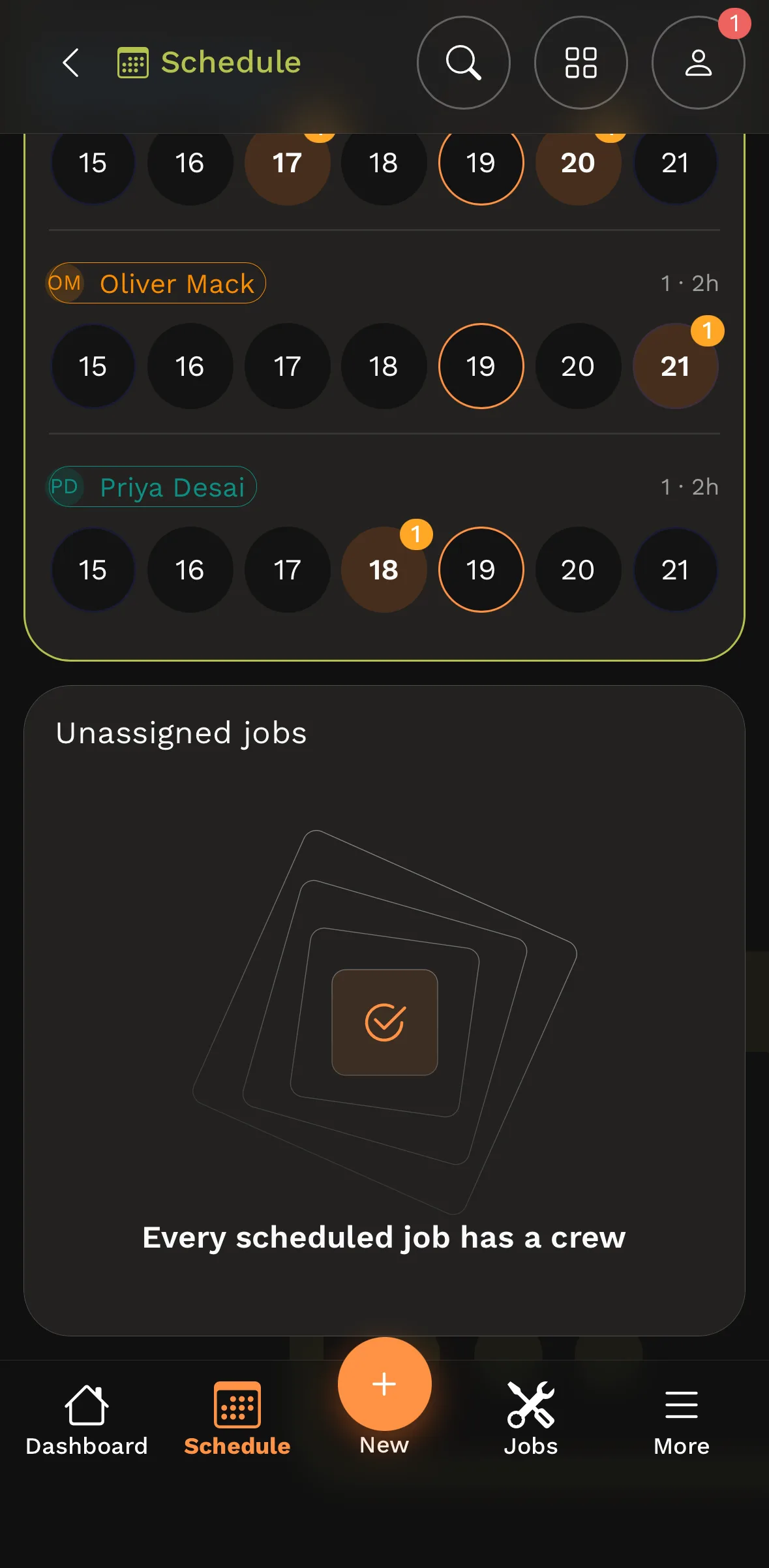
- Scroll down to Unassigned jobs. Jobs there are scheduled but have no crew yet. On a computer, drag a job from this list onto a person's day to assign it. If everyone's covered, it says Every scheduled job has a crew.
- To give a job to someone else or move it to another day, drag it to the new spot in Week view on a computer.
Good to know
- The Planner is part of the Schedule module (Settings → Modules → Schedule: advanced scheduling and dispatch). Smaller teams can schedule straight from the job instead.
- The Planner shows up once you have 3 or more active crew members.
- Schedule an existing job only lists jobs that person can take. Completed or cancelled jobs, jobs with no customer, jobs with more than one crew member, and jobs that person can't be assigned to don't show.
- Subcontractor visits also show on the Planner, and team chips show which team is working a job.
- On Pro, new assignments reach crew phones in seconds.