
Description
Turn any job into a clean PDF report for your customer. It pulls in the job details, site, contacts, checklist answers, photos and a signature line, so you don't have to write anything up.
How to use it
- Open the job and tap the PDF icon at the top. On a phone, tap ⋮ → PDF Preview.
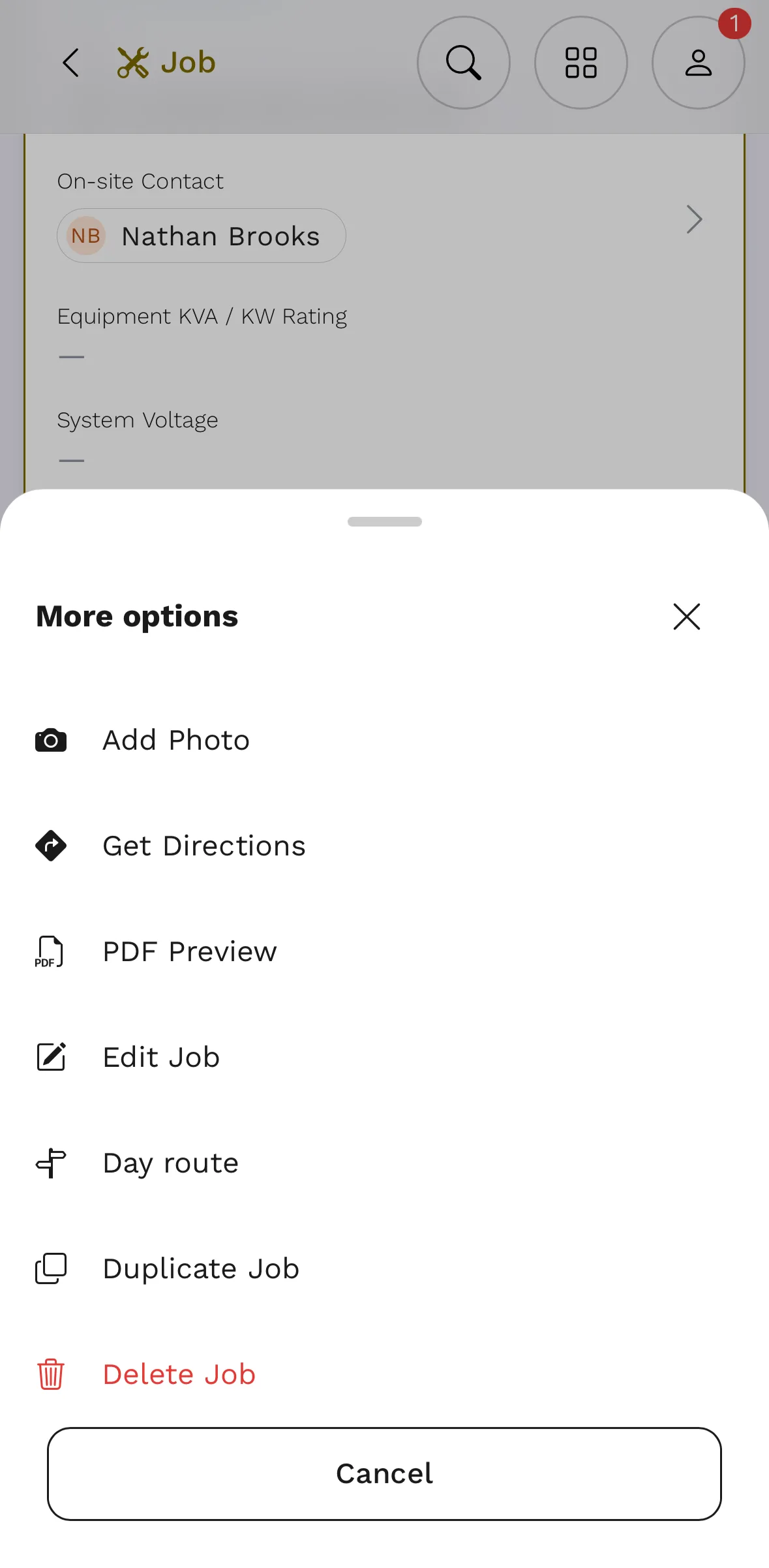
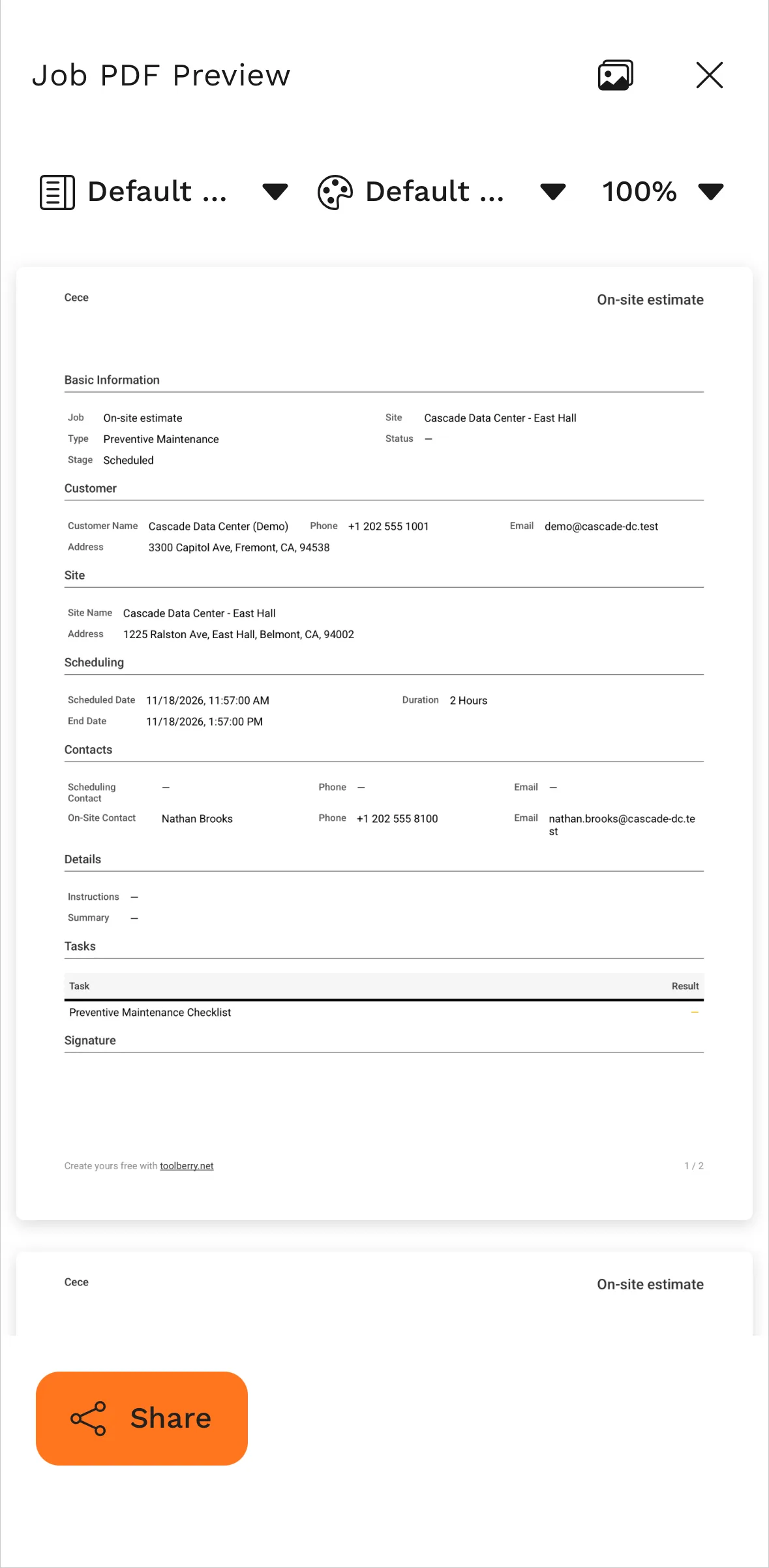
- The Job PDF Preview opens. It shows the job info, customer, site, schedule, contacts, instructions and summary, the checklist with each result, and a space for the customer's signature.
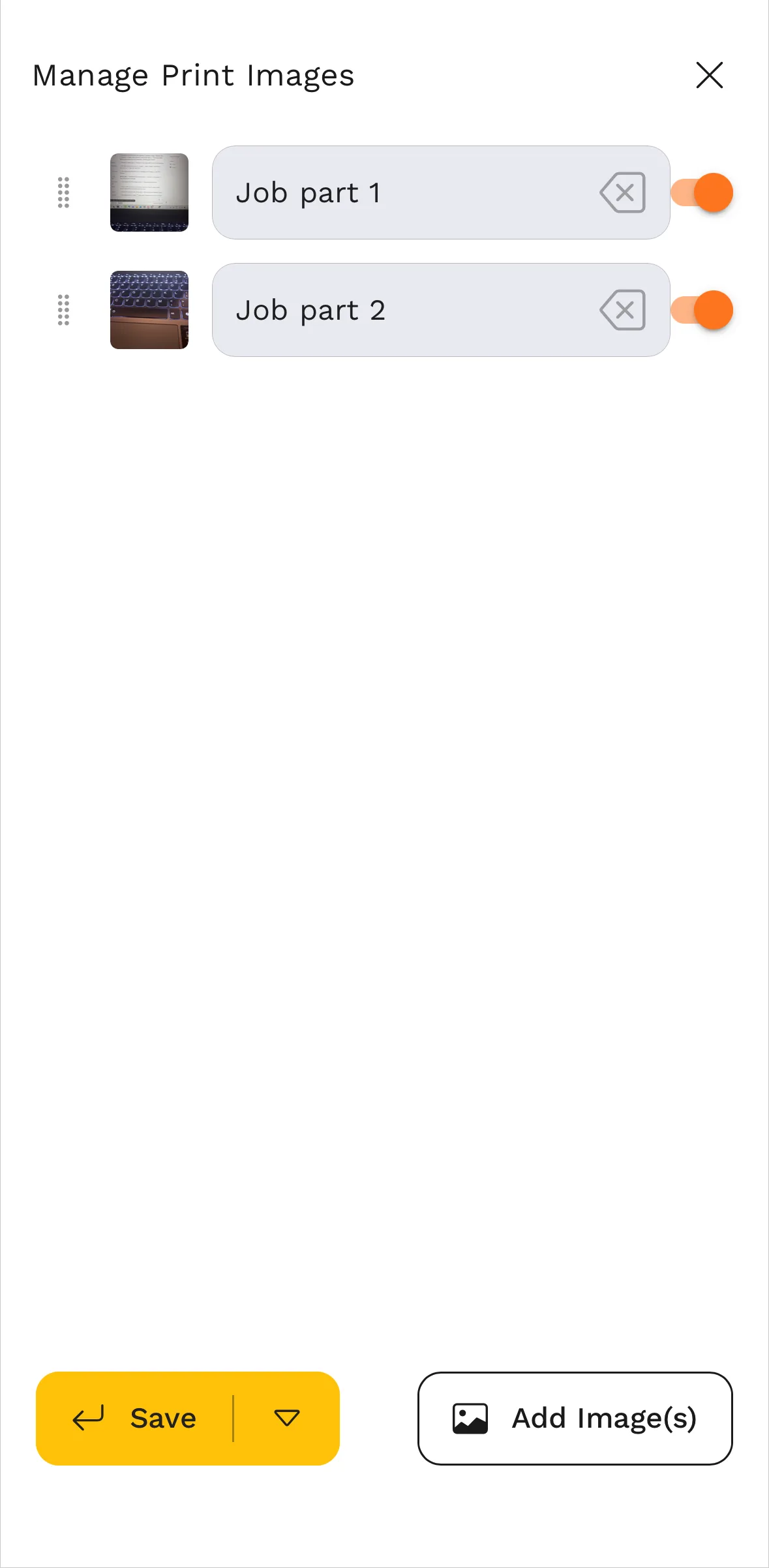
- To choose which photos go on the report, tap the 🖼️ icon at the top right of the preview. Turn each photo on or off, give it a caption, drag to reorder, or tap Add Image(s). Tap Save. The photos show on the report under Photos.
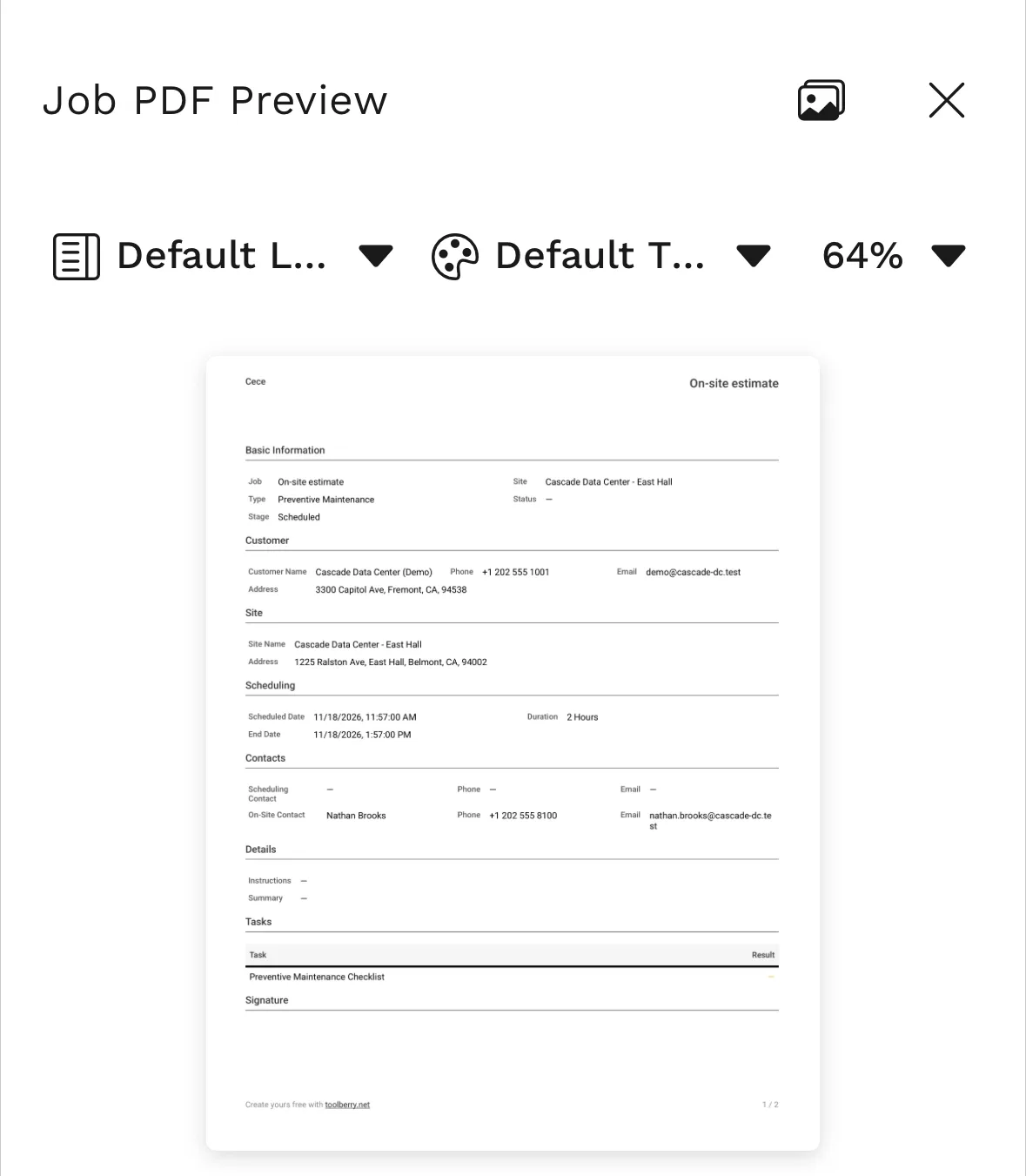
- Use Layout and Template to change what shows and how it looks, or pick Customize Layout / Customize Template to make your own.
- Tap Download (on a phone, Share) to send, save or print it.
Good to know
- When you tap Complete, you can get a customer Signature and must add a Summary. The PDF report opens right after, and a copy is saved in the job's Attachments, ready to send again later.
- Use Show on Print on a checklist task to hide it from the report or always show it.
- PDFs work offline and are free.
- Every report has a small "Create yours free with toolberry.net" line at the bottom, on Free and Pro.
- To send it, tap Download or Share and send the file yourself.