
Description
Check a tool or piece of equipment out to a crew member, check it back in when it's returned, and see the full history of who had it.
Before you start
Go to Settings → Modules and make sure Assets, Assignments and Personnel are turned on. If they're off, you won't see the Assign button on your tools.
How to use it
- Go to Assets and open the tool. It needs to be in the Tool / Equipment category.
- Tap Assign (the 👤+ button) at the top. On a phone, tap ⋮ → Assign.
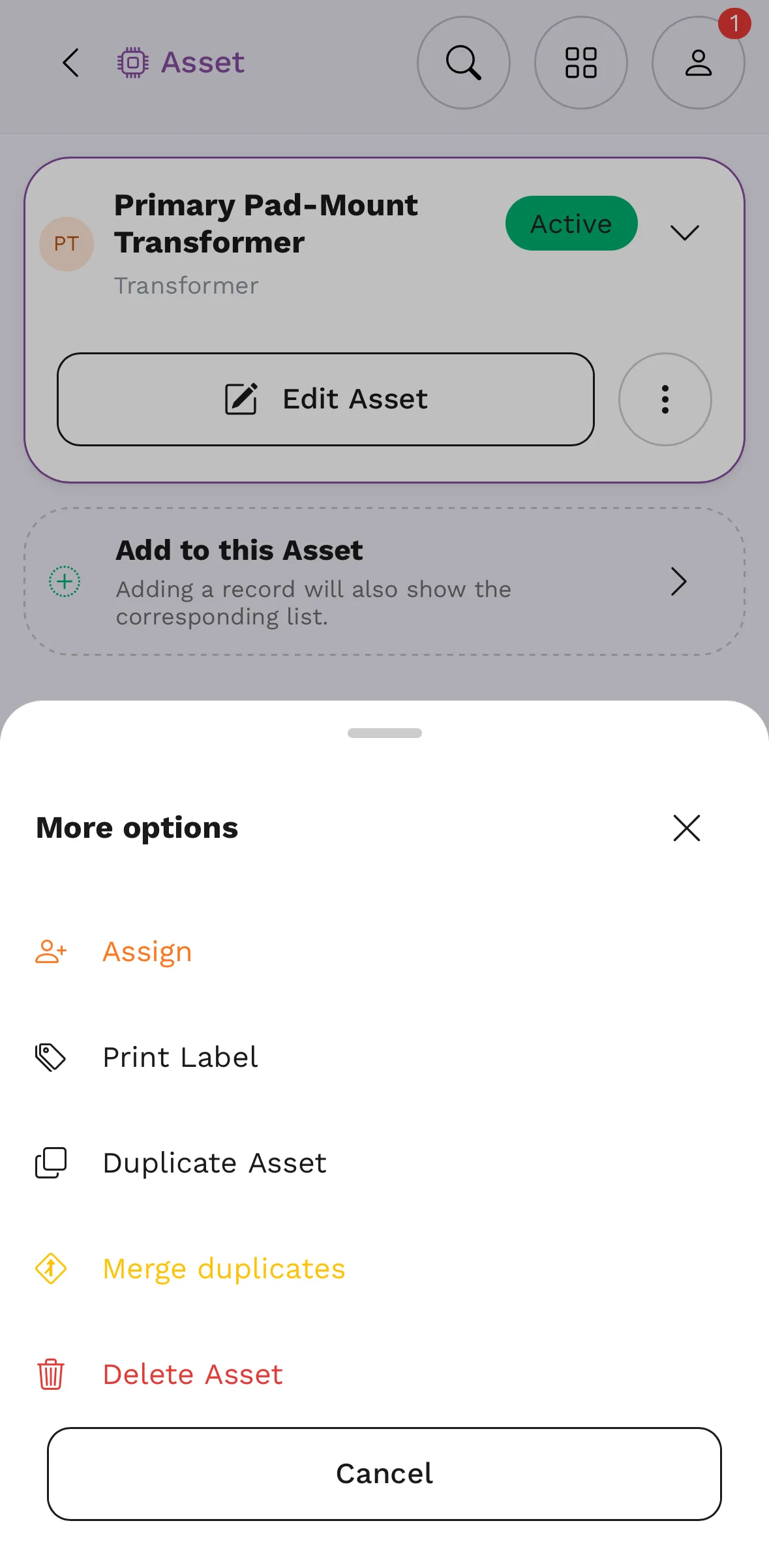
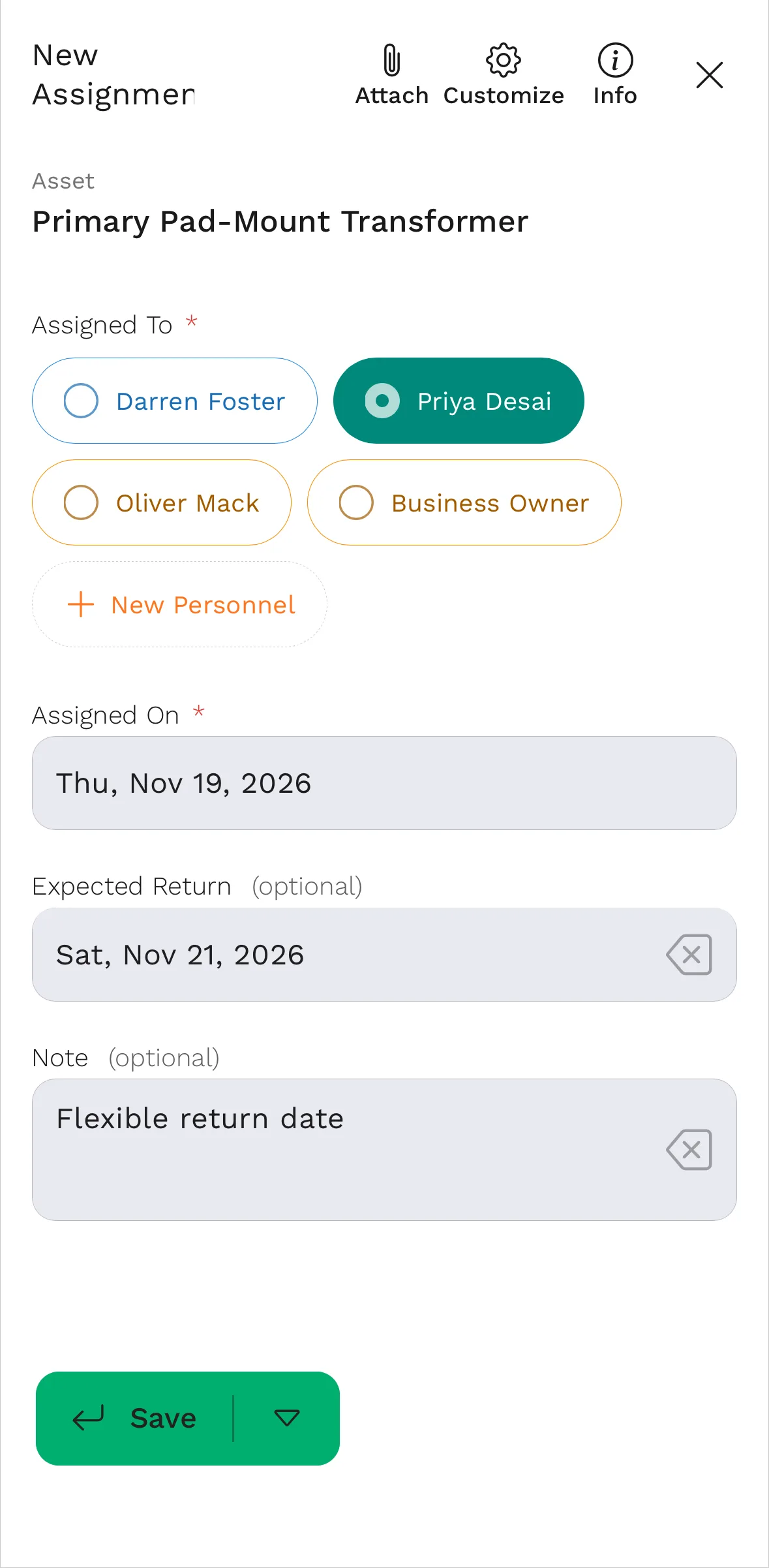
- Pick who's taking it under Assigned To.
- Set the Assigned On date and, if you want, an Expected Return date and a Note.
- Tap Save & Return. The tool now shows as Out with that person.
- When it comes back, open the tool and tap Return (it replaces the Assign button while the tool is out). The assignment changes to Returned, with both dates.
Good to know
- See everything that's checked out in Assignments in the side menu. The top shows how many are out right now.
- Each tool keeps its history of who had it and when, in the Assignments card on the tool's page.
- Only Tool / Equipment assets can go to a person. Units (things you install and service at a customer, like an AC unit) and inventory work differently.
- When equipment goes out on a rental, it's checked out to the customer instead. See the Rentals article.
- Don't need it? Tap Disable Assignments on the empty Assignments page.
- On Pro, check-outs show up for your whole crew in seconds.